Partner information card
Partner information card
The partner's information card consists of the following sections:
- Basic data
- Other data
- For bookkeeping
- Other
- Attachment(s)
- Sales
- How to find double partners?
- Merger of Double Partners
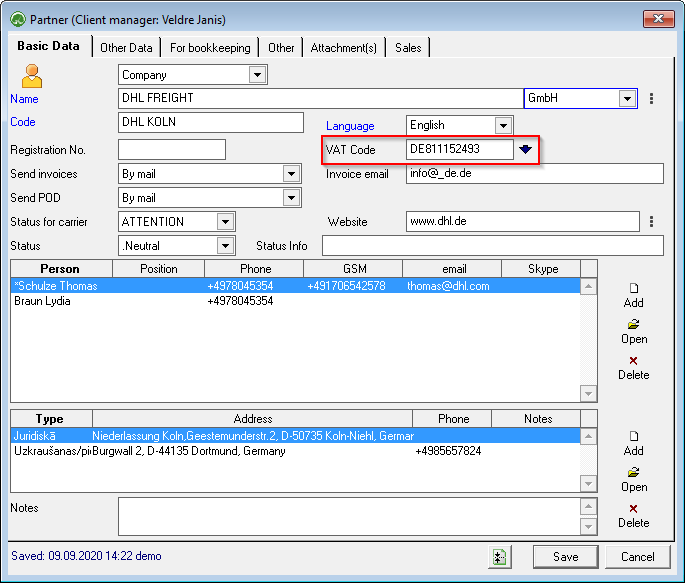
1. Basic data
For European Union companies, we recommend that you start filling in the VAT code first, and then click on the blue arrow  after the VAT code field to fill in the company name, legal address and company phone number from the EU VAT register
Important! The legal form of the company (e.g. SIA or GmbH) is in a separate field to limit the formation of duplicate partner entries and to make it easier to search for partners
Language of communication : Language in which OZOLZ TMS will automatically generate documents for correspondence with the Partner (Client order, Transport order, Invoice, Payment reminders, etc.)
There are 3 phone numbers in the partner's basic data : 1) General company's phone number 2) Contact person's phone number 3) Loading or delivery address phone number
Carrier or Customer status: Partner has 6 statuses: 1) Deleted and Do Not Cooperate - the software will not allow to add Customer orders and Transport orders; 2) Poor paying - when adding a Customer order the software warns the user 3) Neutral - default 4) Good paying; 5) Very good
Notes: Specific informationThis mustfield can be writtenused into theenter fieldspecific information in free text,text whichthat mustneeds to be taken into account when processing thean order or issuinginvoicing. an invoice. If the partner has filledinformation in the notesthis field, the programsoftware will warnalert about thisit with an exclamation mark,mark in the customer's orderorder.
Contact persons: The Partner'sAdd contactshere arethe addedcontact here,persons of the Partner with whom thereyou iscommunicate communicationregarding aboutthe orderexecution fulfillment. of orders. This information makes it easier to register orders and send emails.
Address: Partners must have the Legal address and postal address attached if they are different. Delivery and loading addresses added during cooperation will be automatically included in this section of the Partner card.
When entering an address, we recommend that you search for it and check it on Google Maps. To do this, press the magnifying glass  button before the street field in the Address form
2. Other data and Billing configuration

Bank accounts: Bank accounts added here, which can be selected when entering supplier invoices, then imported and paid via internet banking when paying
Partner groups: Mark here the groups to which the partner belongs. If necessary, you can add Partner groups: CRM (Partners) > Lists > Partner groups
Carrier's price per 1km: When entering the carrier's price per 1km, the program itself calculates the freight price if the kilometers traveled in the Voyage/Expedition are filled in
CMR insurance: CMR insurance term can be set in 2 ways. 1) One CMR insurance end date is set for the carrier, if the carrier insures all its cars. 2) CMR insurance is entered for each machine separately, if the carrier does not insure all its machines with one insurance policy.
CMR insurance control: performed before saving the voyage/expedition or in the report Freight > Reports > Expiration
Default Currency: is the default payment currency for the customer's order
Total credit limit: If the customer has specified a credit limit and it has been exceeded, the program can be configured so that before saving the Customer's order, the program warns that the credit limit has been exceeded or prohibits the entry of the Customer's order
Credit limit for overdue invoices: If this limit is exceeded, Ozols will not allow accepting a new order from the customer
Fuel surcharge
Cooperation agreement number: If the field is filled, it will be displayed in the printout of the Customer's order
Prohibit acceptance of a customer's order if the payment is overdue by more than ... days: This function does exactly what it says
Default company - See Working with multiple companies
Customer Payment Due Date: is the default invoice payment due date for customers
Due date for incoming invoices: This information helps you track the payment of incoming invoices
Cash discount for the customer
Cash discount for incoming invoices
Bank account group: If your company has several bank accounts, here is an opportunity to specify which account to present to the client on the invoice.
Appearance of the order in the invoice: In this section it is possible to configure the Order information included in the invoice
Appearance of the address in the invoice: not to show or to show and if to show, then what to show
Appearance of cargo volume in the invoice: not to show or to show and if to show, what to show
Features that can be turned on and off:
- Do not show
acc.datadate of delivery in theprintout of the invoice.invoice - Do not show the sender and recipient on the invoice
- Do not show base currency in currency invoices
- Do not group Multibooking services in the
invoiceinvoice - Print orders in the invoice attachment
- Print
invoicesorders with a signaturearea:dependingIfontheconfiguration:
1.configuration indicates that aWith scanned manager's signaturewith aand companysealstamp
2.isAprinted on the invoices or there is a linetext "The invoice is prepared electronically and it is valid without a signature",
3.thenOrderby ticking the "Print invoicesprinted withaspacesignature" checkbox, there will befor afree space in the invoice for the manager'ssignaturewithandthestampcompanytosealput later manually. - Lock data entry
- Print the order without a scanned signature
- The customer issues the invoices himself (self-billing)
- Add debt/overdraft to the current
invoice.invoice
3. Other conditions

Used trailerTrailer types: Transport typesFreight forwarding can be added in the list: Freight transport > Lists > TransportVhiecle types
Document deadlines: this list includes various carrier and driver deadlines, it is possible to add deadlines. You can add term types in the list: Freight > Lists > Term types
Examples of term types: Driver's license, driver's code 95, driver's medical certificate, driver's professional doctor's certificate, driver's travel insurance, driver's Passport, or ID card
Shipping payment terms: If the Partner is a Carrier on the basis of the contract, in this section it is possible to configure the terms of cooperation.
4. Attached files

In the attached files section, you can add add various files to the the Partner card card . For example, you can add ADR permit, CMR insurance policy, certificates, etc. files to the carrier
If, for example, you have added an ADR permit or CMR insurance to the carrier, then when preparing the Customer's order, you can easily add these documents and send them to the customer.
5. Sale

In this section it is possible to:
- Add
Clientmain Manager for Client - Add two cargo managers
- Specify cargo directions
- Take notes related to the sale
- Send an e-mail to the Partner
- New Activity (CRM) - an easy-to-use customer relationship management system
- New price offer
- Plan the number of orders
6. How to find double partners?
1. Group data by Name or VAT number. How to do it, see: Data grouping
2. If the name of the company is entered twice, then the "Number" column will be greater than 1. Place the mouse cursor on the entry and in the list on the left you will see companies with the same names
3. Sort the data in the list by left and check companies for similar names

7. Merger of double partners
It is not uncommon for the same company to be entered multiple times. In such a case, the Merger of Partners must be performed.
To combine the data of two companies into one:
1. Both companies must enterhave the same VAT number. This condition is created for security reasons.
2. In the list: CRM (Partners) > Lists > Partners, select Partners to be deleted and press the Del key or open the partner's card and press the command button "Merge partners with deletion"  (it is the command button to the left of the Save command button)

3. Mark the companies to be merged
4. Press the command button "Replace and delete"
