Main window layout and commands
Browser
The Operation Mode Browser is displayed on the left side of the screen and is used to display the available working modes. The layout of the working modes is similar to the main menu.
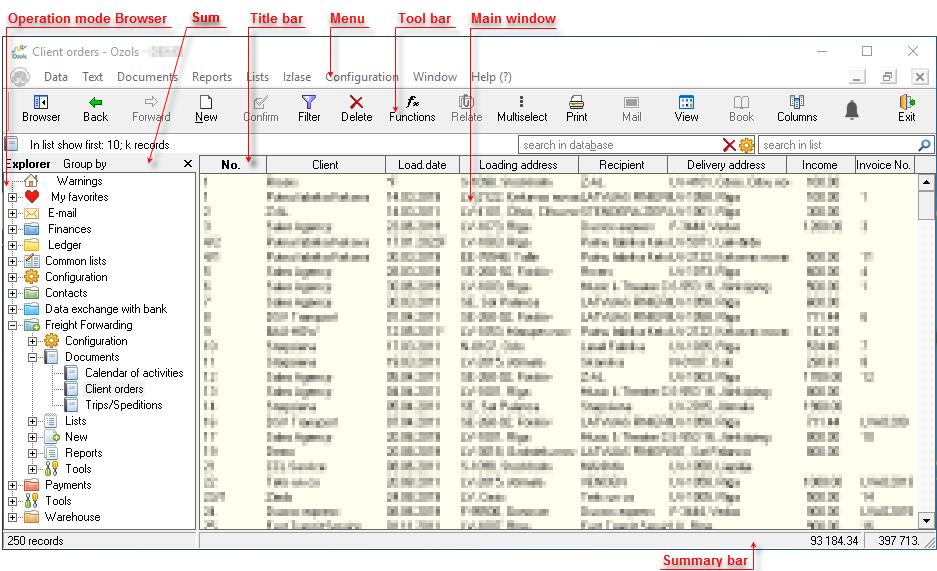
The operating modes are displayed hierarchically in the browser. To activate the required action, you must click on the entry to open the lowest level operating modes. For example, by clicking on the Customer Orders command, the Customer Orders overview opens on the right side in the Main Window. To open the next required operating mode, click on it in the browser and the specified operating mode will open in the Main Window.
You can hide or show the browser using toolbar commands  or the
  button.
Main menu
Activation of all program activities is available in the main menu. The main menu is available for the entire duration of the computer program. Using the main menu is similar to using Windows programs.
The operating modes in the program are grouped under the menus Data, Text, Documents, Reports, Lists, Favorites, Configuration, Window, Help. All the samethese operating modes can also be found using the Browser.
The most commonly used main menu commands are also available from the toolbar of your computer program.
Toolbar
The toolbar is a graphical layout of command buttons that allows you to perform the required action faster and more clearly.

Distinguishes between active and inactive command buttons in the toolbar. Inactive icons are dimmed and cannot be activated in the current screen shape.
If the toolbar is not visible , it can be set from the menu using the the MEOak commandNU ‣Configuration ‣ ToolbarsToolbar ‣ Commands
The toolbar can be configuredconfigured. usingPlace the Mainmouse menu command Oak ‣ Configuration ‣ Settings ‣ Custom ‣ Customizeover the toolbarToolbar. Click on the right button and select Customize Toolbar.