4) Signature with stamp on orders and invoices
A scanned stamp with signature is most commonly used for Customer Orders, Transport Orders, Payment cancellation acts and Reconciliation acts
To add a signature with a stamp in OZOLS TMS, it must be scanned and saved in .png format. The maximum height of this image must not exceed 135px. To do this, please follow the instructions below:
- 1) Stamp and sign a white sheet of paper. The size of the signature must not exceed the bottom and top edges of the stamp. (see light blue field in sample image below).
- 2) Scan the page as a JPG image and save it in your computer.

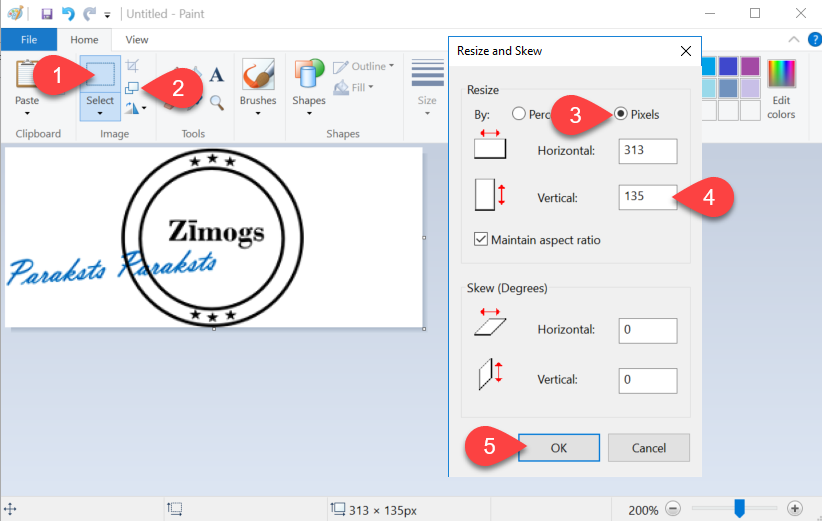
- 3) Open the document in Paint (see image below ). Resize ① and make the image as vertically narrow as possible, including the signature and the stamp
- 4) Using the Resize and Skew function ②, resize the image vertically to 135 Pixels ③ ④.
- 5) Save the created image to your computer in PNG format.
Further steps have to be done in OZOLS TMS!
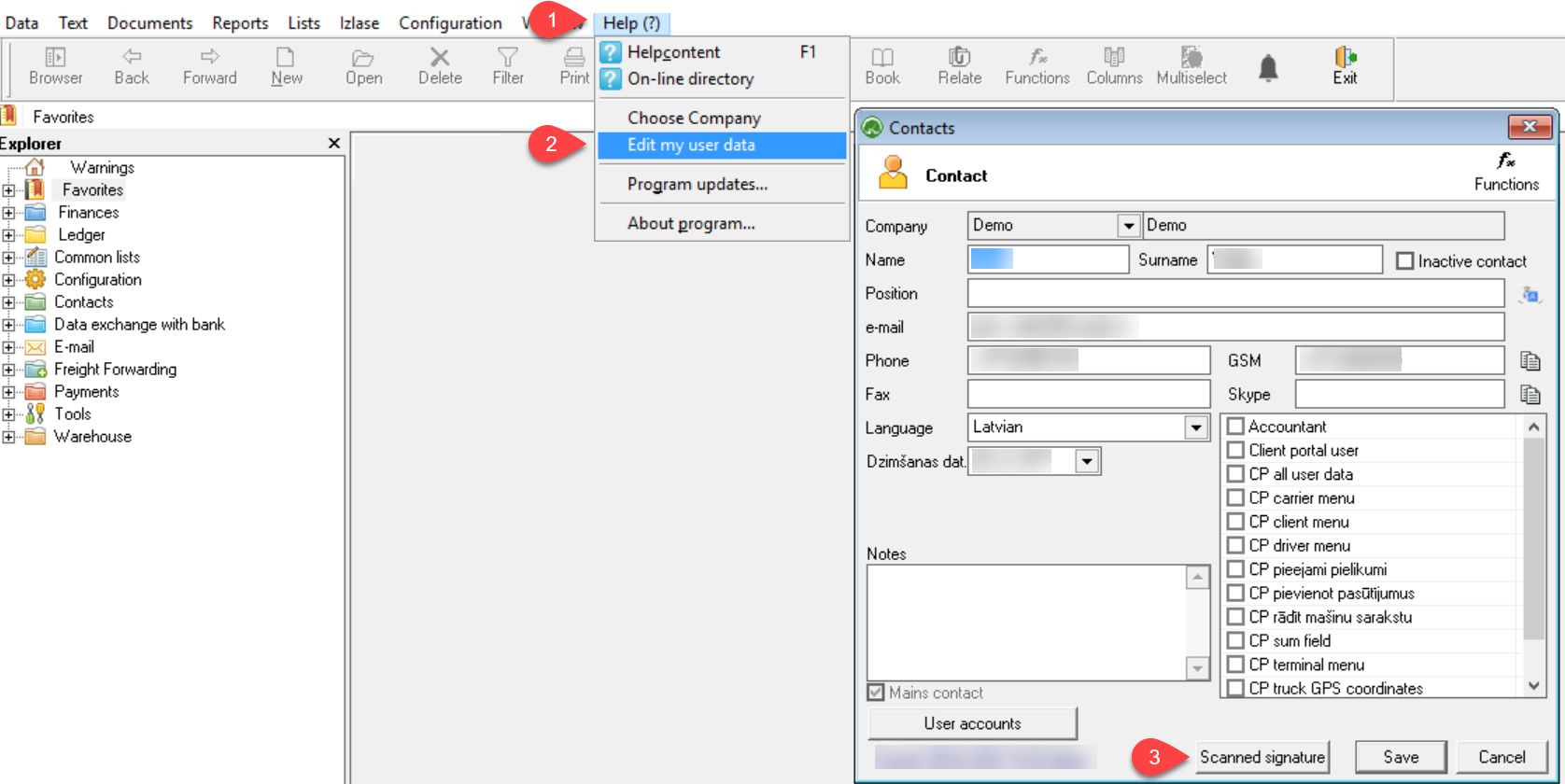
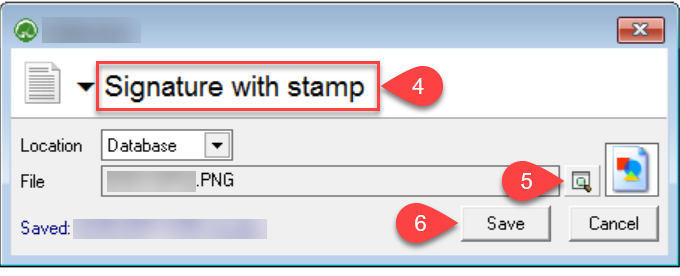
- 4) Select Signature with stamp
- 5) Click the search button and add previously scanned and prepared image (vertical size 135px).
- 6) Save
If you have questions regarding these instructions, please contact the OZOLS TMS Customer Support team: info@cloudex.lv or call +371-28-38-83-00