Office365: HOW TO GET TenantId, ClientId and ClientSecret
If you use Microsoft office 365 for email sending. Your company Microsoft admin need to get following settings from Azure AD Application
-
Directory (Tenant) ID
-
Application (Client) ID
-
Client Secret
These three values are required for integrating CLOUDEX TMS with Microsoft Graph using OAuth2.
1️⃣ Sign in to Azure Portal
Open:
https://portal.azure.comSign in with a Microsoft 365 Global Admin or Application Administrator account.
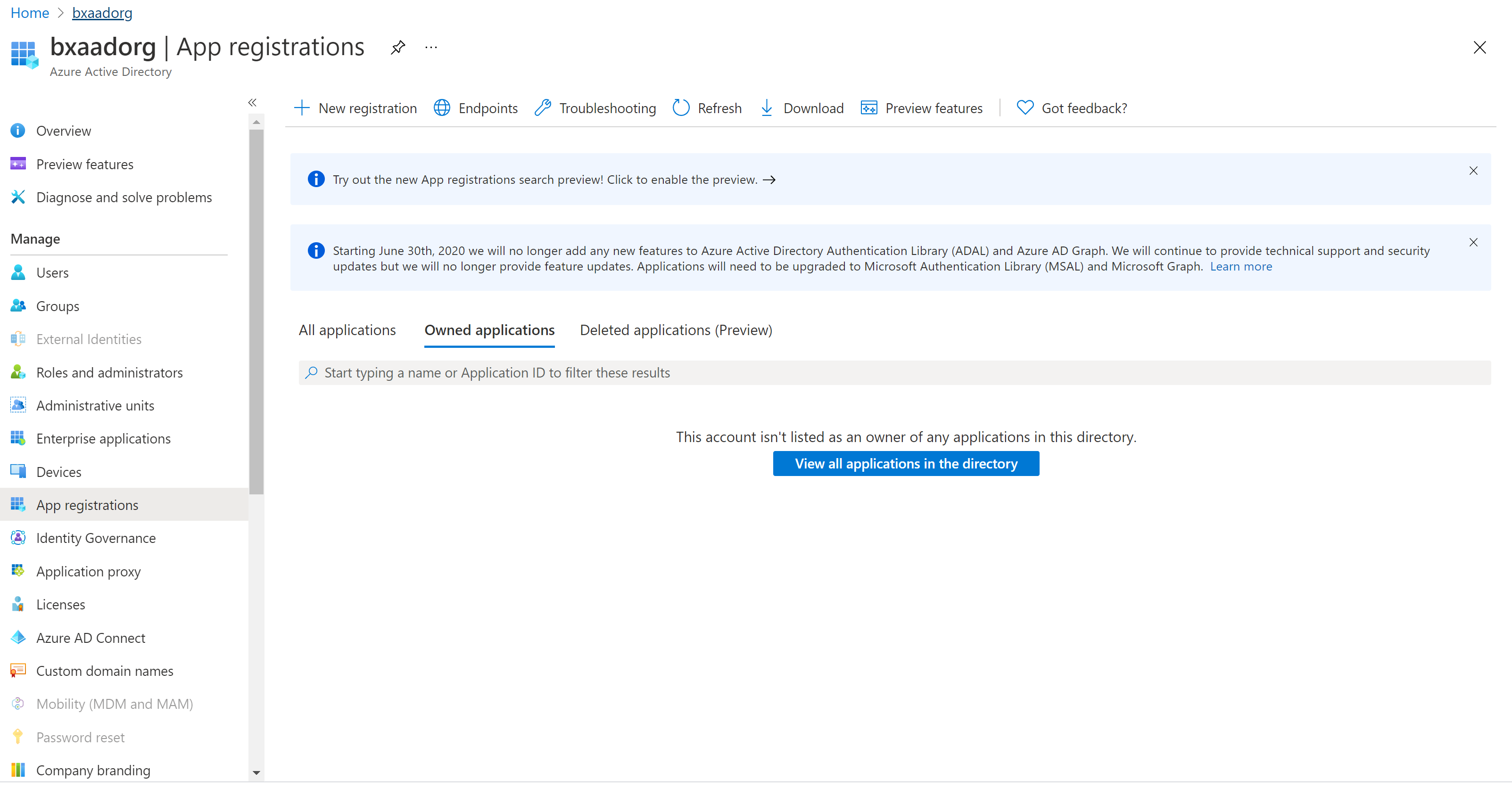
2️⃣ Open “Microsoft Entra ID” (Azure AD)
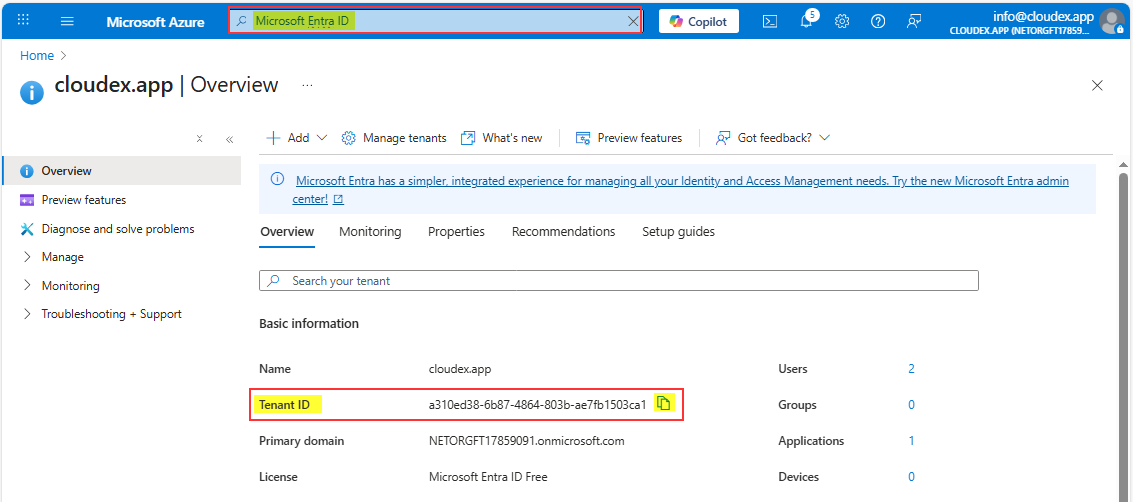
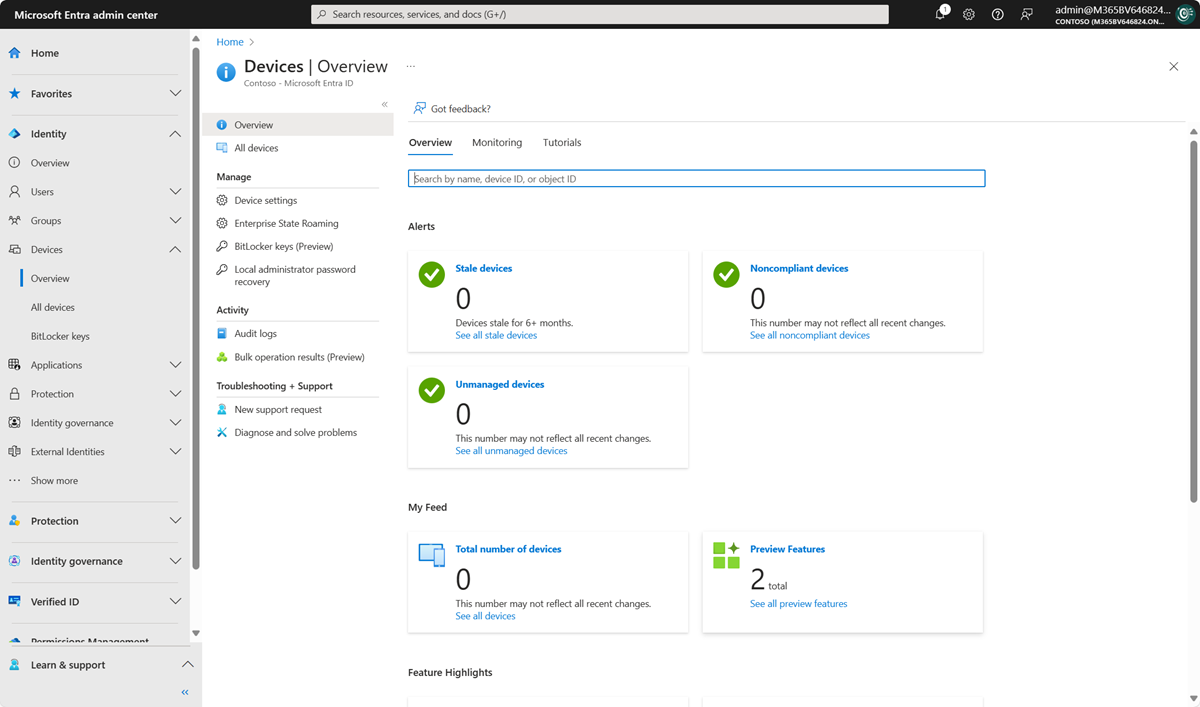
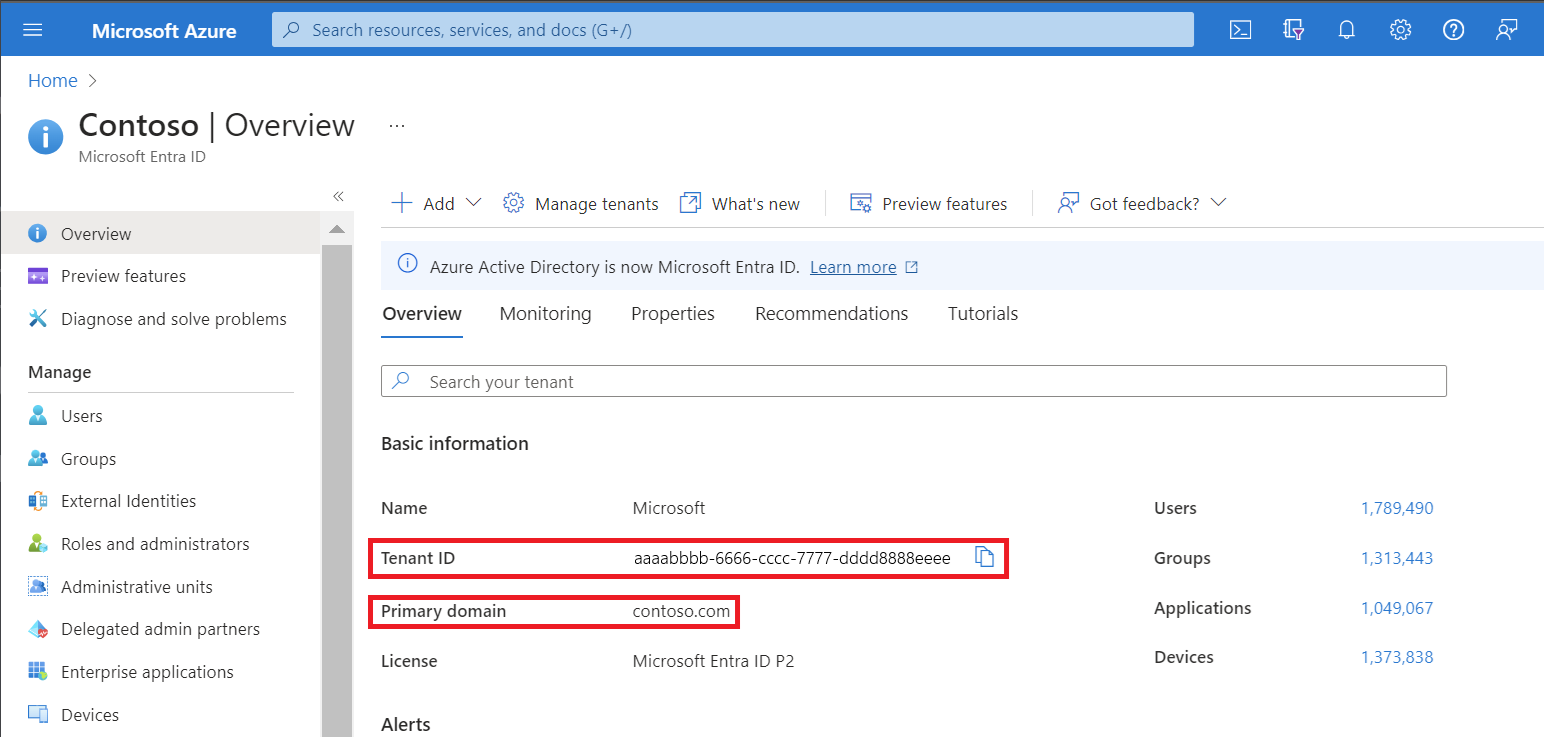
3️⃣ Create a new App Registration
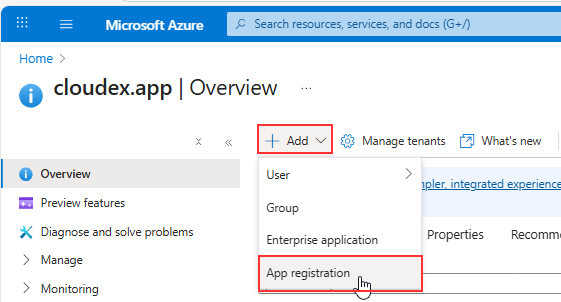
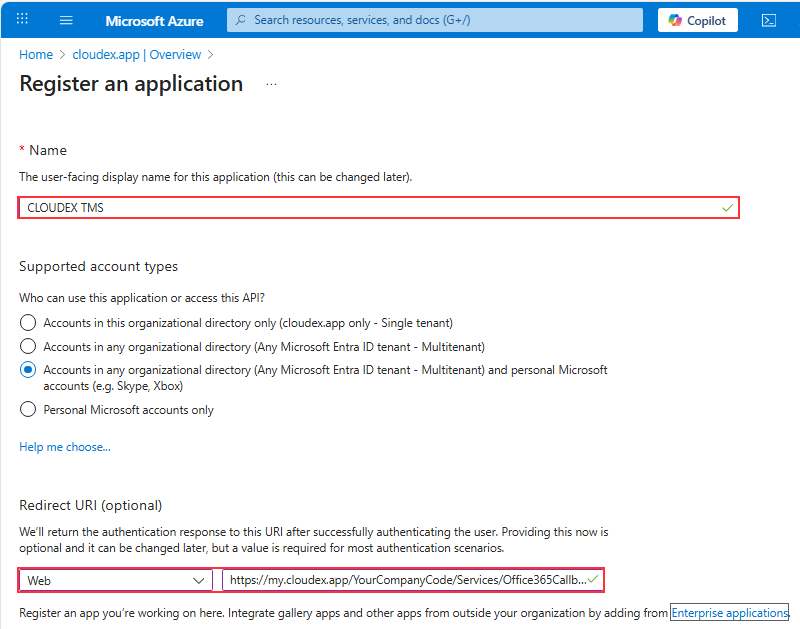
Fill the form:
| Field | Value |
|---|---|
| Name | CLOUDEX TMS Email Integration (or any name) |
| Supported account types | ✔️ Accounts in any organizational directory (multitenant) |
| Redirect URI | Select Web → Enter your redirect: https://my.cloudex.app/YourCompanyCode/Services/Office365Callback.aspxhttps://my.cloudex.app/office365/callback |
Click Register.
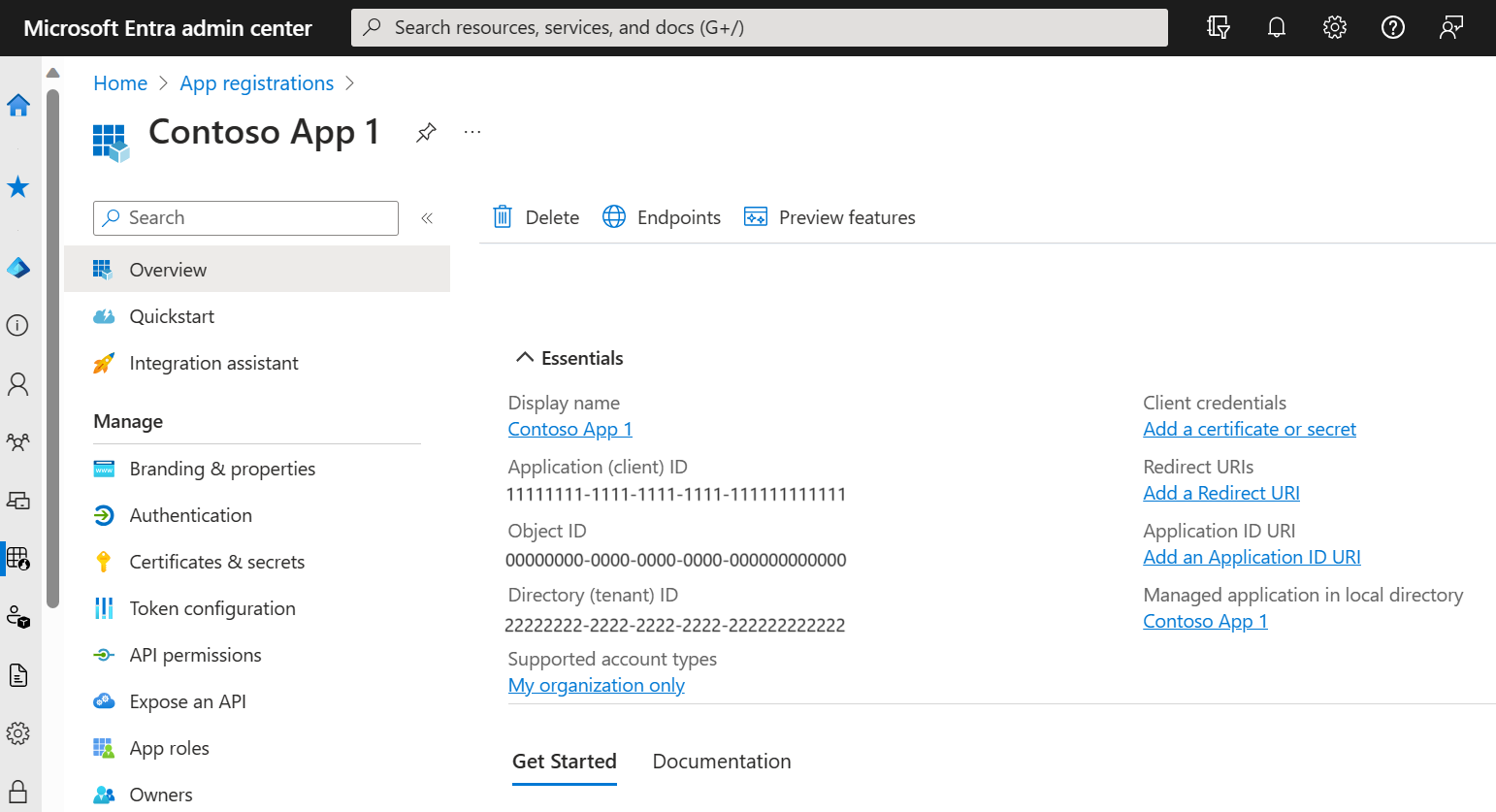
4️⃣ Get the Tenant ID and Client ID
After creation, you will be redirected to the app’s Overview page.
Here you will see:
✔ Directory (Tenant) ID
✔ Application (Client) ID
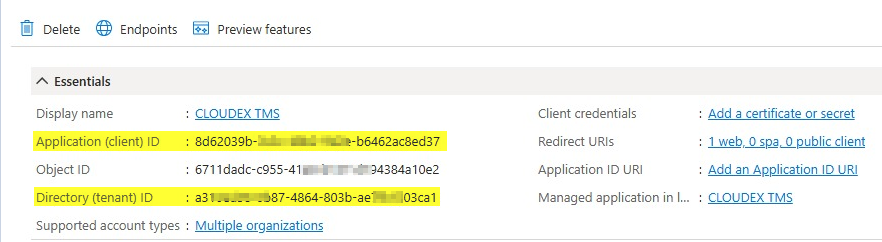
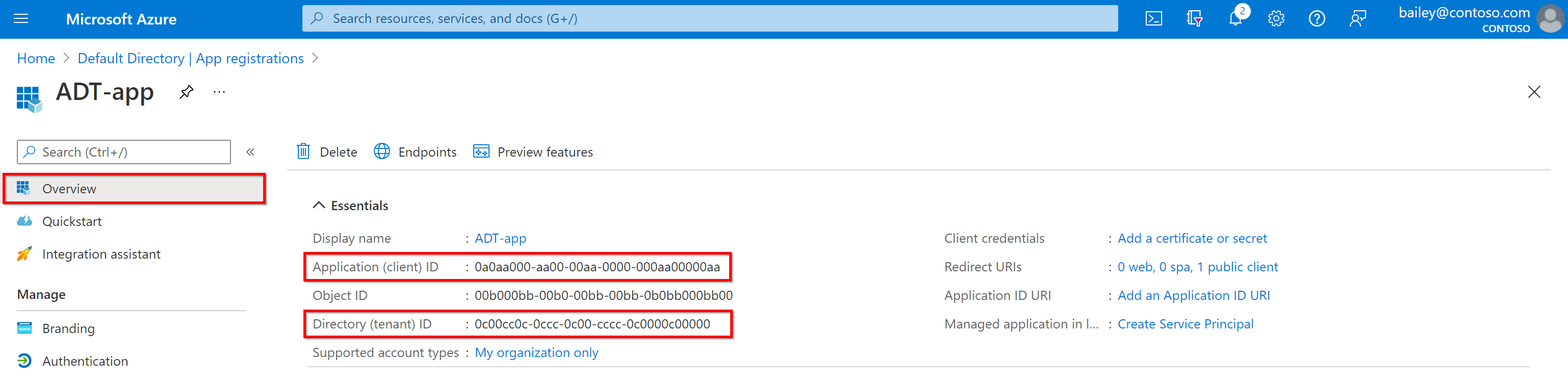
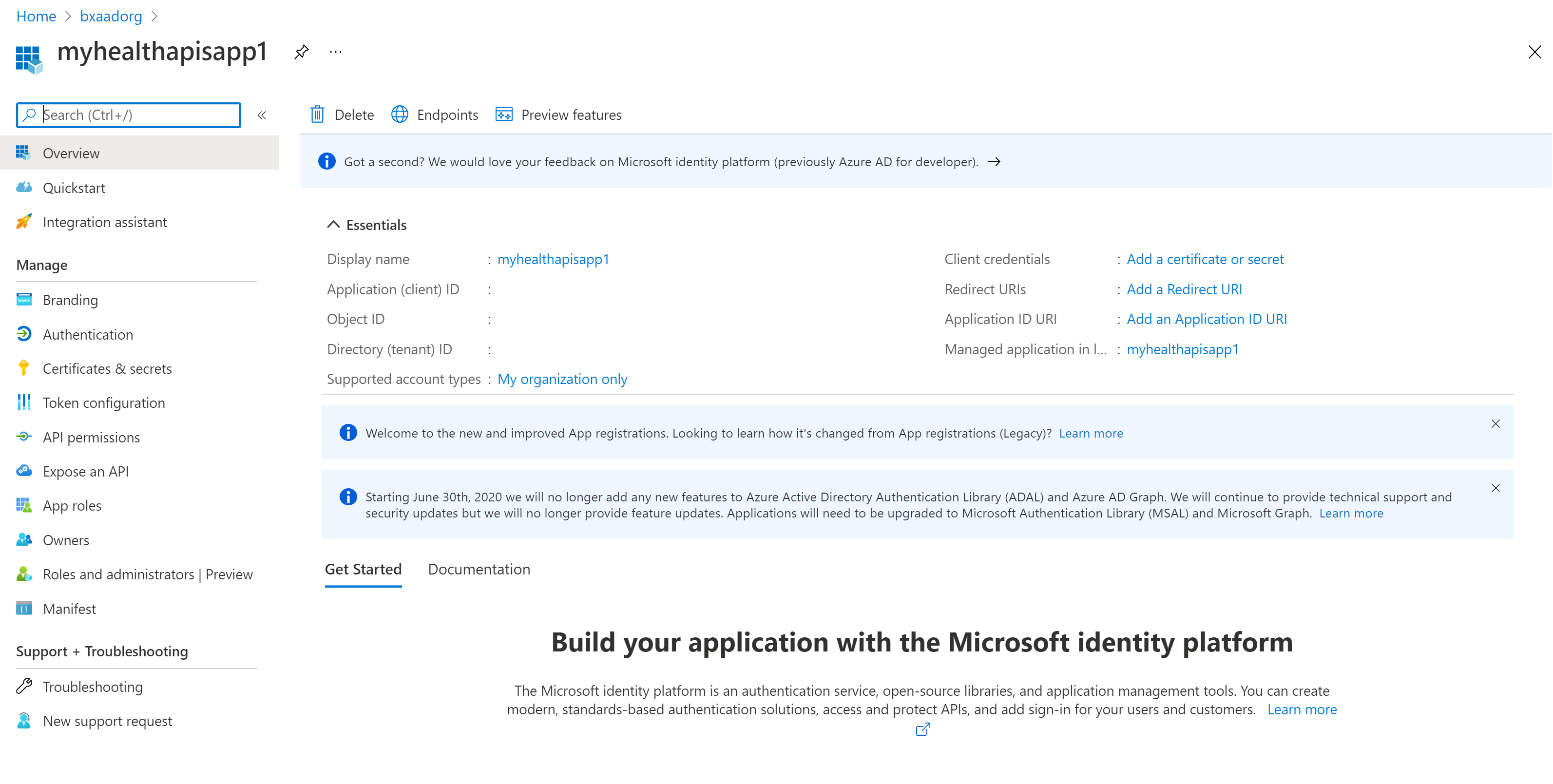
Copy them and save.
You already have 2/3 values.
5️⃣ Create Client Secret
-
Click New client secret
-
Enter a name:
CLOUDEX Secret -
Choose expiration:
-
6 months (not recommended)
-
12 months
-
24 months (recommended)
-
Or “Custom”
-
-
Click Add

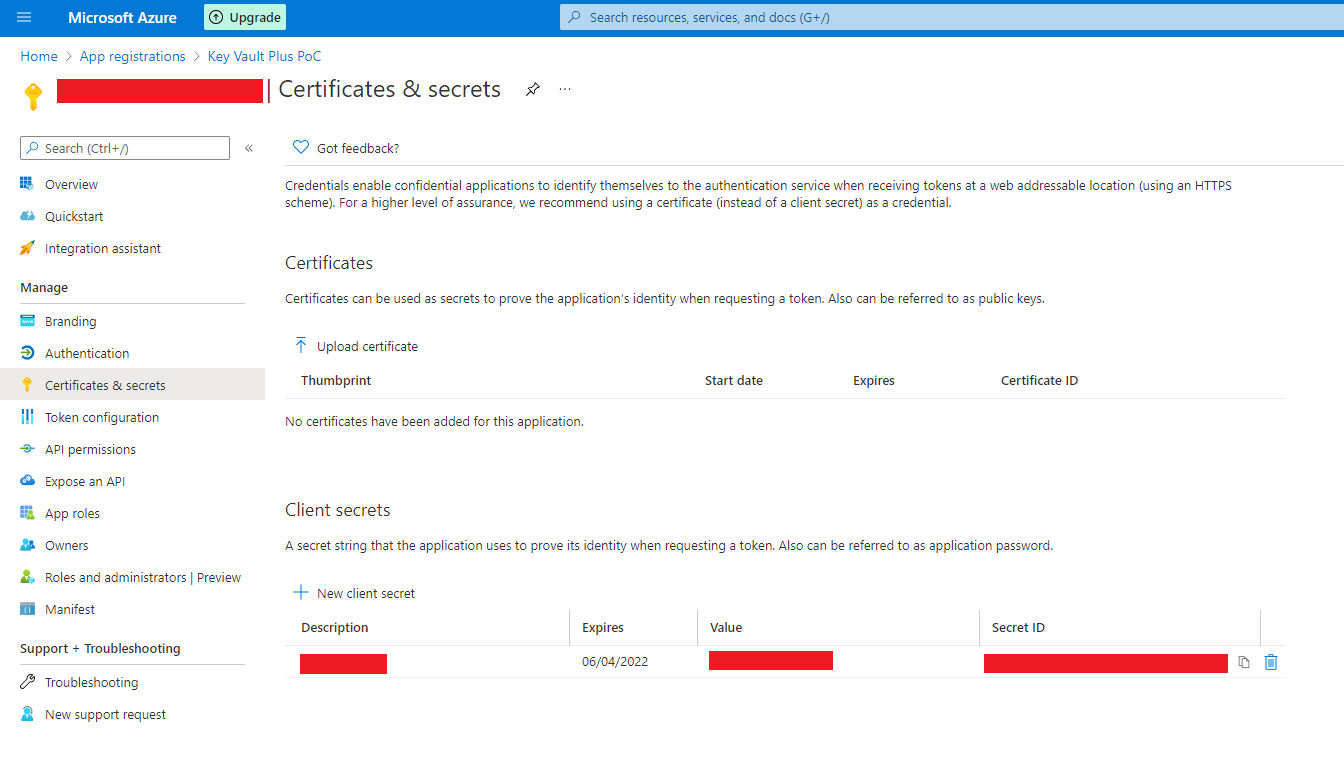
IMPORTANT ⚠️
Copy the Client Secret VALUE immediately.
You will never be able to see it again later.
Store it securely (Azure Key Vault, password manager, etc).
Now you have:
-
ClientId
-
TenantId
-
ClientSecret
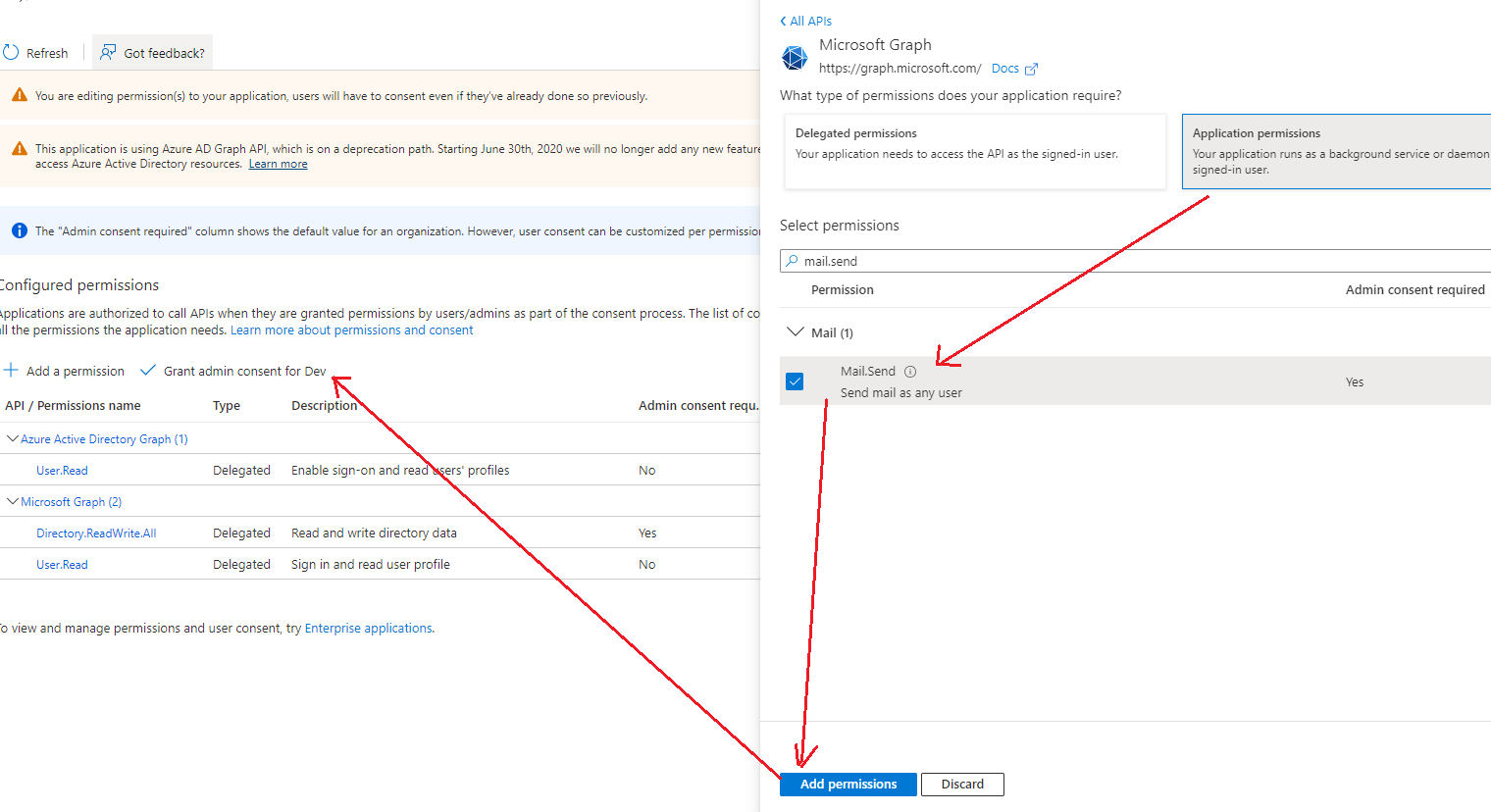
6️⃣ Add Required API Permissions
Click:
-
Add a permission
-
Microsoft Graph
-
Delegated permissions
Search + select:
✔ Mail.Send
✔ User.Read
✔ offline_access
Then click Add permissions.
Then click Grant admin consent.

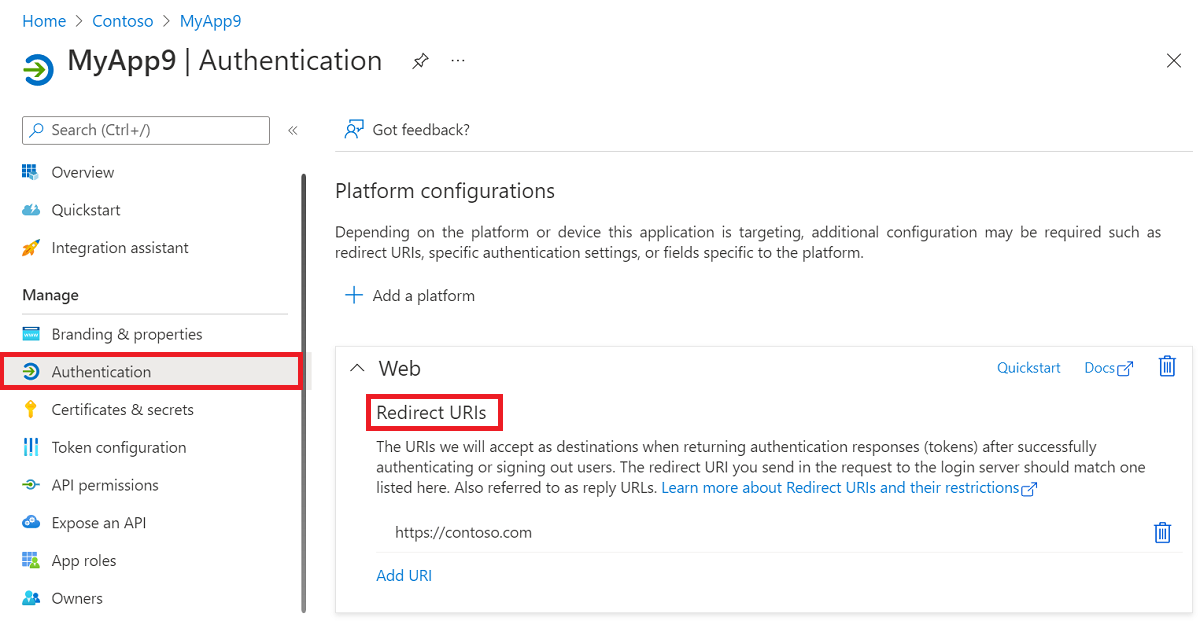
7️⃣ Final Check: Authentication Settings
Ensure:
✔ Your redirect URI is correct
✔ “Allow public client flows” is OFF
✔ “Access tokens” and “ID tokens” are ON

🎉 DONE — Values ready to use
You now have everything:
| Parameter | Where to find it |
|---|---|
| TenantId | App → Overview → Directory (tenant) ID |
| ClientId | App → Overview → Application (client) ID |
| ClientSecret | App → Certificates & Secrets → Value |