Microsoft email configuration
📧 SMTP + Microsoft 365 · CLOUDEX TMS
How to Configure Microsoft 365 SMTP for CLOUDEX TMS
Follow this guide to allow CLOUDEX TMS to send emails from your own Microsoft 365 mailbox and domain (for example info@yourcompany.com). This article covers the steps you need to complete in Microsoft 365.
ℹ️
Good to know: You only need to complete this setup once per sending mailbox. After that, you can enter the SMTP details in CLOUDEX TMS following the separate CLOUDEX instructions.
On this page
1. Choose a user mailbox
2. Enable “Authenticated SMTP” for the mailbox
Open the Microsoft 365 Admin Center: https://admin.microsoft.com
Steps to enable Authenticated SMTP
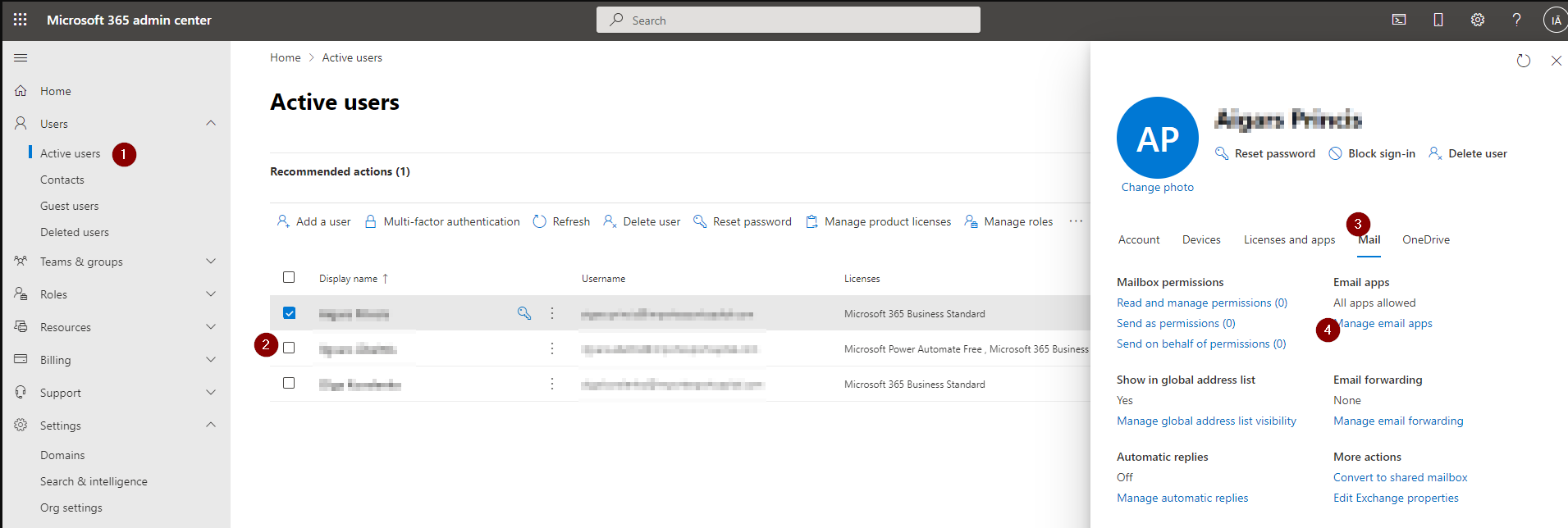
- In the left menu, click Users → Active users.
- Click on the user/mailbox you will use for CLOUDEX TMS.
- In the user details pane, go to the Mail tab.
- Click Manage email apps (or Email apps).
- In the list of email apps, find Authenticated SMTP and make sure the checkbox or toggle is ON / enabled.
- Click Save.
User → Mail → Manage email apps → enable “Authenticated SMTP”
⚠️
If Authenticated SMTP is disabled for this mailbox, CLOUDEX TMS will not be able to send emails using your Microsoft 365 account.
3. Create an app password (if MFA is enabled)
If Multi-Factor Authentication (MFA) is enabled for the mailbox you use (recommended), SMTP cannot use your normal password. In that case you must create a special app password and use it in CLOUDEX TMS.
🔐
If MFA is not enabled for this user, you can use the normal account password instead of an app password. However, using MFA + app password is more secure and recommended.
Steps to generate an app password
- Open: https://mysignins.microsoft.com/security-info
- Sign in using the same user whose mailbox you will use for CLOUDEX TMS (for example
no-reply@yourcompany.com). - On the “Security info” page, click Add sign-in method.
- Choose App password from the list and click Add.
- Give it a recognizable name, for example CLOUDEX TMS, and confirm.
- Microsoft will show you a one-time app password. Copy this value and store it securely. You will need to paste it in the SMTP settings inside CLOUDEX TMS.
Security info → Add sign-in method → choose “App password”
Copy the generated app password – this is what you will use in CLOUDEX TMS instead of the normal password.
❗
The app password is shown only once. If you lose it, you will need to create a new one. Do not share it with anyone outside your organization.
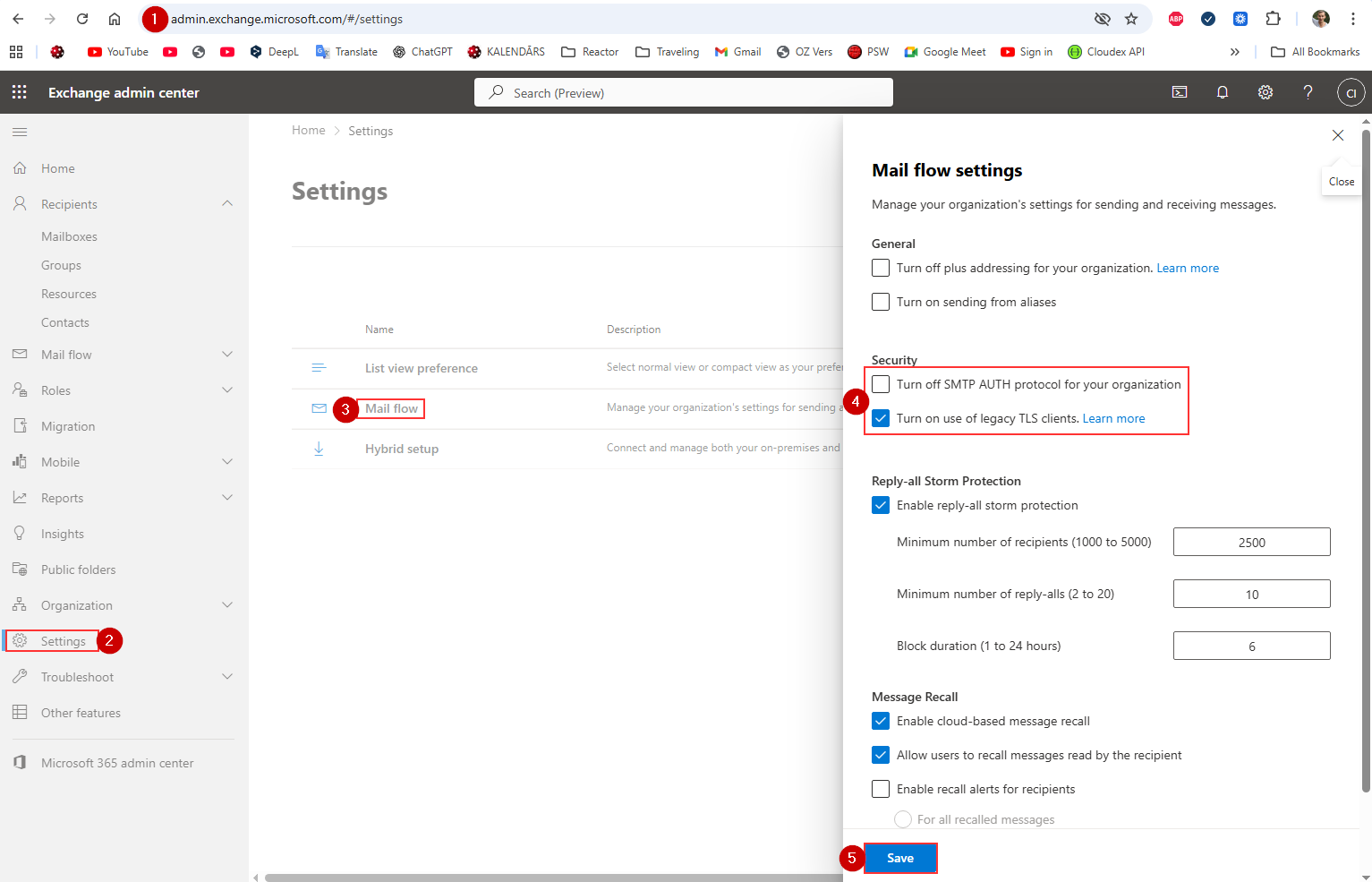
❗ What to do if “Authenticated SMTP” switch does NOT appear