How to work if you have access to several company data bases?
1. [Switching between companies](#bkmrk-1.-p%C4%81rsl%C4%93g%C5%A1an%C4%81s-star) 2. [Choose the company in the New Customer's order](#bkmrk-2.-uz%C5%86%C4%93muma-izv%C4%93le-j) 3. [Set the default company for the cooperation Partner](#bkmrk-4.-defin%C4%93t-noklus%C4%93to) 4. [Access shortcut to database of the other company](#bkmrk-3.-k%C4%81-izveidotam-pas) 5. [How to change the company for a created order?](#bkmrk-5.-k%C4%81-izveidotam-pas) 6. [How to change company for incoming invoice?](#bkmrk-5.-k%C4%81-ien%C4%81ko%C5%A1ajam-r%C4%93) 7. Working with separate databases of several companies #### 1. Switching between companies 1. Help 2. Choose company 3. Select desired company 4. If you check [](https://ozols.lv/doc/uploads/images/gallery/2022-08/image-1660144023381.png) the Consolidation, the data of all companies will be displayed together. If not, they will be separated! 5. If you check [](https://ozols.lv/doc/uploads/images/gallery/2022-08/image-1660144023381.png) the option to choose the company will be given when opening OZOLS TMS [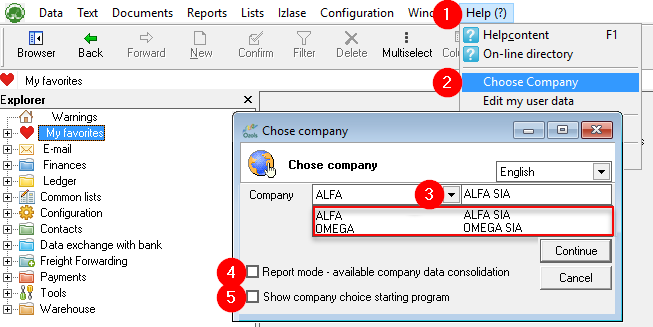](https://ozols.lv/doc/uploads/images/gallery/2022-09/image-1663836931651.png) #### 2. Choose the company in the New Customer's order [](https://ozols.lv/doc/uploads/images/gallery/2022-09/image-1663837231026.png) #### 3. Set the default company for the cooperation PartnerIt is possible for you to determine which of your companies to use by default in cooperation with the specific Partner.
1. Open **the Partner card**; 2. Open the **Other data** section; 3. Select **Default Company**.[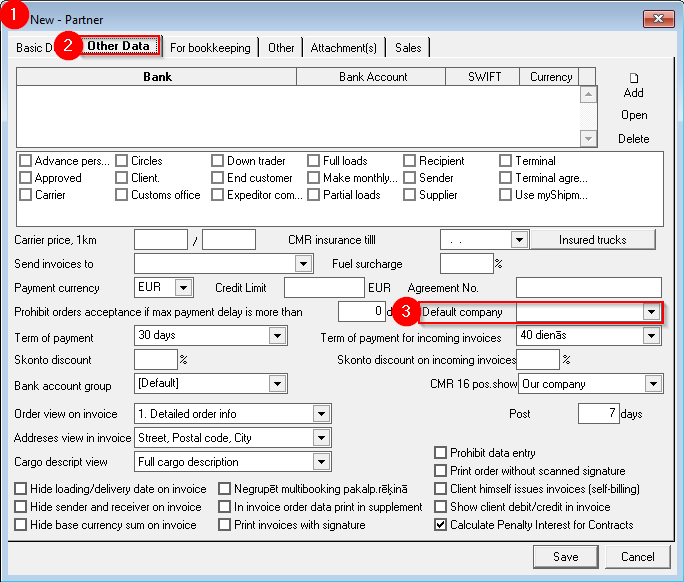](https://ozols.lv/doc/uploads/images/gallery/2022-09/image-1663838556445.png) #### 4. Access shortcut to database of the other company If you have two or more companies with separate OZOLS TMS access , it is possible to create a shortcut to each of these companies. Instructions can be found [here](https://doc-ozols-lv.translate.goog/books/ozols-desktop/page/piekluves-iscels-uz-otra-uznemuma-datu-bazi-ozols-tms?_x_tr_sl=lv&_x_tr_tl=en&_x_tr_hl=en&_x_tr_pto=wapp) . #### 5. How to change the company for a created order?If you have several companies available and you have entered the Customer's order and/or Trip/Expedition **to the wrong company**
1. Open **the Customer's order or Trip/Spedition** 2. Press **Shift +F4** 3. **Change** company 4. Click the **Edit button** 5. **!!!** Close **the Customer's order or Trip/Spedition by** pressing the **Cancel button !!! [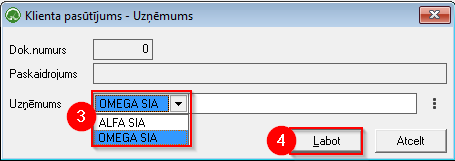](https://doc-ozols-lv.translate.goog/uploads/images/gallery/2022-08/image-1660547234177.png?_x_tr_sl=lv&_x_tr_tl=en&_x_tr_hl=en&_x_tr_pto=wapp) [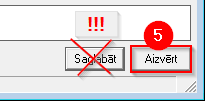](https://doc-ozols-lv.translate.goog/uploads/images/gallery/2022-08/image-1660546954868.png?_x_tr_sl=lv&_x_tr_tl=en&_x_tr_hl=en&_x_tr_pto=wapp)If the Invoice is also already issued from the wrong company, it must be deleted and a new Invoice created after correcting the company (shift+F4).
#### 6. How to change company for incoming invoice? 1. Open **the Customer's Incoming Invoice** 2. Press **Shift +F4** 3. **Change** company 4. Click the **Edit button** 5. **!!!** Close **the Incoming invoice by** pressing the **Close button!!!** [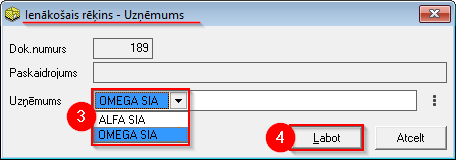](https://doc-ozols-lv.translate.goog/uploads/images/gallery/2022-08/image-1660547135664.png?_x_tr_sl=lv&_x_tr_tl=en&_x_tr_hl=en&_x_tr_pto=wapp) [](https://doc-ozols-lv.translate.goog/uploads/images/gallery/2022-08/image-1660546954868.png?_x_tr_sl=lv&_x_tr_tl=en&_x_tr_hl=en&_x_tr_pto=wapp)