If your company has several bank accounts, you can choose which one(s) to show on your outgoing invoices. You can set it in Partner's card.
To add new Bank account or make changes to existing ones, you have to contact OZOLST TMS support team.
#### There are 3 options: 1. [**Default**, when your company's **main bank account or accounts** are used for all Partners;](#bkmrk-2.-exceptional---alw) 2. [**Exceptional** , when Partner must **ALWAYS** have **specific bank account**;](#bkmrk-2.-exceptional---alw) 3. [**Variable , when Partner **SOMETIMES** needs **specific bank account**.](#bkmrk-da%C5%BDreiz-j%C4%81nor%C4%81da-cit) #### 1. Standard or Default account in invoices - This is your company's Bank Account Number, which is defined for all transactions by default. - Several bank account numbers may be included here and will appear on the invoice - If the transaction is in a different currency, e.g. USD, then Ozols will automatically include the account that works with USD. #### 2. Exceptional - ALWAYS specific Bank account for selected Partner **Ozols > Contacts > Lists > All Partners > Open the Partner card** 1. Choose the page **Other data;** 2. find ****Bank account group and select desired Bank account, that will be ****ALWAYS**** used for this Partner.**** [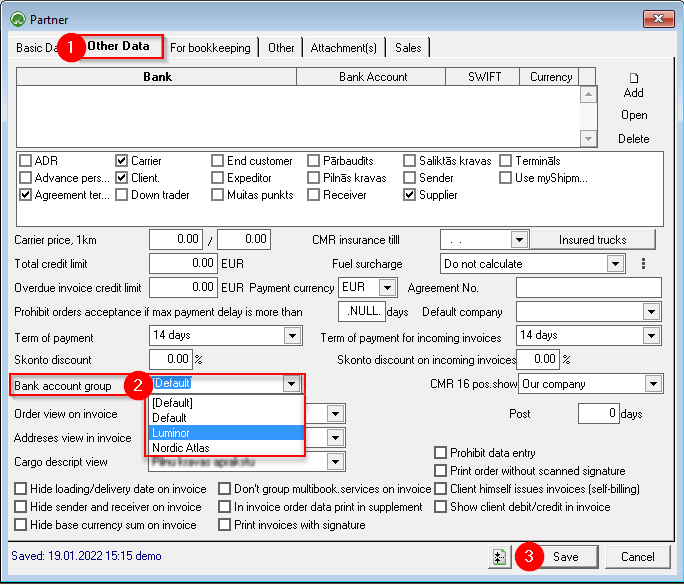](https://ozols.lv/doc/uploads/images/gallery/2022-09/image-1662553489809.png) #### 3. Variable - SOMETIMES a different bank account must be specified 1\) Open the outgoing invoice. For example: **OZOLS > Payments > Documents > Outgoing invoices > open invoice.** 2) If the invoice is closed, **cancel the confirmation** (1) 3\) Press the **Client** (2) and select **the Bank account** from the list (3) [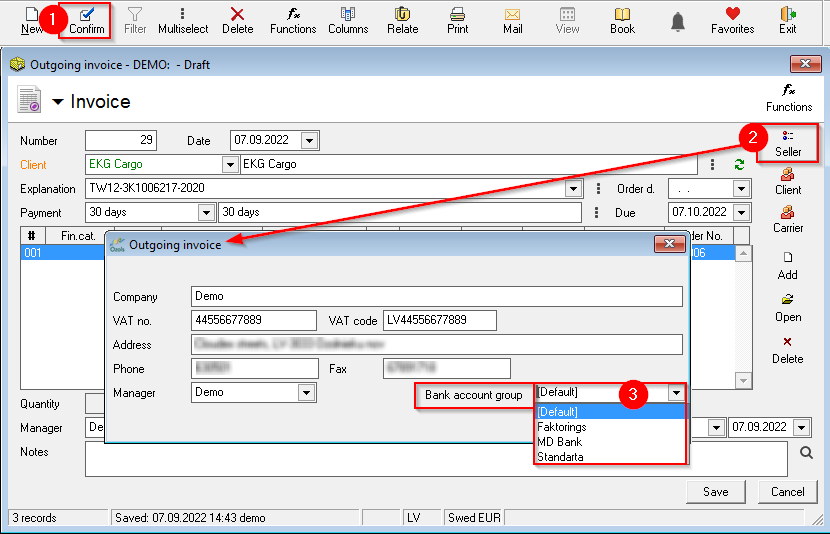](https://ozols.lv/doc/uploads/images/gallery/2022-09/image-1662553981153.png)