Incoming invoices registered in Ozola are paid by creating payment orders. We recommend exporting these payment tasks to an internet bank for fast bill payment.
There are various options for preparing bank payments, so we recommend OZOLS users to use the one that is convenient for them
#### 1. Many Bank payment orders for many incoming invoicesThe selected documents MAY be of different types (invoices, waybills), of different dates and from different Partners!
1. **OZOLS > Payments > Documents > Incoming invoices** 2. The [ ](https://doc-ozols-lv.translate.goog/uploads/images/gallery/2022-07/image-1658324999001.png?_x_tr_sl=lv&_x_tr_tl=en&_x_tr_hl=en&_x_tr_pto=wapp)**necessary incoming invoices are selected** with the help of the **Filter**[](https://doc-ozols-lv.translate.goog/uploads/images/gallery/2022-07/image-1658324999001.png?_x_tr_sl=lv&_x_tr_tl=en&_x_tr_hl=en&_x_tr_pto=wapp) For example: Show only unpaid invoices. 3. Mark which invoices to pay - Select **Multi select [](https://ozols.lv/doc/uploads/images/gallery/2022-06/image-1654595946120.png)(Ctrl+Y)** and, similar to Excel, holding the **Ctrl** or **Shift** keys with the mouse highlight the desired invoices. 4. Press Functions  5. Select: **create bank payment orders for marked invoices** 6. Selects the bank payment **date** 7. **Specifie the bank account** from which payments will be made 8. Press **Continue !!!** Prepared bank payments are available: **OZOLS** **‣ Finances ‣ Documents ‣ Bank expenses** [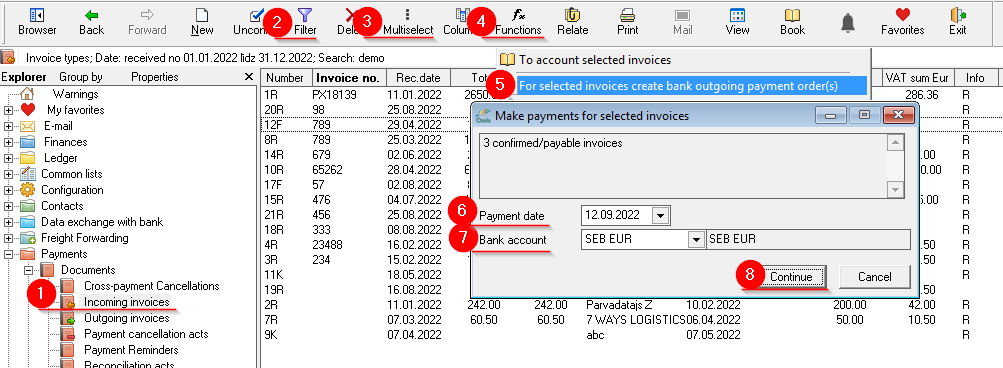](https://ozols.lv/doc/uploads/images/gallery/2022-09/image-1662981186969.png)When creating payment orders for multiple invoices, they will all be created with ONE preparation date and from the same company's bank account
We recommend exporting the prepared bank payment tasks to the bank using the [Data exchange with the bank functionality available in the system](https://doc-ozols-lv.translate.goog/books/ozols-desktop/page/bankas-maksajumu-uzdevumu-eksports?_x_tr_sl=lv&_x_tr_tl=en&_x_tr_hl=en&_x_tr_pto=wapp)
#### 2. Bank payment order for one incoming invoice Linking one incoming invoice with the outgoing payment order.If the Bank payment order has already been created in the Internet bank or another program, it is possible to enter it manually in OZOLS and thus register the payment of the incoming invoice.
1. **OZOLS > Payments> Documents > Incoming invoice** 2. **Press the Functions** button [](https://ozols.lv/doc/uploads/images/gallery/2022-05/image-1651737125163.png) 3. Select **Create bank outgoing payment order** 4. Enter the required **information from the bank payment order** and **save** [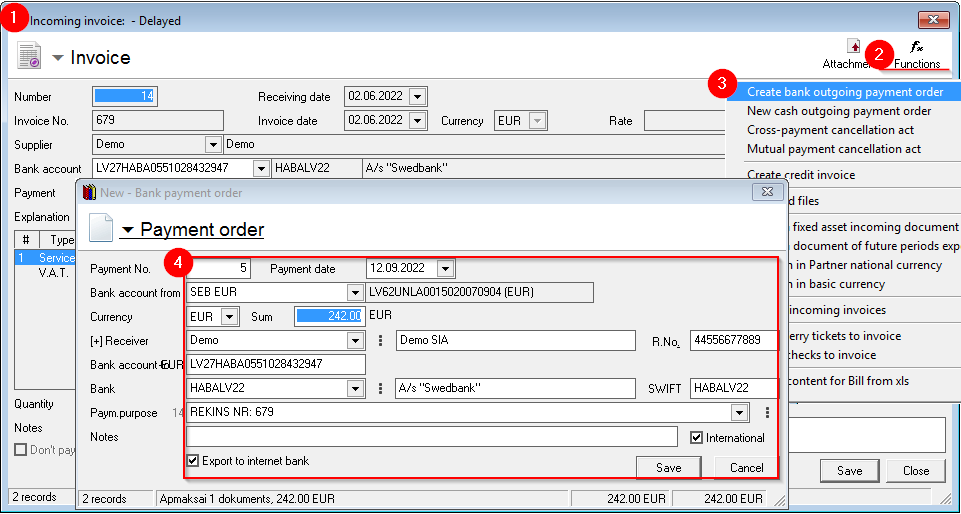](https://ozols.lv/doc/uploads/images/gallery/2022-09/image-1662981170825.png) #### 3. Deleting and correcting the bank payment orderIt is possible to correct or delete the payment order before it has been sent to the internet bank for payment. To do this, the payment order is first detached from the invoice:
1. **OZOLS > Finances > Documents > Bank expenses;** 2. Select the required payment order; 3. Press the **Relate** button . A window opens - **Settlement payment order**; 4. Select the invoice from which the payment order should be unrelated; 5. Press the Unlink button and save; [](https://ozols.lv/doc/uploads/images/gallery/2022-09/image-1662983309984.png) 6. The confirmation of the desired payment order is removed; 7. Opens the payment order and make corrections or delete by pressing the Delete button [](https://ozols.lv/doc/uploads/images/gallery/2022-09/image-1662983740578.png)