Important! OZOLS TMS provides two options - automated and manual outgoing invoice.
Only one of options can be used for the accounting period!
#### Contents: 1. [Payment of outgoing invoices - automated data import from the bank](#bkmrk-1.-payment-of-outgoi) 2. [Linking outgoing invoices with incoming bank payments](#bkmrk-4.-ien%C4%81ko%C5%A1o-bankas-m) 3. [Payment of outgoing invoices - manual data entry](#bkmrk-3.-outgoing-invoice-) #### 1. Payment of outgoing invoices - automated data import from the bank 1.1. Export Account report from your Bank Open your company's **internet bank** > prepare **the Bank Account report** for the desired period > **export it in FidaVista or ISO format.** > **Save this document to your computer.** 1.2. Open OZOLS TMS 1. **Finance > Documents** 2. **Bank incomings** 3. **Functions** 4. **Import payments from a bank** [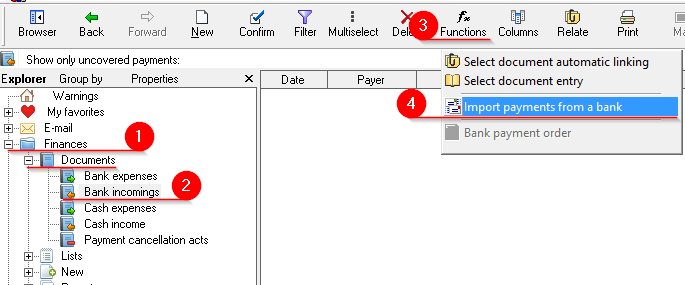](https://ozols.lv/doc/uploads/images/gallery/2022-09/image-1662628603969.png) 1.3. Import bank payments 1. Choose **Import from file** 2. Specify the location of the document to be imported on the computer. 3. Press **Import** 4. **Close** [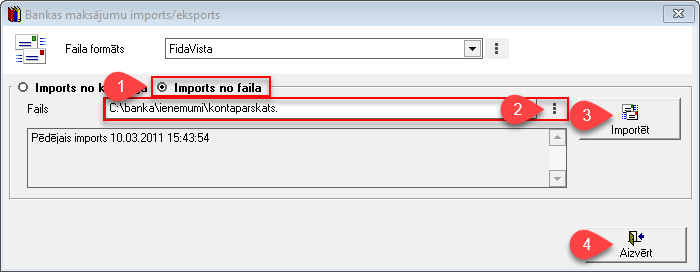](https://doc-ozols-lv.translate.goog/uploads/images/gallery/2022-03/image-1647521443054.png?_x_tr_sl=lv&_x_tr_tl=en&_x_tr_hl=en&_x_tr_pto=wapp) #### 2. Linking incoming bank payments with outgoing invoices 1. **OZOLS** > **Finances** > **Documents** > **Bank incomings** 2. Filter [](https://ozols.lv/doc/uploads/images/gallery/2022-05/image-1651585606852.png)> choose which documents to include 3. **Set** the desired filter. For example, **Show only uncovered payments** 4. Select the first payment and press the [](https://doc-ozols-lv.translate.goog/uploads/images/gallery/2022-03/image-1647522540789.png?_x_tr_sl=lv&_x_tr_tl=en&_x_tr_hl=en&_x_tr_pto=wapp) "Relate" button (Ctrl+D) [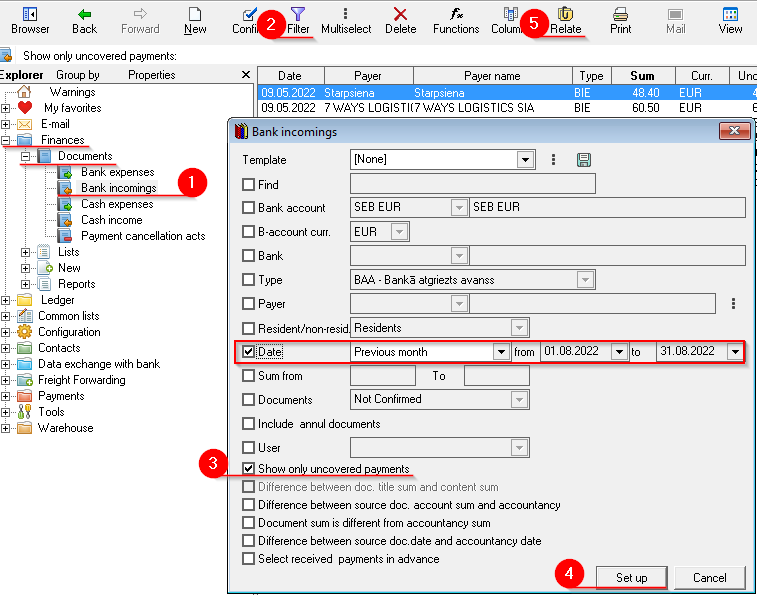](https://ozols.lv/doc/uploads/images/gallery/2022-09/image-1662629357125.png)**Settlement - Incoming payment** window consists of 3 areas: A) Incoming bank payment B) Covered invoices C) Uncovered invoices
5\) In the lower list (C) we have unpaid invoices. To relate payment with invoice Press the "Blue arrow up" (1) or double-click on invoice to relate it. If there are several invoices, select them by holding the Ctrl key 6\) With green arrows (1) switch between incoming payment documents 7\) With the filter (3), you can quickly find the required invoice by number, amount, etc. [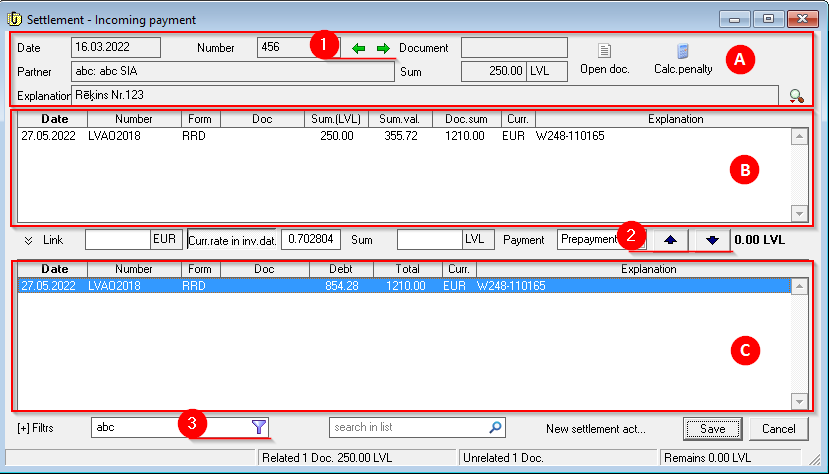](https://ozols.lv/doc/uploads/images/gallery/2022-09/image-1662630566554.png)When the Incoming Payment is linked to the corresponding invoice, the amount in the "Uncovered" column in the Bank incomings list will be zero.
#### 3. Outgoing invoice payment - manual data entry 1. Open the outgoing invoice to which the incoming payment should be linked > **Payments** > **Documents** > **Outgoing invoices** 2. **Mark the desired entry and press Functions [](https://ozols.lv/doc/uploads/images/gallery/2022-05/image-1651737125163.png)** in the toolbar 3. Select **Create bank incoming payment** 4. Select **Incoming Payment** 5. Enter the required information manually 6. Save [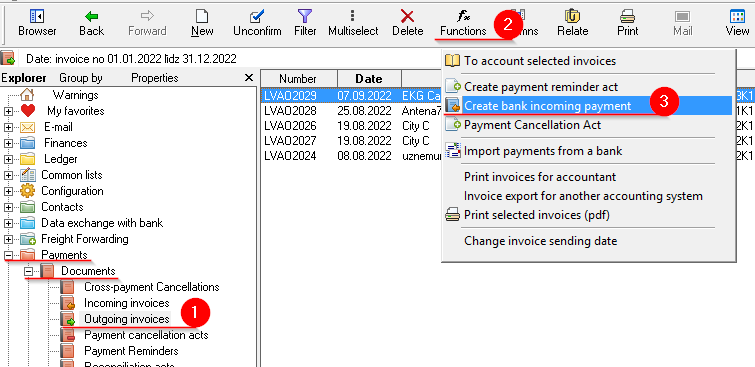](https://ozols.lv/doc/uploads/images/gallery/2022-09/image-1662631383730.png) [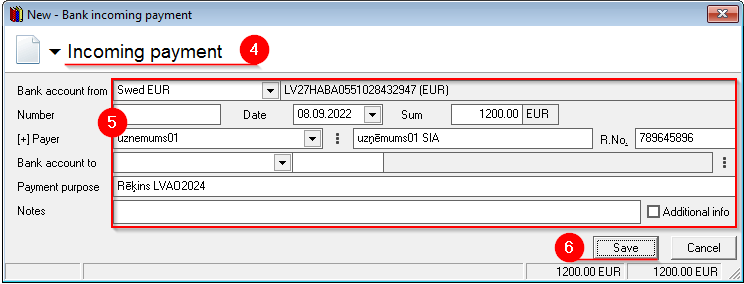](https://ozols.lv/doc/uploads/images/gallery/2022-09/image-1662631654303.png)