Registration of a **new Trip** in OZOLS TMS is started by pressing the function key **F7** or **OZOLS > Freight transportation > New > Trip/Spedition
1. Choose **Own trip - Trip with own transport** (see picture below) OZOLS TMS also gives the opportunity to create: - **Spedition** - Expedition (cargo sale) - **Agreement** - long-term contract with the carrier - **Domestic** - Local deliveries 2. Determine the **Status** : - **Export** \- **Transfer**/ **Round trips** - **Import** - **Local deliveries**- **When the trip is completed:** in this window you will change the Status to **delivered** or **invoices have been issued**
3. Enter **the Truck number** . If the specific Truck has already been entered in OZOLS TMS, when entering its number, both the driver's name and the Carrier company name are automatically filled in. This database can be also [imported](https://ozols.lv/doc/books/ozols-tms-english/chapter/configuration-and-data-import).If information about insurance and technical inspection has also been entered, OZOLS will warn about the expiration of the terms. Open the truck registration card by double-clicking on the **Truck No.** field.
4. If necessary, enter the name of the driver and the name of the Carrier. In case of own trip, it will be your company name. 5. Add Export or Import **Ferry line** as needed by pressing [](https://ozols.lv/doc/uploads/images/gallery/2022-04/image-1651154858190.png). Instructions [here](https://ozols.lv/doc/books/ozols-tms-english/page/3-adding-a-ferry-ticket). 6. If necessary, write internal notes. [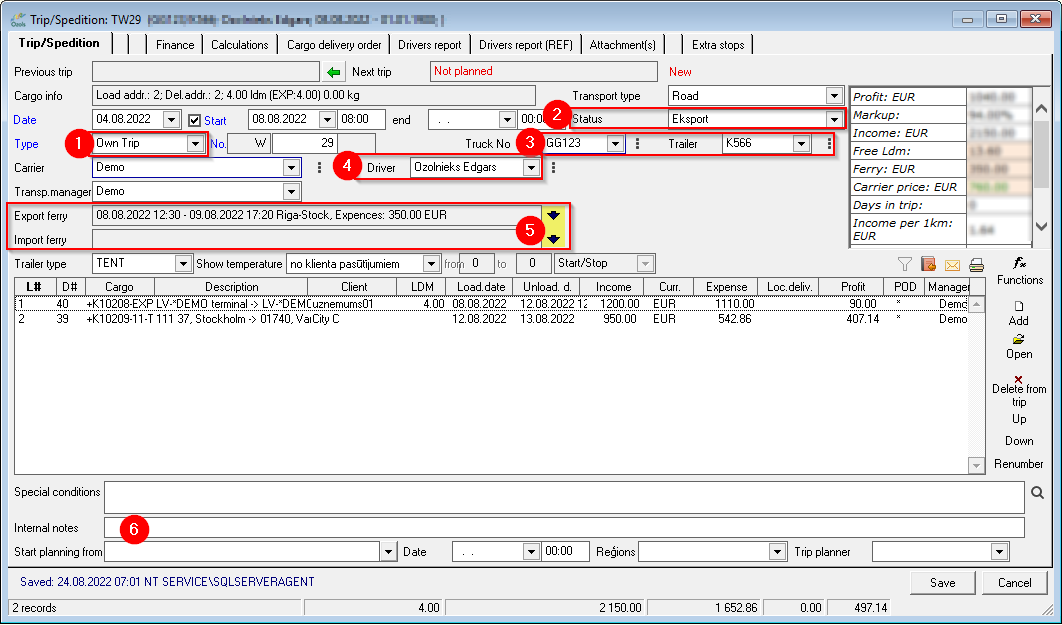](https://ozols.lv/doc/uploads/images/gallery/2022-08/image-1661949751701.png) ##### 2. **Adding cargo orders to the trip** 1. To add Cargo - Client order to the trip, press the Add button [](https://ozols.lv/doc/uploads/images/gallery/2022-08/image-1661946417031.png) 2. Choose to add an **existing** order or create **a new** order. 3. If the order has already been created, select it **from the list of orders** and double-click to add the cargo to the trip. 4. If you need to create **a new order** , follow the instructions [here ](https://ozols.lv/doc/books/ozols-tms-english/page/1-new-client-order).If the Customer also uses OZOLS TMS and has sent a Transport order - contract, then the number of this contract is the reference number of the order. **When entering the Customer's name** and **reference number in** the New Order window, the option to automatically fill in the information of this order will be offered. More about it [here ](https://ozols.lv/doc/books/ozols-tms-english/page/6-exchanging-the-cargo-information-in-ozols-tms).
5. **IMPORTANT** **- An invoice** must be issued for each order. Instructions[ here.](https://ozols.lv/doc/books/ozols-tms-english/page/61-outgoing-invoice-with-cmr) #### 3. **Adding costs to the trip**OZOLS significantly simplifies cost accounting and profitability calculations for companies using their own transport.
**Instructions for adding travel expenses[ here ](https://ozols.lv/doc/books/ozols-tms-english/page/adding-the-costs-of-the-trip).**