The Mutual clearing act settles the financial obligations between the outgoing and incoming invoices of the business partner
#### To create a new Mutual clearing acts: 1. **Ozols > Payments > Documents > Mutual clearing >** in the toolbar press ******New****** [](https://ozols.lv/doc/uploads/images/gallery/2022-10/image-1666084500678.png) 2. A new window opens **Mutual clearing** 3. In the header, indicate the date, document number, name (for example: according to the contract) and select the required cooperation partner from the list [.](https://doc-ozols-lv.translate.goog/books/ozols-instrukcijas/page/sadarbibas-partneri?_x_tr_sl=lv&_x_tr_tl=en&_x_tr_hl=en&_x_tr_pto=wapp) 4. Press the **Fill** button [](https://ozols.lv/doc/uploads/images/gallery/2022-10/image-1666160832574.png) 5. Choose **Incoming invoices** 5.1. **The Unpaid incoming invoices** window opens . By holding down the **ctrl** key, mark with mouse the necessary invoices and by pressing [ ](https://doc-ozols-lv.translate.goog/uploads/images/gallery/2020-11/ico-hand.gif?_x_tr_sl=lv&_x_tr_tl=en&_x_tr_hl=en&_x_tr_pto=wapp)or with a double click of the mouse, add the invoices to the act 6. **Press the Fill** button again [](https://ozols.lv/doc/uploads/images/gallery/2022-10/image-1666160832574.png) and select **Outgoing invoices** 6.1. **The Unpaid outgoing invoices** window opens . By holding down **the ctrl** key, mark with mouse the necessary invoices and by pressing [ ](https://doc-ozols-lv.translate.goog/uploads/images/gallery/2020-11/ico-hand.gif?_x_tr_sl=lv&_x_tr_tl=en&_x_tr_hl=en&_x_tr_pto=wapp)or with a double click of the mouse, add the invoices to the act 7. **Press the Equalize sums** button [](https://ozols.lv/doc/uploads/images/gallery/2022-10/image-1666161012847.png) !!! the amount of covered amount on both sides has to be the same! 8. Enter currency, consent term and notes if needed 9. The created act is confirmed by pressing the button on the toolbar [](https://ozols.lv/doc/uploads/images/gallery/2022-10/image-1666161395951.png) 10. **To print the document, press the Print** [](https://doc-ozols-lv.translate.goog/uploads/images/gallery/2020-11/ico-print.gif?_x_tr_sl=lv&_x_tr_tl=en&_x_tr_hl=en&_x_tr_pto=wapp) button on the toolbar to send to e-mail **Mail** [](https://doc-ozols-lv.translate.goog/uploads/images/gallery/2022-03/image-1647260033166.png?_x_tr_sl=lv&_x_tr_tl=en&_x_tr_hl=en&_x_tr_pto=wapp) 11. You need to press the button to save [](https://ozols.lv/doc/uploads/images/gallery/2022-10/image-1666161546834.png) [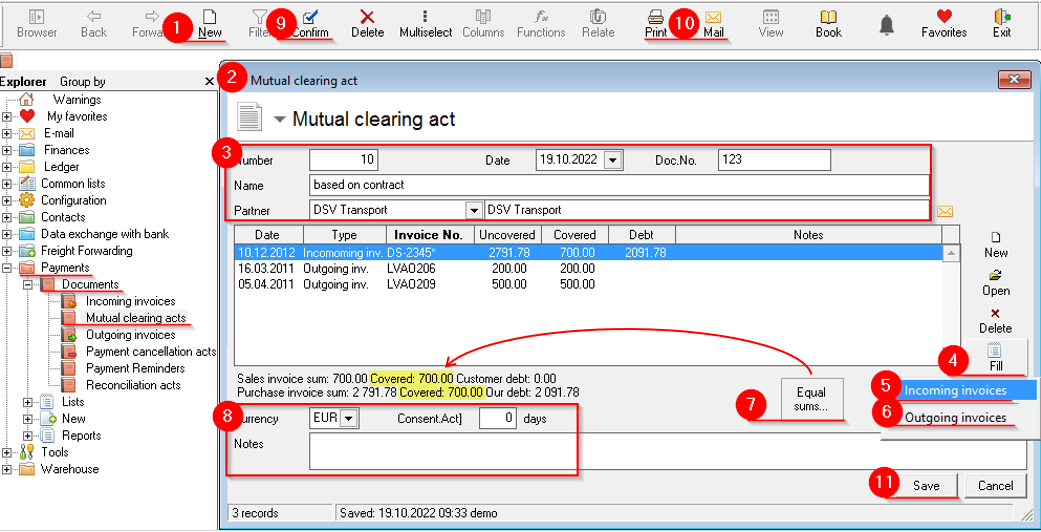](https://ozols.lv/doc/uploads/images/gallery/2022-10/image-1666167916229.png) ##### Sample of **Mutual clearing** **cancellation act** act: [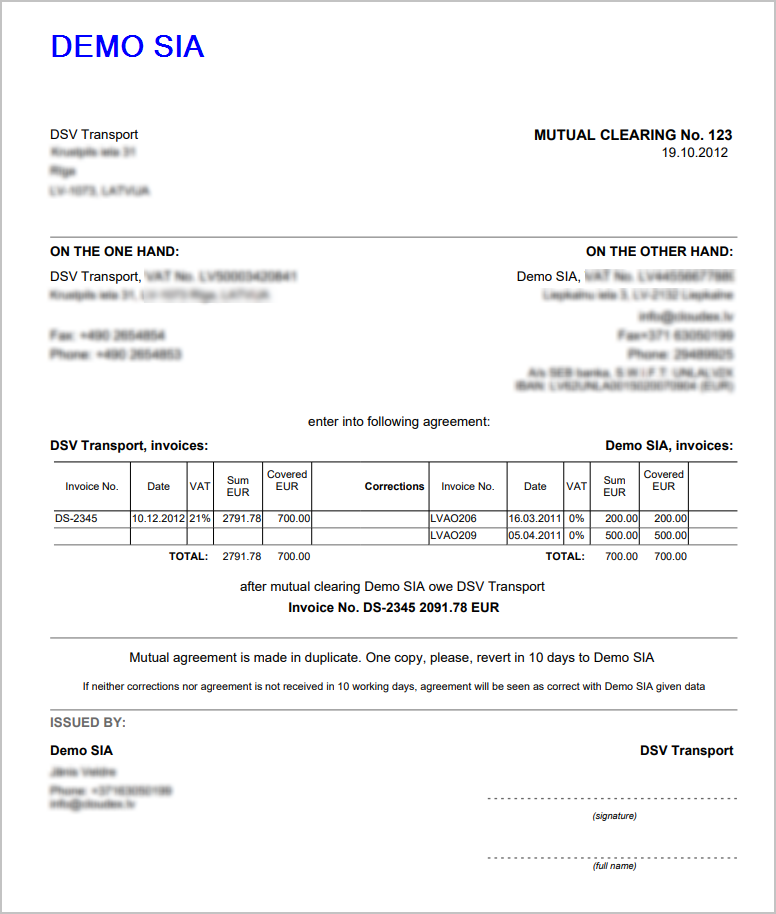](https://ozols.lv/doc/uploads/images/gallery/2022-10/image-1666168645471.png)When the Reconciliation act is approved, the documents attached to it are linked, thus the debt amounts of the documents are canceled and the documents are considered paid.
The Reconciliation act can be posted in the same way as other payment documents.