# Customize column content and order
Open the table you want to make changes to
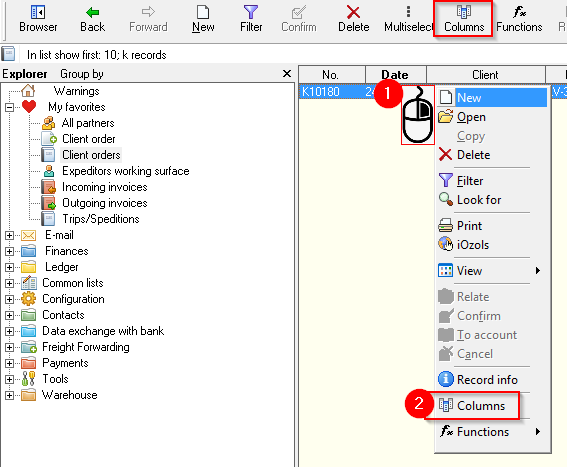
1. **Press the right mouse button** on any of the rows in the table
2. Or in the menu, press **Columns** (Ctrl+K)
[](https://ozols.lv/doc/uploads/images/gallery/2022-10/image-1666268786878.png)
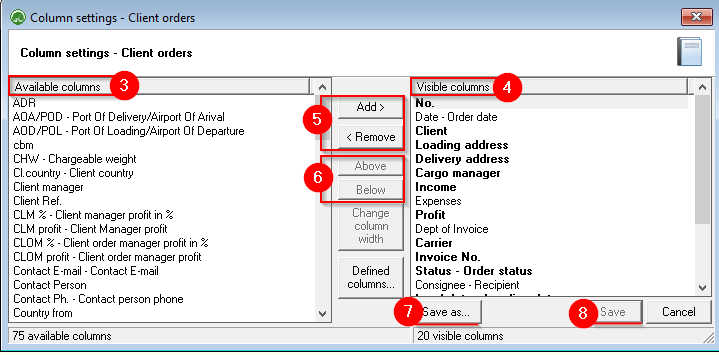
3. Columns are divided into **Available columns (possibly included in the table)** and
4. **Visible columns (already included in the table)**
5. Mark with the “mouse” the desired column on one or the other side and press the **Add** or **Remove buttons** as needed to adjust the table content
6. Change the order of the columns with the **Up** or **Down buttons** . Moving Up moves the column to the left in the table. Moving Below moves the column to the right in the table.
[](https://ozols.lv/doc/uploads/images/gallery/2022-10/image-1666269460278.png)
**The Save As...** button allows you to save the selected layout as defined. This means that both you and other users of your company's OZOLS database will be able to open this table layout.