If you have **two or more companies with separate access to OZOLS TMS** , it is possible to create a shortcut to each of these companies. **Benefits**: 1. You only need **to enter a password when** opening company database; 2. **Open and work with several companies at the same time.**
1\) press search on the Windows desktop [](https://doc-ozols-lv.translate.goog/uploads/images/gallery/2022-06/image-1654508054375.png?_x_tr_sl=lv&_x_tr_tl=en&_x_tr_hl=en&_x_tr_pto=wapp); **2) OZOLS** is written in the search field ; 3\) Select **Open file location** ; [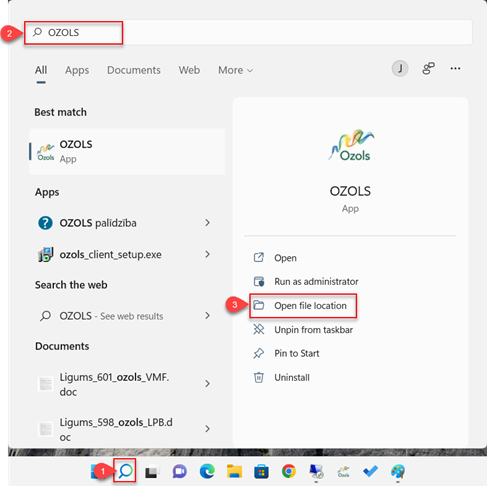](https://doc-ozols-lv.translate.goog/uploads/images/gallery/2022-06/image-1654508099489.png?_x_tr_sl=lv&_x_tr_tl=en&_x_tr_hl=en&_x_tr_pto=wapp) 4\) Select Open file location again until a folder opens where you can see a file called OZOLS.EXE [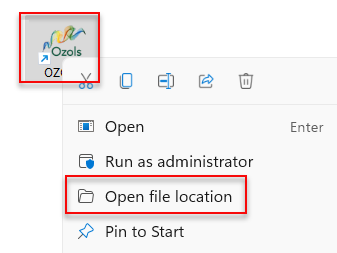](https://doc-ozols-lv.translate.goog/uploads/images/gallery/2022-06/image-1654508127686.png?_x_tr_sl=lv&_x_tr_tl=en&_x_tr_hl=en&_x_tr_pto=wapp) 5\) Create **a new Folder** with the name of the desired company. 6) **Copy** the OZOLS.EXE file and place the copy in the **newly created folder** . **7) Create a shortcut** to the new OZOLS.EXE file on the desktop and **rename** it to fit the name of the desired company. 8\) Open Functions with the right mouse button and select **Properties.** [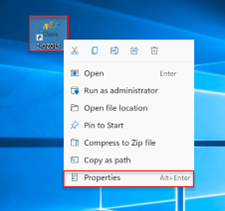](https://doc-ozols-lv.translate.goog/uploads/images/gallery/2022-06/image-1654678466131.png?_x_tr_sl=lv&_x_tr_tl=en&_x_tr_hl=en&_x_tr_pto=wapp) 9\) In the **Target** field , add the already existing record with server, company database and user information: 1. **Server** – Name of the server on which the company OZOLS TMS database is located; 2. **Database** – the username assigned to the company in the Ozols database; 3. **2** - the number two, which must be entered before the user's name; 4. **User** – the username assigned to your Ozols user account.**There must be a space** between these entries !
[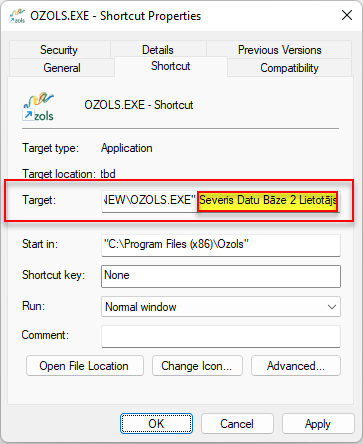](https://doc-ozols-lv.translate.goog/uploads/images/gallery/2022-06/image-1654693980944.png?_x_tr_sl=lv&_x_tr_tl=en&_x_tr_hl=en&_x_tr_pto=wapp)When the record has been updated, close the window by pressing **Apply** and **Ok** .
**Congratulations** ! You have created a separate access to the company account in OZOLS TMS! **Now you can simultaneously open all companies that are available to you in** OZOLS TMS on your computer.