# 8) E-mail server configuration for work with Ozols TMS
1. [Gmail settings](#bkmrk-1.-to-send-gmail-ema)
2. [Microsoft Settings](#bkmrk-microsoft-e-pastu-no)
##### 1. To send Gmail emails from within OZOLS TMS, follow these steps:
1\) Open a Google account and authorize:
[https://myaccount.google.com/](https://translate.google.com/website?sl=lv&tl=en&hl=en-US&client=webapp&u=https://myaccount.google.com/)
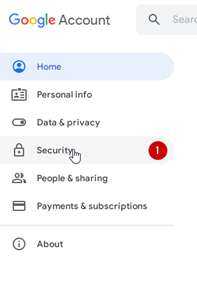
2\) Opens the **Security section**
[](https://doc-ozols-lv.translate.goog/uploads/images/gallery/2022-06/image-1654694742407.png?_x_tr_sl=lv&_x_tr_tl=en&_x_tr_hl=en-US&_x_tr_pto=wapp)
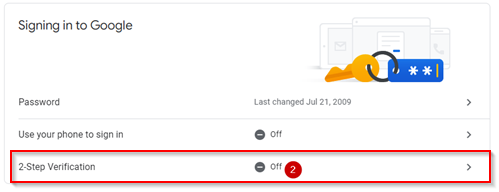
3\) Activate **two-step** authentication (a confirmation code will be sent to the phone)
[](https://doc-ozols-lv.translate.goog/uploads/images/gallery/2022-06/image-1654695554505.png?_x_tr_sl=lv&_x_tr_tl=en&_x_tr_hl=en-US&_x_tr_pto=wapp)
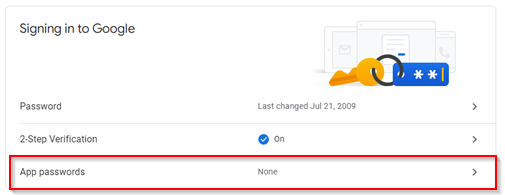
4\) Select App passwords
[](https://doc-ozols-lv.translate.goog/uploads/images/gallery/2022-06/image-1654695675663.png?_x_tr_sl=lv&_x_tr_tl=en&_x_tr_hl=en-US&_x_tr_pto=wapp)
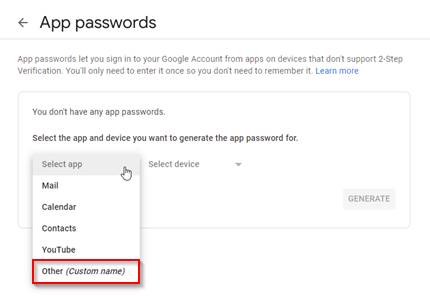
4\) Choose Other (Custom name)
[](https://doc-ozols-lv.translate.goog/uploads/images/gallery/2022-06/image-1654695357907.png?_x_tr_sl=lv&_x_tr_tl=en&_x_tr_hl=en-US&_x_tr_pto=wapp)
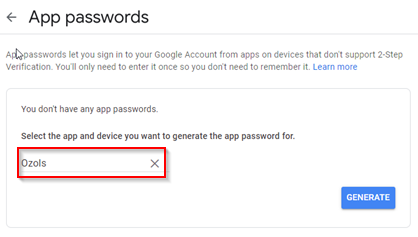
5\) Type "Ozols" in the window and press **GENERATE**
[](https://doc-ozols-lv.translate.goog/uploads/images/gallery/2022-06/image-1654695857759.png?_x_tr_sl=lv&_x_tr_tl=en&_x_tr_hl=en-US&_x_tr_pto=wapp)
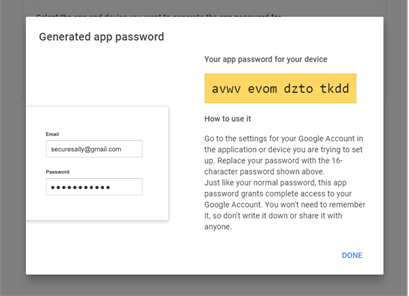
5\) A gmail password for the OZOLS TMS system is created
[](https://doc-ozols-lv.translate.goog/uploads/images/gallery/2022-06/image-1654696080380.png?_x_tr_sl=lv&_x_tr_tl=en&_x_tr_hl=en-US&_x_tr_pto=wapp)
5\) This password must be entered in the user's email settings in OZOLS TMS by following the [instructions here.](https://ozols.lv/doc/books/ozols-tms-english/page/5-e-mail-settings)
##### 2. To send Microsoft e-mails from OZOLS TMS, you must perform the following steps:
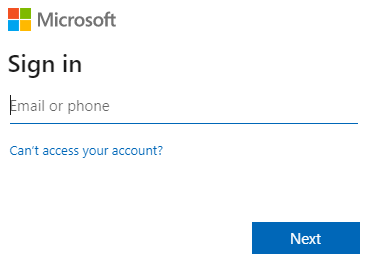
1. Open the following link and sign in to your Microsoft account:
[https://mysignins.microsoft.com/security-info](https://translate.google.com/website?sl=lv&tl=en&hl=en&client=webapp&u=https://mysignins.microsoft.com/security-info)
[](https://doc-ozols-lv.translate.goog/uploads/images/gallery/2022-09/image-1663850468726.png?_x_tr_sl=lv&_x_tr_tl=en&_x_tr_hl=en&_x_tr_pto=wapp)
2. [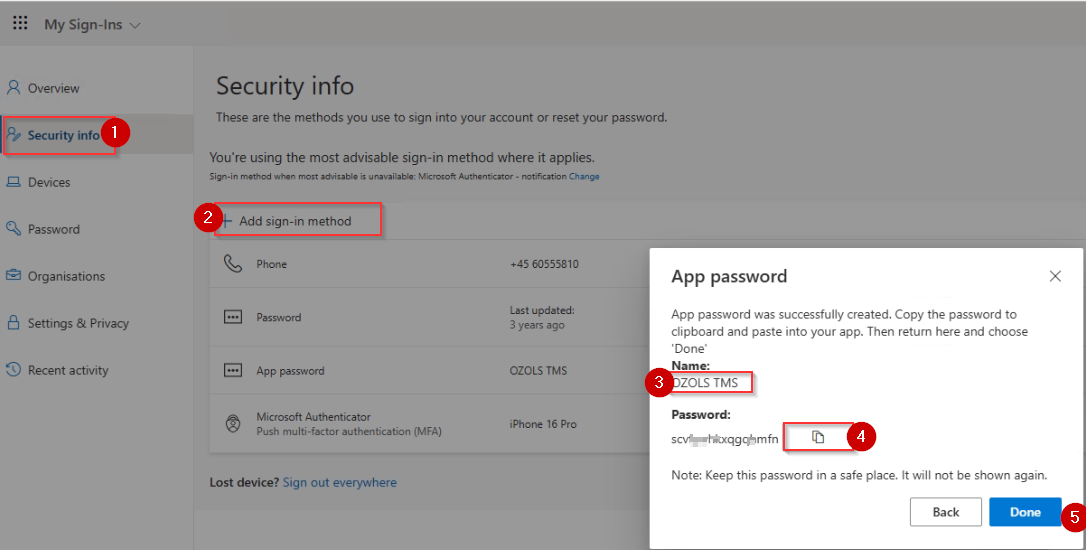](https://ozols.lv/doc/uploads/images/gallery/2025-05/image-1747052238150.png)
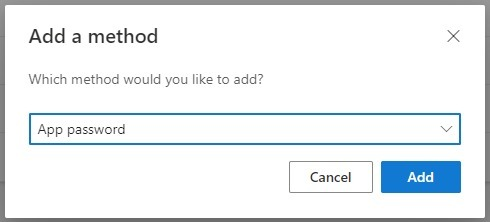
3. Select > Add method > App password
[](https://doc-ozols-lv.translate.goog/uploads/images/gallery/2022-09/image-1663850528591.png?_x_tr_sl=lv&_x_tr_tl=en&_x_tr_hl=en&_x_tr_pto=wapp)
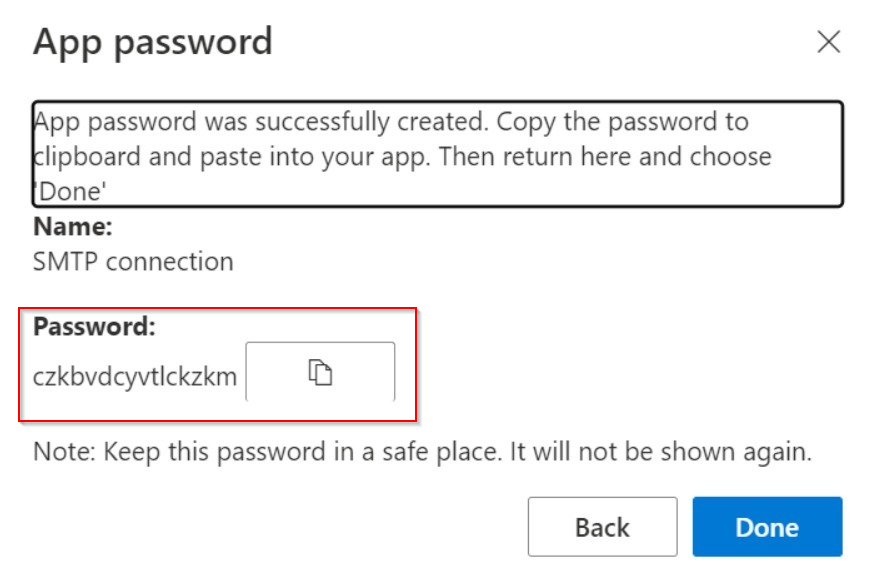
4. Copy the password created by Microsoft
[](https://doc-ozols-lv.translate.goog/uploads/images/gallery/2022-09/image-1663850674227.png?_x_tr_sl=lv&_x_tr_tl=en&_x_tr_hl=en&_x_tr_pto=wapp)
5. This password must be entered in the user's email settings in OZOLS TMS by following the [instructions here.](https://ozols.lv/doc/books/ozols-tms-english/page/5-e-mail-settings)