Registration of a **new Trip** in OZOLS TMS is started by pressing the function key **F7** or **OZOLS > Freight transportation > New > Trip/Spedition
1. Choose **Own trip - Trip with own transport** (see picture below) OZOLS TMS also gives the opportunity to create: - **Spedition** - Expedition (cargo sale) - **Agreement** - long-term contract with the carrier - **Domestic** - Local deliveries 2. Determine the **Status** : - **Export** \- **Transfer**/ **Round trips** - **Import** - **Local deliveries**- **When the trip is completed:** in this window you will change the Status to **delivered** or **invoices have been issued**
3. Enter **the Truck number** . If the specific Truck has already been entered in OZOLS TMS, when entering its number, both the driver's name and the Carrier company name are automatically filled in. This database can be also [imported](https://ozols.lv/doc/books/ozols-tms-english/chapter/configuration-and-data-import).If information about insurance and technical inspection has also been entered, OZOLS will warn about the expiration of the terms. Open the truck registration card by double-clicking on the **Truck No.** field.
4. If necessary, enter the name of the driver and the name of the Carrier. In case of own trip, it will be your company name. 5. Add Export or Import **Ferry line** as needed by pressing [](https://ozols.lv/doc/uploads/images/gallery/2022-04/image-1651154858190.png). Instructions [here](https://ozols.lv/doc/books/ozols-tms-english/page/3-adding-a-ferry-ticket). 6. If necessary, write internal notes. [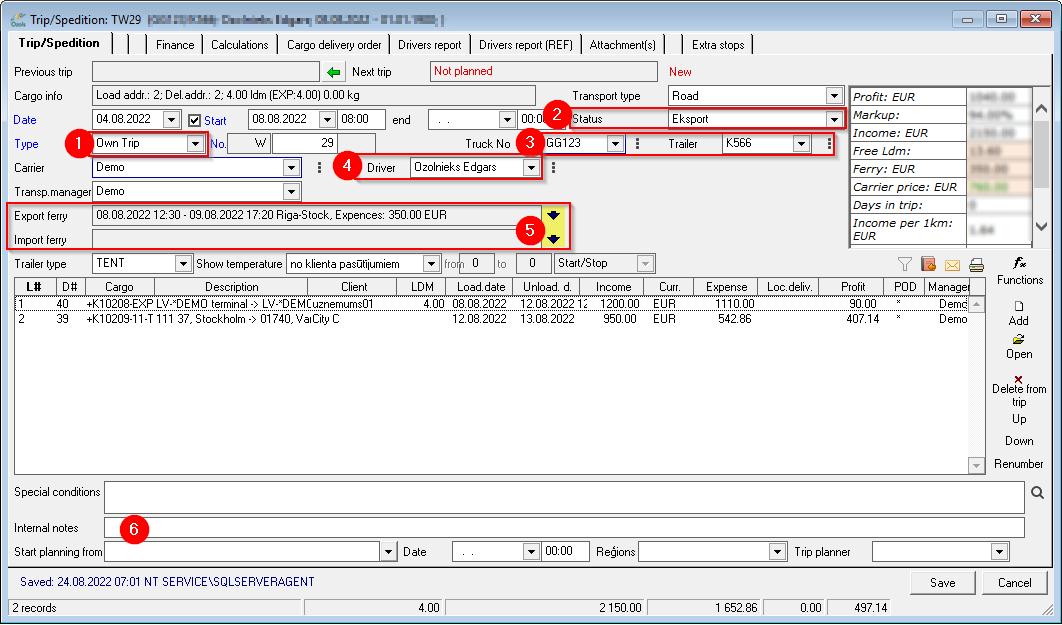](https://ozols.lv/doc/uploads/images/gallery/2022-08/image-1661949751701.png) ##### 2. **Adding cargo orders to the trip** 1. To add Cargo - Client order to the trip, press the Add button [](https://ozols.lv/doc/uploads/images/gallery/2022-08/image-1661946417031.png) 2. Choose to add an **existing** order or create **a new** order. 3. If the order has already been created, select it **from the list of orders** and double-click to add the cargo to the trip. 4. If you need to create **a new order** , follow the instructions [here ](https://ozols.lv/doc/books/ozols-tms-english/page/1-new-client-order).If the Customer also uses OZOLS TMS and has sent a Transport order - contract, then the number of this contract is the reference number of the order. **When entering the Customer's name** and **reference number in** the New Order window, the option to automatically fill in the information of this order will be offered. More about it [here ](https://ozols.lv/doc/books/ozols-tms-english/page/6-exchanging-the-cargo-information-in-ozols-tms).
5. **IMPORTANT** **- An invoice** must be issued for each order. Instructions[ here.](https://ozols.lv/doc/books/ozols-tms-english/page/61-outgoing-invoice-with-cmr) #### 3. **Adding costs to the trip**OZOLS significantly simplifies cost accounting and profitability calculations for companies using their own transport.
**Instructions for adding travel expenses[ here ](https://ozols.lv/doc/books/ozols-tms-english/page/adding-the-costs-of-the-trip).** # Adding the costs of the tripTo control the cost-effectiveness of a trip, it is necessary to add all eligible costs to it.
For companies that use their own transport, OZOLS TMS makes cost accounting and profitability calculations much easier.
### Trip with your own vehicle 1\. [**Fixed** costs](#bkmrk-1.fiks%C4%93t%C4%81s-izmaksas1) 1.1. [Adding fixed costs from an Excel file](#bkmrk-2.1.2.-fiks%C4%92to-izmak) 2\. [**Variable** costs](#bkmrk-2.2.%C2%A0main%C4%AAg%C4%80s-izmaks) 2.1. [Adding variable costs manually](#bkmrk-2.2.1.-main%C4%AAgo-izmak) 2.2. [Importing variable costs from an Excel file](#bkmrk-2.2.2.-main%C4%AAgo-izmak) 2.3. [New import template of variable costs (cheques)](#bkmrk-2.2.3.-jauns-main%C4%AAgo) 3\. [**Driver** 's net salary and salary taxes](#bkmrk-2.3.-%C5%A0ofera-neto-alg) 3.1. [Driver's net salary](#bkmrk-2.3.1.-%C5%A0ofera-neto-a) 3.2. [Salary taxes](#bkmrk-2.3.2.-algas-nodok%C4%BBi) 4\. [**Advance** payments](#bkmrk-2.4.%C2%A0avansa-nor%C4%92%C4%B6ini) 5\. [**Repair** expenses](#bkmrk-2.5.%C2%A0-remontu-izdevu) ### 1. FIXED COSTSThe fixed costs are calculated for each car separately and only a part of them is applied to the trip - for the period from the end date of the previous trip to the end date of the current trip.
1\. OZOLS TMS fixed costs are added for a certain term, therefore they can be found in the "Term Types" list: **OZOLS > Freight forwarding > Lists > Term types** 2\. Deadlines not related to costs can be added here: **OZOLS > Freight forwarding > Reports > Vehicles**A reminder function is available for all deadlines, which will prevent you from forgetting the dates when contracts, insurance, car technical inspection, etc. must be renewed.
[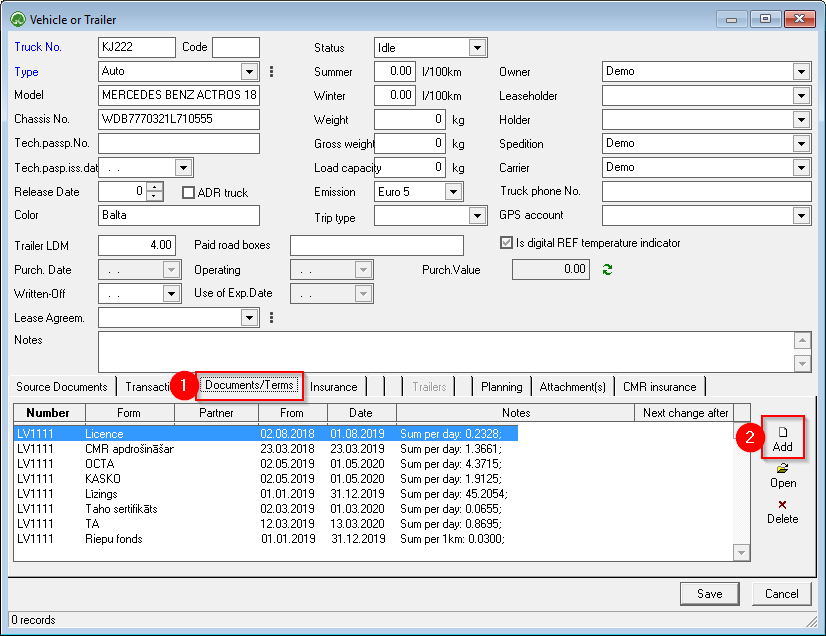](https://ozols.lv/doc/uploads/images/gallery/2022-10/image-1666784979734.png) [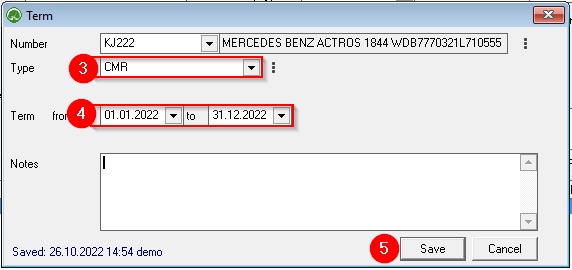](https://ozols.lv/doc/uploads/images/gallery/2022-10/image-1666785361366.png) #### 1.1. ADDING FIXED COSTS FROM EXCEL FILE ##### **First step:** check the import template.A template configured as in the image below must be used!
1. **OZOLS > Freight > Tools > Data Import** 2. Click **Configuration** [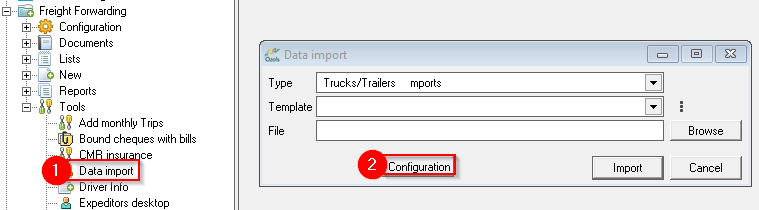](https://ozols.lv/doc/uploads/images/gallery/2022-10/image-1666787940047.png) [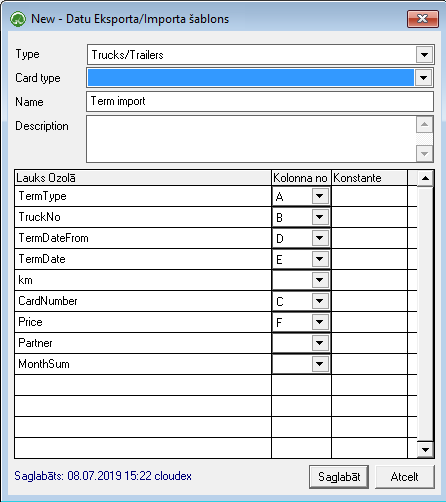](https://ozols.lv/doc/uploads/images/gallery/2022-10/image-1666786896219.png) ##### **Step Two:** Organize the data in an Excel file ##### **Important** : - the data in the Excel file is grouped into 6 columns - according to the sample shown below. - the first row should contain column names - there should be no other empty columns between the said 6 columns - the names of the types must exactly match those defined: - dates must be formatted in the format – dd.mm.yyyy [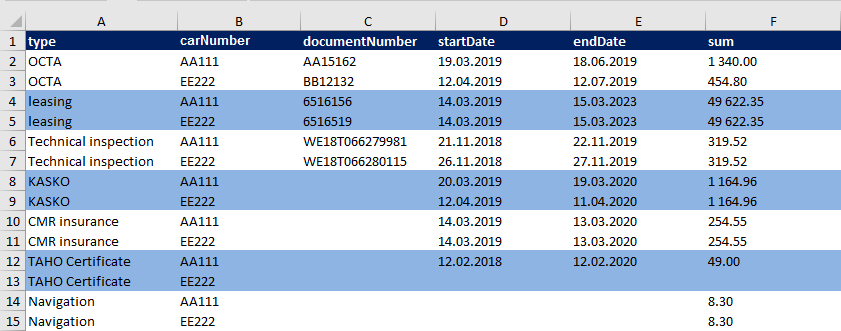](https://doc-ozols-lv.translate.goog/uploads/images/gallery/2022-06/image-1655813148446.png?_x_tr_sl=lv&_x_tr_tl=en&_x_tr_hl=en-US&_x_tr_pto=wapp) ##### **Step three:** Data importwhen everything is ready, it remains to specify the location of the file to be imported on the computer (Browse) and perform the data import.
[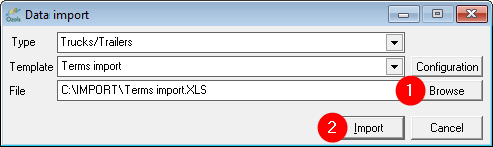](https://ozols.lv/doc/uploads/images/gallery/2022-10/image-1666787500397.png) ### 2. VARIABLE COSTS Variable costs mostly consist of checks received from gas stations: - Fuel - AdBlue - Tolls for roads - etc #### 2.1. ADDING VARIABLE COSTS MANUALLYVariable costs can also be added manually or can be imported from Excel.
**OZOLS > Freight Forwarding > Documents > Trips/Speditions > \[DRIVER'S REPORT\]** [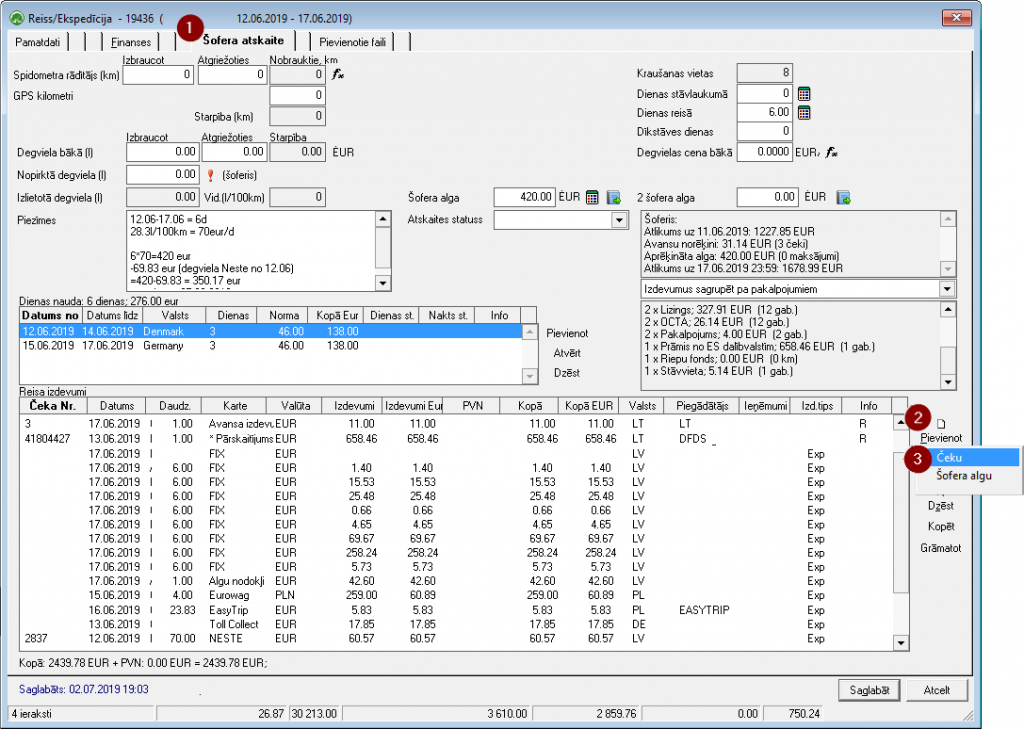](https://doc-ozols-lv.translate.goog/uploads/images/gallery/2022-06/image-1655813164807.png?_x_tr_sl=lv&_x_tr_tl=en&_x_tr_hl=en-US&_x_tr_pto=wapp) #### 2.2. IMPORT OF VARIABLE COSTS FROM EXCEL FILE ##### **First step:** Prepare the templateCheck the import tool (template). If necessary, corrections should be made so that the corresponding column for each data field is specified in the template.
**Mandatory fields in the template:** - for the car number plate (if the car has a fuel card, then the card number is enough) - check/transaction date - country of transaction - type of product/service (fuel, roads, AdBlue, etc.) - the amount - sum - currency **To perform template configuration in OZOLS TMS:** **OZOLS > Freight > Tools > Import Receipts** [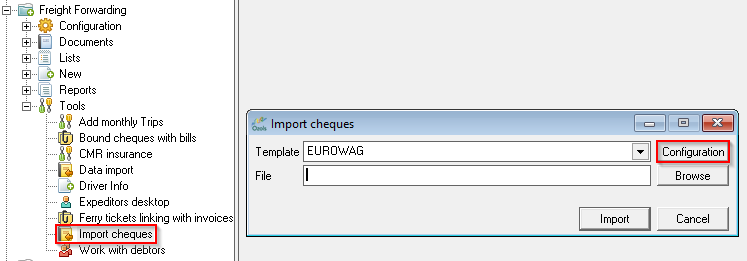](https://ozols.lv/doc/uploads/images/gallery/2022-10/image-1666788910088.png) [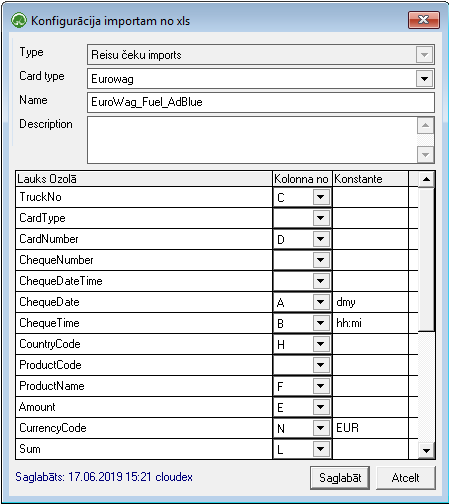](https://ozols.lv/doc/uploads/images/gallery/2022-10/image-1666788985989.png)The template must be configured according to the Excel file.
In the example, you can see that the column name 'L' is specified for the data field 'SUM' in the template, and also in the imported Excel file 'Total price (excl VAT)' can be found in the column 'L'. This is how all required fields must be aligned. [](https://doc-ozols-lv.translate.goog/uploads/images/gallery/2022-06/image-1655813193458.png?_x_tr_sl=lv&_x_tr_tl=en&_x_tr_hl=en-US&_x_tr_pto=wapp)Purchase reports prepared for gas stations often contain many columns and redundant information, so the template should be created carefully!
In order for all expenses to be successfully linked to flights, the following must be specified in **each** cost line in the Excel file: - car license plate OR purchase card number (the card must be linked to the specific car) - check/transaction date - country of transaction - type of product/service (fuel, roads, AdBlue, etc.) - the amount - sum - currencyThe program recognizes when refined documents are re-imported. In this case, no duplicates are created, but the values of previously imported checks are restored.
At the same time, care should be taken that all newly imported checks are uniquely different and that the Ozols program does not consider them as clarifications of previously imported checks.
##### **Step two:** Import checkques When everything is ready, it remains to specify the location of the file to be imported on the computer (Browse) and import checks. [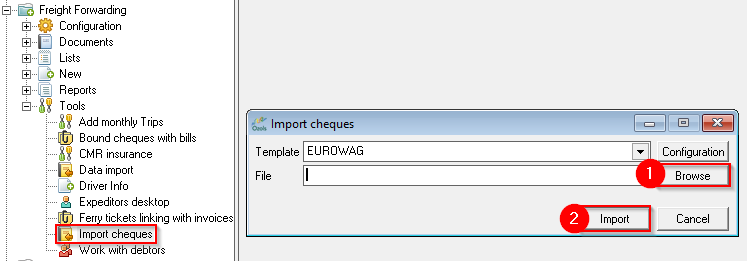](https://ozols.lv/doc/uploads/images/gallery/2022-10/image-1666789094386.png) #### 2.3. NEW VARIABLE COST (CHECK) IMPORT TEMPLATE Most often, transport companies use more than one gas station, and also pay for toll roads with the help of various intermediaries. Each service provider prepares check reports differently, so it is necessary for each one to define its own cost card and its own template. ##### **First step:** Make sure the card type exists and create a new one if necessary. **Ozols > Freight transportation > Lists > Types of payment cards** [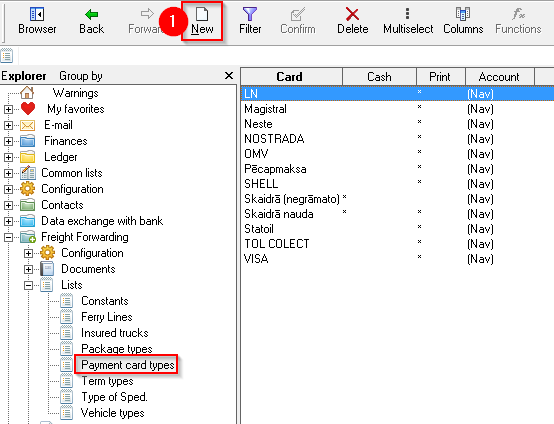](https://ozols.lv/doc/uploads/images/gallery/2022-10/image-1666789207481.png) [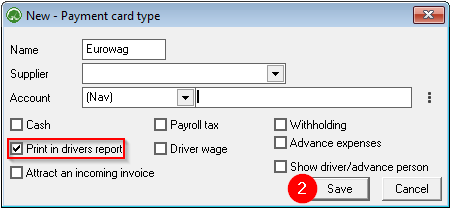](https://ozols.lv/doc/uploads/images/gallery/2022-10/image-1666789369430.png) When the name and the mark for inclusion in the Driver's Report have been specified, select 'Save'. ##### **Step two:** Create a new template **OZOLS > Freight > Tools > Import Receipts** To create a new import template, double-clicking the empty "Template" box. [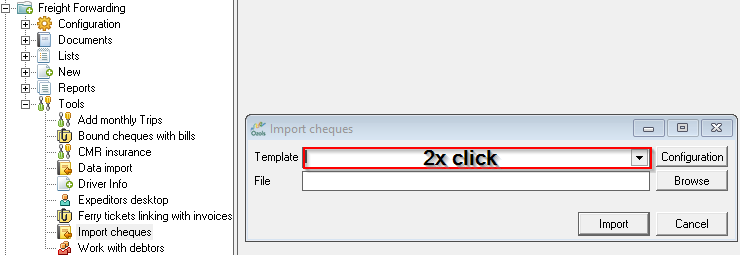](https://ozols.lv/doc/uploads/images/gallery/2022-10/image-1666790639273.png) Next, you must specify the type of template - **Import of travel checkques and confirm it with 'Yes'** in the additional question box . [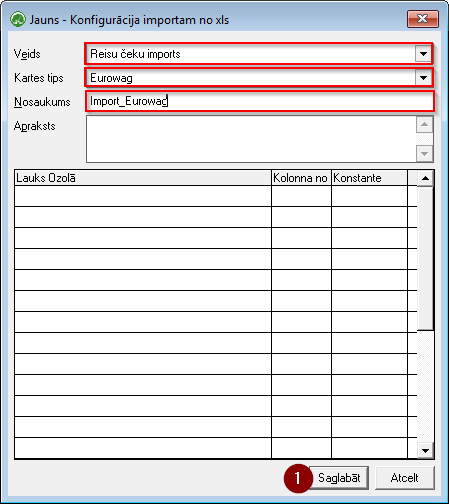](https://doc-ozols-lv.translate.goog/uploads/images/gallery/2022-06/image-1655813261797.png?_x_tr_sl=lv&_x_tr_tl=en&_x_tr_hl=en-US&_x_tr_pto=wapp) When the card type and the name of the new template are selected, press the **Save button.** ##### **Step Three:** Configure the new template You need to open the newly created template again and indicate in which Excel column the *product name* , *car number* , *currency* , etc. are indicated. [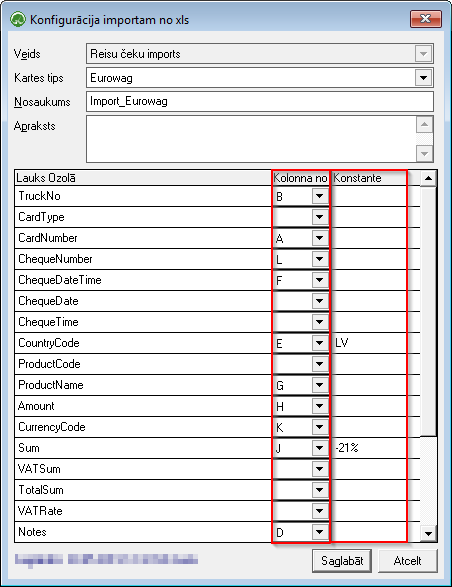](https://doc-ozols-lv.translate.goog/uploads/images/gallery/2022-06/image-1655813270306.png?_x_tr_sl=lv&_x_tr_tl=en&_x_tr_hl=en-US&_x_tr_pto=wapp) The 'constants' of the template **are optional** , but useful when the imported Excel file does not meet industry standards, or some rows are missing data, for example: - If the country code is not specified in several lines in the Excel file, specify the constant ' **LV ' in the CountryCode** template and, therefore, the country code 'LV' will be specified for ALL imported checks. - If the purchase amount without VAT is not specified in the Excel file – the constant ' **-21%** ' must be added to the **Sum field in the template** [](https://doc-ozols-lv.translate.goog/uploads/images/gallery/2022-06/image-1655813286817.png?_x_tr_sl=lv&_x_tr_tl=en&_x_tr_hl=en-US&_x_tr_pto=wapp) **TruckNo** – vehicle number plate. Based on this field, the program determines to which car the costs should be applied. **CardNumber** – if a purchase card is attached to the car, the program can identify the car by this number. **ChequeDateTime** – This is used when the check date and time are in one common Excel cell.| Possible constants | Example | Explanation |
| dmys | 12.07.2019 09:16:35 | Date and time in one box |
| xls\_number | 43658.5590277778 | Date and time encrypted in Excel style |
| Possible constants | Example | Explanation |
| dmy | 25012019 or 25.01.2019 | |
| etc | 20190125 or 2019.01.25 | |
| mdy | 01252019 or 01.25.2019 | |
| ddmonyy | 25 Jan 19 | |
| xls\_number | 43658 | Date encrypted in Excel style |
| shortYear | 250119 or 25.01.19 |
| Possible constants | Example | Explanation |
| hh:miAMPM | 01:30 PM | |
| hh: mi | 1:30 p.m | |
| hmm | 1330 |
| Possible constants | Explanation |
| LV, LT, PL, …. | Abbreviations of country names |
| Possible constants | Explanation |
| OZOLS > Payments > Lists > Services | Specifying the constant next to the product/service name will apply it to ALL records in the excel file. |
| Possible constants | Explanation |
| 1 | In billing for toll roads, the purchase amount is always **1.** |
| Possible constants | Explanation |
| EUR, CZK, PLN, … | Only one currency code can be specified in the constant field. |
| Possible constants | Explanation |
| -21% | If only the purchase amount with VAT is indicated in the Excel file, then these entries can be reduced by 21% by adding a constant. |
As a separate expense category, wages for drivers are allocated. These expenses are most often added manually for each trip separately, and the drivers' net salary and payroll taxes are added separately.
#### 3.1. NET SALARY OF THE DRIVER *(salary after taxes)* **Ozols > Freight Forwarding > Documents > Trips/Speditions > \[DRIVER'S REPORT\]**Wages are added in the same way as purchase receipts are added – open the specific flight, select the Driver's report and use the button Add / Driver's salary.
At the time of adding the driver's salary, the system displays the average fuel consumption for the trip, as well as the fuel norms. In this way, the manager can evaluate the driver's performance and, if necessary, add bonuses or deductions. [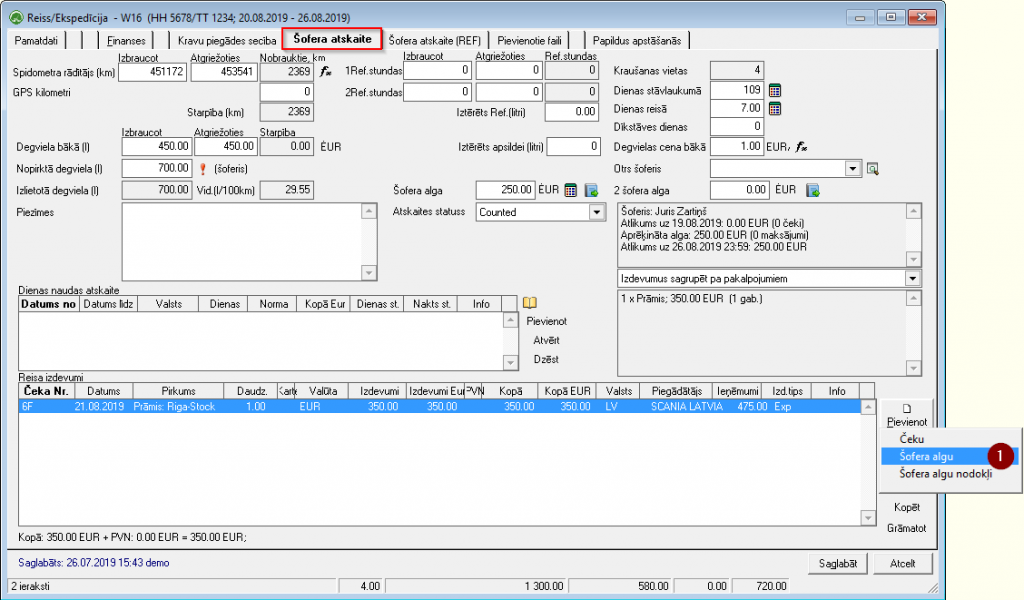](https://doc-ozols-lv.translate.goog/uploads/images/gallery/2022-06/image-1655813303668.png?_x_tr_sl=lv&_x_tr_tl=en&_x_tr_hl=en-US&_x_tr_pto=wapp) All basic information is filled in automatically, all you have to do is specify the amount of the daily salary and **save** . [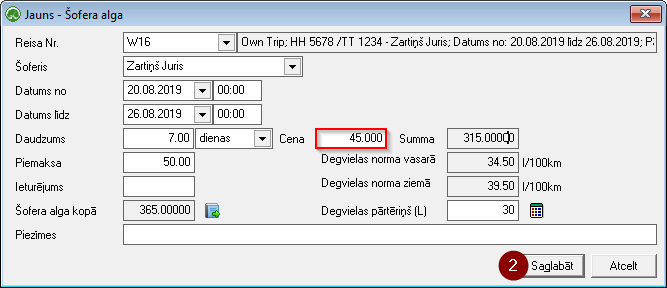](https://doc-ozols-lv.translate.goog/uploads/images/gallery/2022-06/image-1655813310339.png?_x_tr_sl=lv&_x_tr_tl=en&_x_tr_hl=en-US&_x_tr_pto=wapp) #### 3.2. PAYROLL TAXES **Ozols > Freight Forwarding > Documents > Trips/Speditions > \[DRIVER'S REPORT\]** Similarly, payroll taxes are added, as these expenses also affect the profitability of the trip. [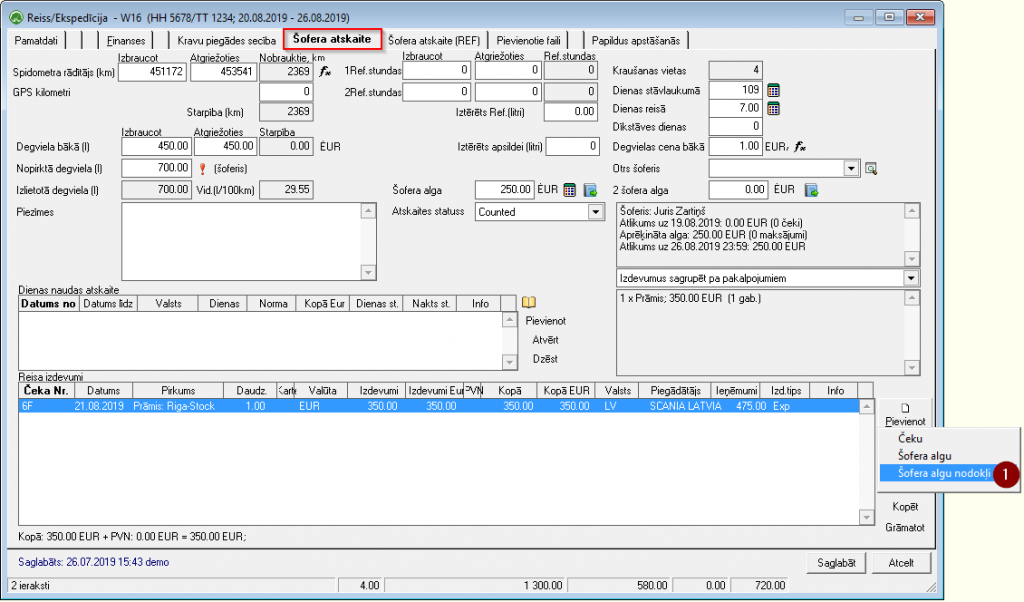](https://doc-ozols-lv.translate.goog/uploads/images/gallery/2022-06/image-1655813323384.png?_x_tr_sl=lv&_x_tr_tl=en&_x_tr_hl=en-US&_x_tr_pto=wapp) All basic information is filled in automatically. Make sure that the type of card is specified: **Payroll taxes** and the amount of payroll taxes. [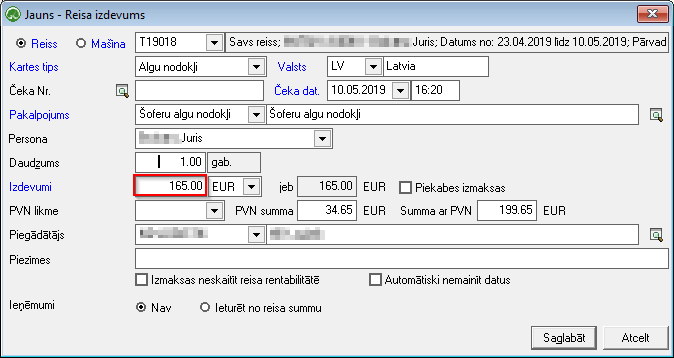](https://doc-ozols-lv.translate.goog/uploads/images/gallery/2022-06/image-1655813328759.png?_x_tr_sl=lv&_x_tr_tl=en&_x_tr_hl=en-US&_x_tr_pto=wapp) ### 4. ADVANCED EXPENSESThe total amount payable to the driver can be viewed in the **Drivers report**: **Ozols > Freight Forwarding > Reports > Drivers report**
Cash purchases are most often compensated to the driver together with the salary payment. Expenses are added to the **Driver Report** .
**Ozols > Freight Forwarding > Documents > Trips/Speditions > \[DRIVER'S REPORT\]** [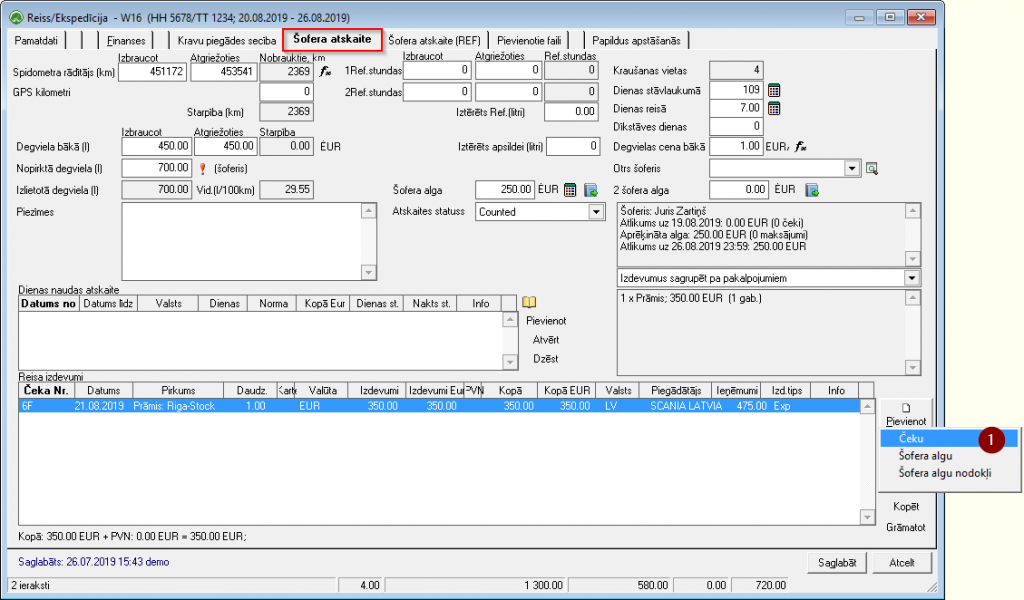](https://doc-ozols-lv.translate.goog/uploads/images/gallery/2022-08/image-1659522165895.png?_x_tr_sl=lv&_x_tr_tl=en&_x_tr_hl=en-US&_x_tr_pto=wapp) Make sure that the type of card is specified: **Advance issue** and fill in at least the mandatory fields (field names in blue) [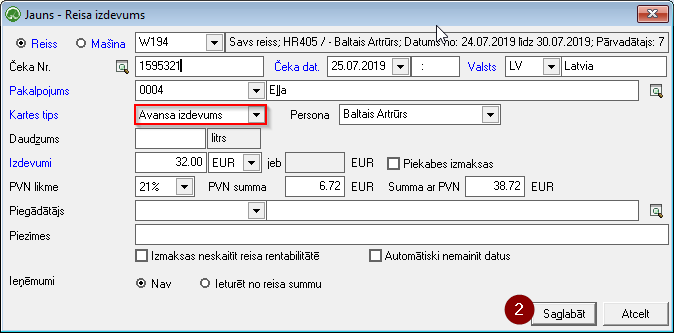](https://doc-ozols-lv.translate.goog/uploads/images/gallery/2022-08/image-1659522194441.png?_x_tr_sl=lv&_x_tr_tl=en&_x_tr_hl=en-US&_x_tr_pto=wapp) ### 5. REPAIR EXPENSESRoad transport repair expenses can also be added to the travel expenses. This can be done by opening the driver report and selecting **Add - Receipt** .
**OZOLS > Freight transportation > Documents > Trips/Speditions** [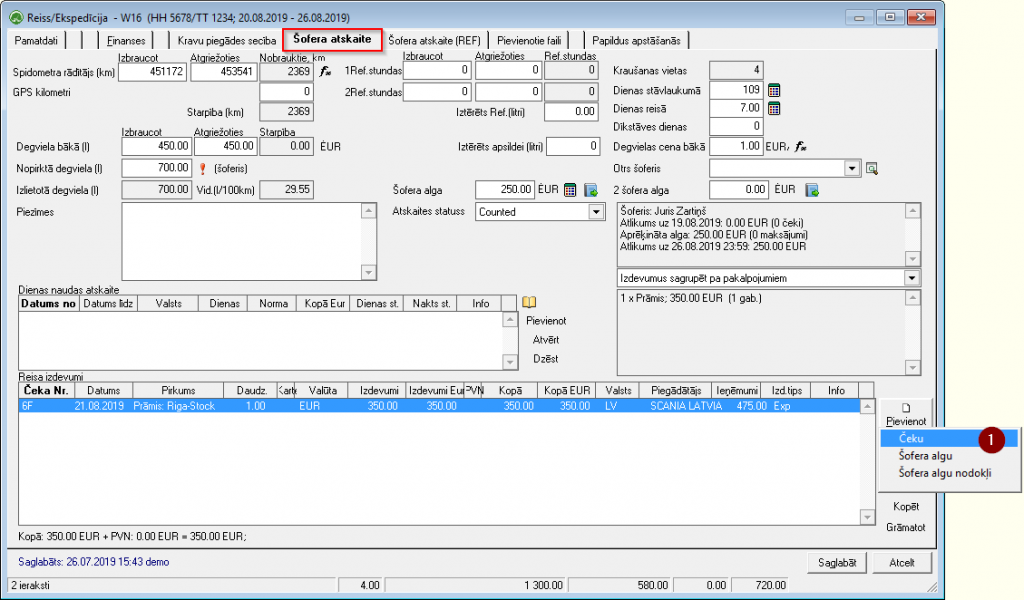](https://doc-ozols-lv.translate.goog/uploads/images/gallery/2022-06/image-1655813600096.png?_x_tr_sl=lv&_x_tr_tl=en&_x_tr_hl=en-US&_x_tr_pto=wapp)It is important to indicate the card type – **Repairs** .
[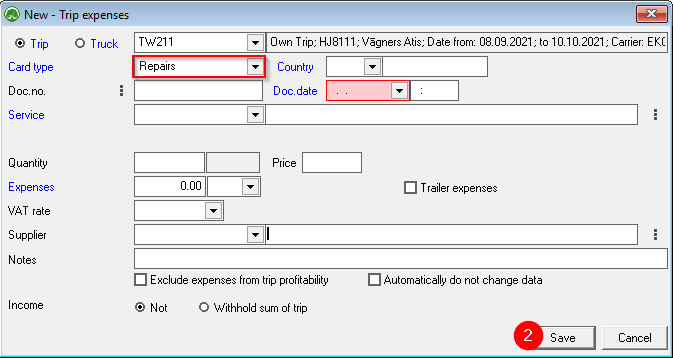](https://ozols.lv/doc/uploads/images/gallery/2022-10/image-1666791482047.png) The profitability of the trip can be evaluated both **with** and **without** car repair expenses. If you do not want to include Repair expenses in the calculation, you must indicate this when preparing the printout of the report.