# Configuration and data import

# User data import

1\) Create a user list with the following user information:

<table border="1" id="bkmrk-n.p.k.-v%C4%81rds-uzv%C4%81rds"><tbody><tr><td>npk</td><td>Name</td><td>Surname</td><td>E-mail</td><td>Phone number.</td><td>Position</td><td>Notes</td></tr><tr><td>1.</td><td> </td><td> </td><td> </td><td> </td><td> </td><td> </td></tr><tr><td>2.</td><td> </td><td> </td><td> </td><td> </td><td> </td><td> </td></tr><tr><td>3.</td><td> </td><td> </td><td> </td><td> </td><td> </td><td> </td></tr></tbody></table>

2\) Send the prepared table to e-mail <info@cloudex.lv>. Ozols TMS team will import the data.

# Business partner database import

<p class="callout info">To make it easier to get started with Ozols TMS, we recommend that you use this option to import existing business partners databsae by following the steps below:</p>

1\. Create an Excel table that contains business partner information, using the following example:

<table border="1" id="bkmrk-v%C4%81rds-uzv%C4%81rds-telefo"><tbody><tr><td>Company Name

</td><td> Registration number

</td><td>VAT number

</td><td>Address, Street

</td><td>Address, City

</td><td>Address, Postal code

</td><td>Address, Country

</td><td>Bank

</td><td>SWIFT  
code

</td><td>Account number

</td><td>  
Name of the contact person</td><td>  
Surname of the contact person</td><td>Phone Number</td><td>E-mail</td><td>etc</td></tr><tr><td> </td><td> </td><td> </td><td> </td><td> </td><td> </td><td> </td><td> </td><td> </td><td> </td><td> </td><td> </td><td> </td><td> </td><td> </td></tr><tr><td> </td><td> </td><td> </td><td> </td><td> </td><td> </td><td> </td><td> </td><td> </td><td> </td><td> </td><td> </td><td> </td><td> </td><td> </td></tr></tbody></table>

2\) Send the prepared table to the OZOLS TMS technicians who will import the data into your database. E-mail: [info@cloudex.lv](mailto:info@cloudex.lv?_x_tr_sl=lv&_x_tr_tl=en&_x_tr_hl=en&_x_tr_pto=wapp)

<p class="callout info">If you have any questions about these instructions, please contact the OZOLS TMS customer support team: **[ info@cloudex.lv](mailto:info@cloudex.lv?_x_tr_sl=lv&_x_tr_tl=en&_x_tr_hl=en&_x_tr_pto=wapp)** or call 003-71 **28-38-83-00**</p>

# Linking car navigation to Ozols TMS (API keys)

<p class="callout info">Ozols TMS allows you to add API keys (for example from Mapon) to provide real-time location of cars, as well as other data from your navigation system. Please contact the OZOLS TMS support team for details. E-mail: info@cloudex.lv </p>

##### Benefits:

- Real time car location in OZOLS TMS
- Better cargo planning
- Hours spent in a specific country
- etc

# Car data import

<p class="callout info">To make it easier to get started with Ozols TMS, we recommend that you use this option to import a list of vehicles by following the steps below:</p>

1\) Create an Excel document with a table that contains information about vehicles:

<table id="bkmrk-information-1-2-3-4-" width="425"><tbody><tr><td width="143">Information</td><td width="47">1</td><td width="47">2</td><td width="47">3</td><td width="47">4</td><td width="47">5</td><td width="47">…</td></tr><tr><td>TruckNo</td><td> </td><td> </td><td> </td><td> </td><td> </td><td> </td></tr><tr><td>TehCertNo</td><td> </td><td> </td><td> </td><td> </td><td> </td><td> </td></tr><tr><td>Model</td><td> </td><td> </td><td> </td><td> </td><td> </td><td> </td></tr><tr><td>ChasNo</td><td> </td><td> </td><td> </td><td> </td><td> </td><td> </td></tr><tr><td>Year</td><td> </td><td> </td><td> </td><td> </td><td> </td><td> </td></tr><tr><td>Type</td><td> </td><td> </td><td> </td><td> </td><td> </td><td> </td></tr><tr><td>OwnerCompany</td><td> </td><td> </td><td> </td><td> </td><td> </td><td> </td></tr><tr><td>Notes</td><td> </td><td> </td><td> </td><td> </td><td> </td><td> </td></tr><tr><td>EmissionSt</td><td> </td><td> </td><td> </td><td> </td><td> </td><td> </td></tr><tr><td>FullWeight</td><td> </td><td> </td><td> </td><td> </td><td> </td><td> </td></tr><tr><td>NetWeight</td><td> </td><td> </td><td> </td><td> </td><td> </td><td> </td></tr><tr><td>HolderCompany</td><td> </td><td> </td><td> </td><td> </td><td> </td><td> </td></tr><tr><td>LeaseholderCompany</td><td> </td><td> </td><td> </td><td> </td><td> </td><td> </td></tr><tr><td>ExpeditionCompany</td><td> </td><td> </td><td> </td><td> </td><td> </td><td> </td></tr><tr><td>ADR</td><td> </td><td> </td><td> </td><td> </td><td> </td><td> </td></tr><tr><td>CarrierCompany</td><td> </td><td> </td><td> </td><td> </td><td> </td><td> </td></tr><tr><td>Color</td><td> </td><td> </td><td> </td><td> </td><td> </td><td> </td></tr></tbody></table>

2\) Send the prepared table to the OZOLS TMS maintainers who will import this data into your database. E - mail: [info@cloudex.lv](mailto:info@cloudex.lv?_x_tr_sl=lv&_x_tr_tl=en&_x_tr_hl=en&_x_tr_pto=wapp)

# Driver data import

<p class="callout info">To make it easier to get started with Ozols TMS, we recommend that you use this option to import a list of drivers by following the steps below:</p>

1\) Create an Excel document with a table that contains information about drivers:

<table border="1" id="bkmrk-v%C4%81rds-uzv%C4%81rds-telefo" style="width: 595px;"><tbody><tr><td class="align-center" style="width: 59.1903px;">Name</td><td class="align-center" style="width: 75.2557px;">Surname</td><td class="align-center" style="width: 98.3239px;">Phone Number</td><td class="align-center" style="width: 90.2983px;">Car Number</td><td class="align-center" style="width: 105.355px;">Trailer number</td><td class="align-center" style="width: 97.3153px;">Certificates</td><td class="align-center" style="width: 68.267px;">etc</td></tr><tr><td style="width: 59.1903px;"> </td><td style="width: 75.2557px;"> </td><td style="width: 98.3239px;"> </td><td style="width: 90.2983px;"> </td><td style="width: 105.355px;"> </td><td style="width: 97.3153px;"> </td><td style="width: 68.267px;"> </td></tr><tr><td style="width: 59.1903px;"> </td><td style="width: 75.2557px;"> </td><td style="width: 98.3239px;"> </td><td style="width: 90.2983px;"> </td><td style="width: 105.355px;"> </td><td style="width: 97.3153px;"> </td><td style="width: 68.267px;"> </td></tr></tbody></table>

2\) Send the prepared table to the OZOLS TMS maintainers who will import this data into your database. E-mail: [info@cloudex.lv](mailto:info@cloudex.lv?_x_tr_sl=lv&_x_tr_tl=en&_x_tr_hl=en&_x_tr_pto=wapp)

# Import of fixed costs (MTPL, CASCO, Leasing ...)

<p class="callout info">To simplify the entry of fixed costs into Ozols TMS, we recommend creating an Excel spreadsheet that can be imported into the database.</p>

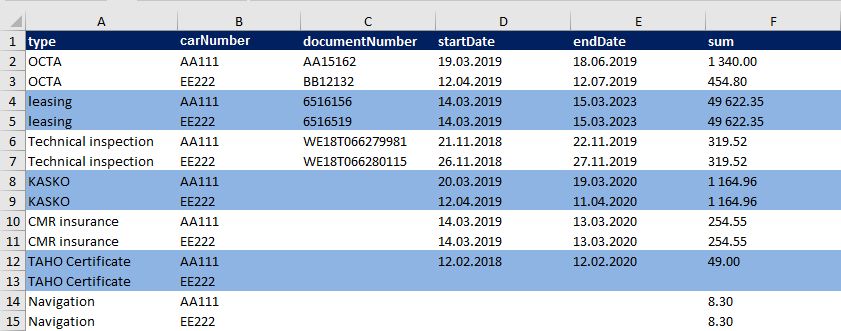
1\. Create an Excel spreadsheet containing the required information. For example: MTPL, CASCO, leasing or other fixed costs.

<p class="callout warning">• The data in the Excel file is grouped into 6 columns - according to the example below.  
• The first row must contain the column names.  
• There must be no other empty columns between these 6 columns.  
• The type names must correspond <u>exactly</u> to the defined position names!  
• Date must be in the format dd.mm.yyyy</p>

[![expenses-fix-xls-2.png](https://ozols.lv/doc/uploads/images/gallery/2022-02/scaled-1680-/izdevumi-fix-xls-2.png)](https://doc-ozols-lv.translate.goog/uploads/images/gallery/2022-02/izdevumi-fix-xls-2.png?_x_tr_sl=lv&_x_tr_tl=en&_x_tr_hl=en&_x_tr_pto=wapp)

<svg class="svg-icon" data-icon="link" role="presentation" viewbox="0 0 24 24" xmlns="http://www.w3.org/2000/svg"></svg>2. The prepared Excel spreadsheet is sent to Ozols TMS specialists by e-mail: <info@cloudex.lv>

# Type of transport

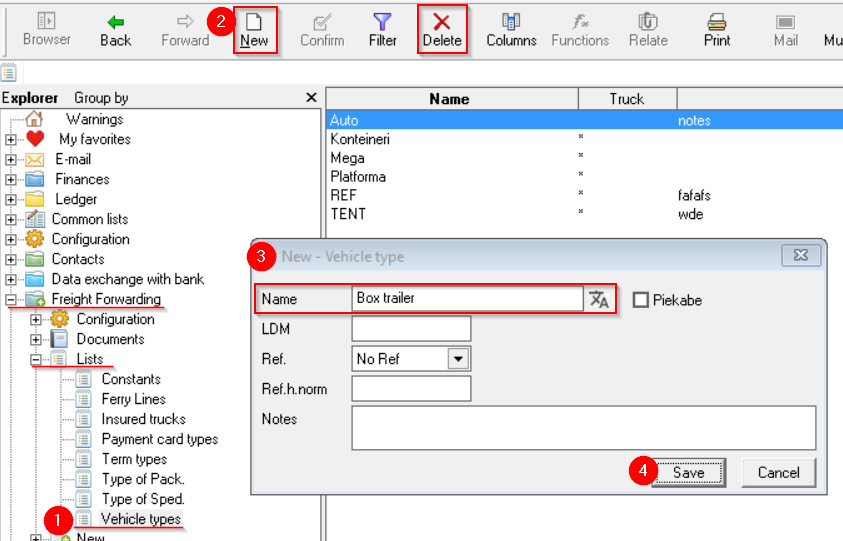
<p class="callout info">You can specify the **type of transport in client's order**. It can be added or edited.</p>

**OZOLS &gt; Freight forwarding &gt; Lists &gt; Transport types**

[![image-1662028029051.png](https://ozols.lv/doc/uploads/images/gallery/2022-09/scaled-1680-/image-1662028029051.png)](https://ozols.lv/doc/uploads/images/gallery/2022-09/image-1662028029051.png)