**If the toolbar is not visible** , it can be set from the menu using the **ME**NU** ‣Configuration ‣ Toolbar ‣ Commands**
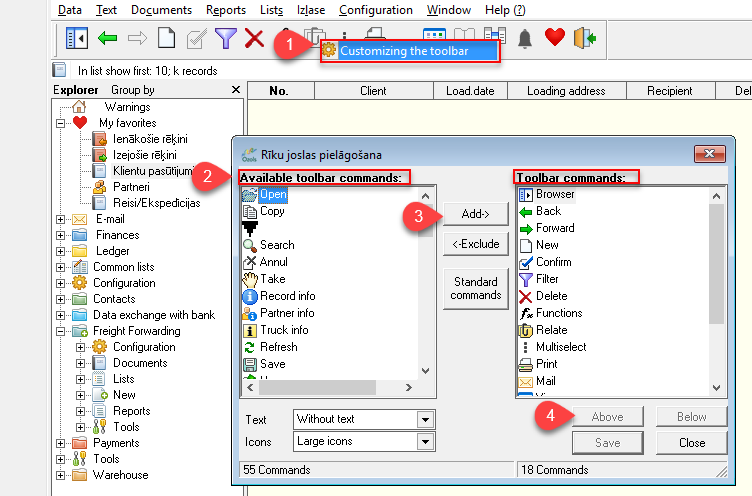
##### Customize Toolbar**The toolbar can be configured.** Place the mouse over the Toolbar. Click on the right button and select **Customize Toolbar.**
[](https://ozols.lv/doc/uploads/images/gallery/2022-05/image-1653313855777.png) # Open WindowsSometimes one of the open windows disappears because it has fallen behind another window. To find it:
1. To switch between open windows, press **Ctrl+F1** 2. Or from the menu, press **Window** 3. A list of **open windows** is shown **at the bottom of this window**. To open a window, click on it with the mouse. mouse. [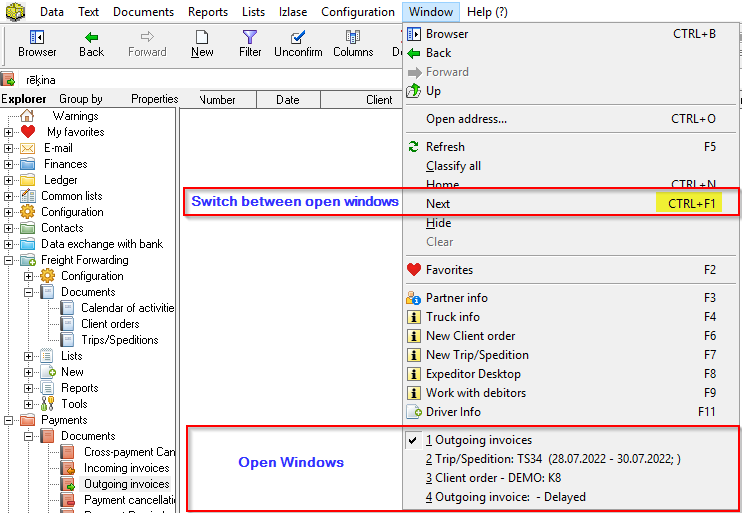](https://ozols.lv/doc/uploads/images/gallery/2022-10/image-1666682007095.png) # Shortcuts to frequently used forms 1. [Function keys](#bkmrk-1.-function-keys) 2. [Opened windows and Function key summary](#bkmrk-2.-opened-windows-an) 3. [General key combinations in OZOLS TMS](#bkmrk-3.-general-key-combi) #### 1. Function keys The function keys allow you to quickly open one of the OZOLS TMS sections [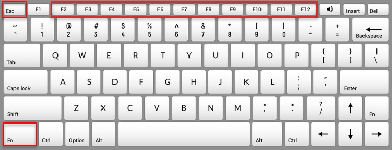](https://doc-ozols-lv.translate.goog/uploads/images/gallery/2022-05/image-1652086973713.png?_x_tr_sl=lv&_x_tr_tl=en&_x_tr_hl=en&_x_tr_pto=wapp)**The most frequently used Function keys:** **F6** - New Customer **order** **F7** - New **Voyage/Expedition** **F8** - **Forwarder** 's desktop
| Function keys | Explanation |
| F2 | [](https://doc-ozols-lv.translate.goog/uploads/images/gallery/2022-04/image-1649232419840.png?_x_tr_sl=lv&_x_tr_tl=en&_x_tr_hl=en&_x_tr_pto=wapp) My favorites - a list of working modes compiled by myself |
| F3 | [](https://doc-ozols-lv.translate.goog/uploads/images/gallery/2022-04/image-1649232497362.png?_x_tr_sl=lv&_x_tr_tl=en&_x_tr_hl=en&_x_tr_pto=wapp)Information card of the cooperation partner |
| F4 | [](https://doc-ozols-lv.translate.goog/uploads/images/gallery/2022-04/image-1649232520350.png?_x_tr_sl=lv&_x_tr_tl=en&_x_tr_hl=en&_x_tr_pto=wapp)Machine/Trailer Details |
| F5 | [](https://doc-ozols-lv.translate.goog/uploads/images/gallery/2022-04/image-1649232478036.png?_x_tr_sl=lv&_x_tr_tl=en&_x_tr_hl=en&_x_tr_pto=wapp)Redrawing (refreshing) information in the open window |
| F6 | [](https://doc-ozols-lv.translate.goog/uploads/images/gallery/2022-04/image-1649236212445.png?_x_tr_sl=lv&_x_tr_tl=en&_x_tr_hl=en&_x_tr_pto=wapp)New Customer order |
| F7 | [](https://doc-ozols-lv.translate.goog/uploads/images/gallery/2022-04/image-1649236748002.png?_x_tr_sl=lv&_x_tr_tl=en&_x_tr_hl=en&_x_tr_pto=wapp)New Voyage/Expedition |
| F8 | [](https://doc-ozols-lv.translate.goog/uploads/images/gallery/2022-04/image-1649236947008.png?_x_tr_sl=lv&_x_tr_tl=en&_x_tr_hl=en&_x_tr_pto=wapp)Forwarder desktop |
| F9 | Work with debtors |
| F11 | [](https://doc-ozols-lv.translate.goog/uploads/images/gallery/2022-04/image-1649232520350.png?_x_tr_sl=lv&_x_tr_tl=en&_x_tr_hl=en&_x_tr_pto=wapp)Saving and adding information |
| F12 | [](https://doc-ozols-lv.translate.goog/uploads/images/gallery/2022-04/image-1649232520350.png?_x_tr_sl=lv&_x_tr_tl=en&_x_tr_hl=en&_x_tr_pto=wapp)Retention and Closure of Information |
If the Function keys **do not work** , press **Fn + Esc on the keyboard**
#### 2. Opened windows and Function key summary In main menu under **Window** you can find Opened windows and Function key shortcuts and summary 1. **Update data** in the currently open window **(F5)** 2. **Arrange all** creates a cascade of open windows. This allows you to quickly switch between open windows 3. Shortcuts to **function keys** 4. Opened windows - Helps to find collapsed windows [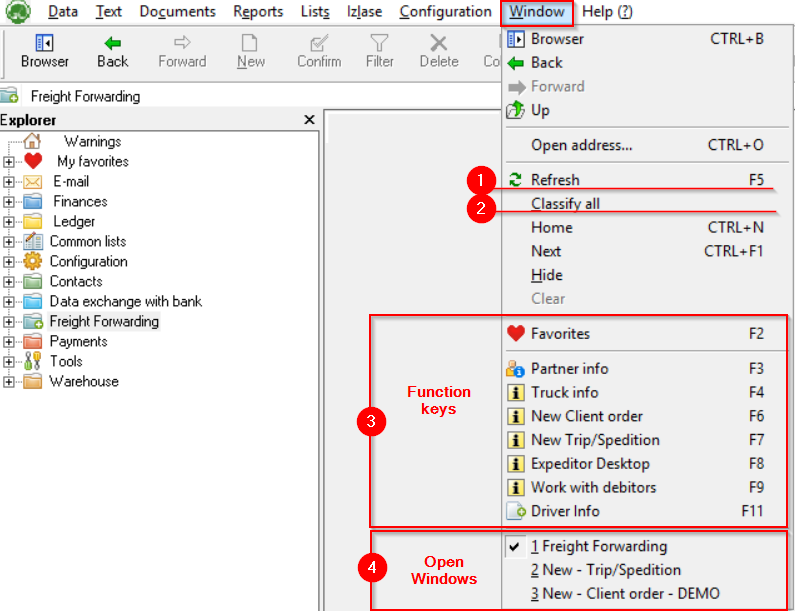](https://ozols.lv/doc/uploads/images/gallery/2022-09/image-1662031591973.png) #### 3. General key combinations in OZOLS TMS| **Key combinations** | **Explanation** |
| Tab | Navigating from field to field |
| Shift+Tab | Navigating from field to field backwards |
| Ctrl+Tab | Switch between form pages |
| Alt+Arrow Down | Opens a drop-down list for selecting a record |
| Shift+Arrow Down | Opens a drop-down extended list for selecting a record |
| Shift+Arrow Up | Opens the selected drop-down record or, if no record is selected, creates a new record |
| Alt+ underlined letter | The mouse cursor moves to the label field containing the underlined letter |
| Escape | Cancels changes to the open form |
| Enter | Saves open form data |
| Ctrl+G | Book document |
| Ctrl+P | Prints the selected document |
Almost all sections of OZOLS have the possibility to set a **Filter** for selecting the data you need. The **Filter** is located in the toolbar.
[](https://ozols.lv/doc/uploads/images/gallery/2022-09/image-1662035091447.png)If all records are not displayed when opening one of the OZOLZ TMS sections, make sure that one of the filters has not been **turned on from the previous use**.
- To find a document by number, it is enough to enter **the last two digits of the number.** - **% sign** in front of the entry enables search for partial number or name. - To select **several order numbers** , enter them in the "Search number(s)" field, **separated by a comma.** - **A checkmark[](https://doc-ozols-lv.translate.goog/uploads/images/gallery/2022-07/image-1658824626308.png?_x_tr_sl=lv&_x_tr_tl=en&_x_tr_hl=en&_x_tr_pto=wapp)** turns on the specific filter [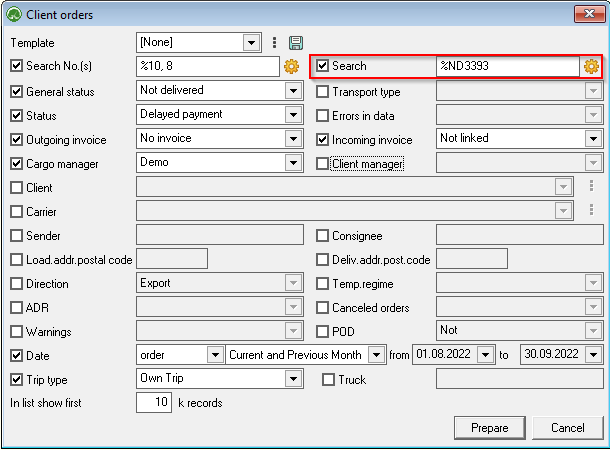](https://ozols.lv/doc/uploads/images/gallery/2022-09/image-1662105184357.png)**The additional Search** function built into the filter on the right side of window allows you to enter additional search criteria. More about search options [here.](https://ozols.lv/doc/books/ozols-tms-english/page/search-window)
# Search window #### How the search window works: - If you search for, for example, "**ECG**" the program will select all records where the field **name starts with** "ECG" - If you search " **% ECG**" the program will select all records where **the field record contains** "ECG" - If you search for “ **!** "ECG" program will select all records where the field name **does not start with** "ECG" - If there are spelling differences, the **unknown letter** is replaced by an underscore " \_ ". For example, you can search for the word "Vilnius" as "Viln\_\_s" - Square brackets \[ \] ar used to search for multiple **possible letters** . For example, searching for “ \[ CS \] heryl” will find the result for both Cherlyl and Sheryl #### Two search windows: 1. The data is searched in the OZOLS **database**; 2. Data is searched only in **the open table**. [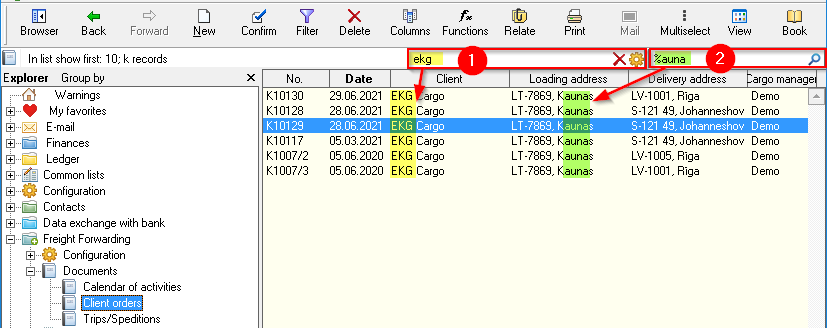](https://ozols.lv/doc/uploads/images/gallery/2022-09/image-1662109232125.png) # Recording and editing historyAlmost all records or editing made in the OZOLS TMS are logged and their history can be viewed.
##### Record history information: 1. **when and who added** the record ; 2. **when and who opened/viewed** the record ; 3. when and by whom the record has been **edited** and specifically **what** **changes** have been made. ##### To view Record history: 1. Open the desired window and **p**ress** the key combination Ctrl+i** 2. Record info displays which user created, edited or viewed the data 3. If the text "**Edited**" is next to the record, then you can open additional information about the history of the record with a double click. [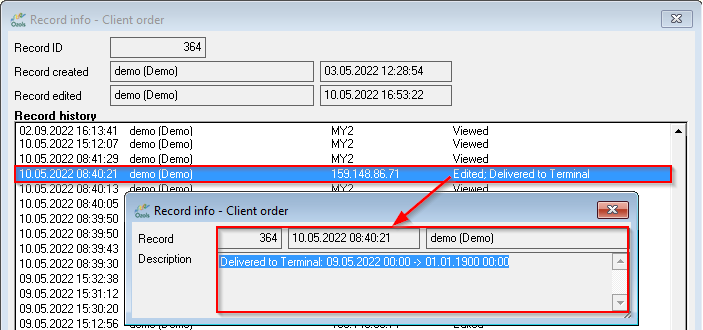](https://ozols.lv/doc/uploads/images/gallery/2022-09/image-1662125004194.png) # Columns - adjusting the design and content Read about adjusting the design and content in the following sections: 1. [How to adjust column content and order?](https://ozols.lv/doc/books/ozols-tms-english/page/customize-column-content-and-order) 2. [How to change column width?](https://ozols.lv/doc/books/ozols-tms-english/page/adjusting-column-width) 3. [How to put a colleague's column layout in your Ozols?](https://ozols.lv/doc/books/ozols-tms-english/page/customize-column-content-and-order) 4. [How to quickly change the appearance of columns? - **Defined columns**](https://ozols.lv/doc/books/ozols-tms-english/page/defined-columns) # Adjusting Column width #### To change the column width: Open the OZOLS TMS table where you want to change the width of the columns. **1. In the toolbar, select the Columns** toolbar button [](https://ozols.lv/doc/uploads/images/gallery/2022-08/image-1661778373612.gif) or press **Ctrl+K. The Column settings** window will open 2\. In **the Visible columns** section , select which column width you want to change 3\. Press the **Change column width** button 4\. In **the Column width** field, write the desired column width in pixels (informative: 1px ≈ 0.26mm; 100px ≈ 2.6cm) [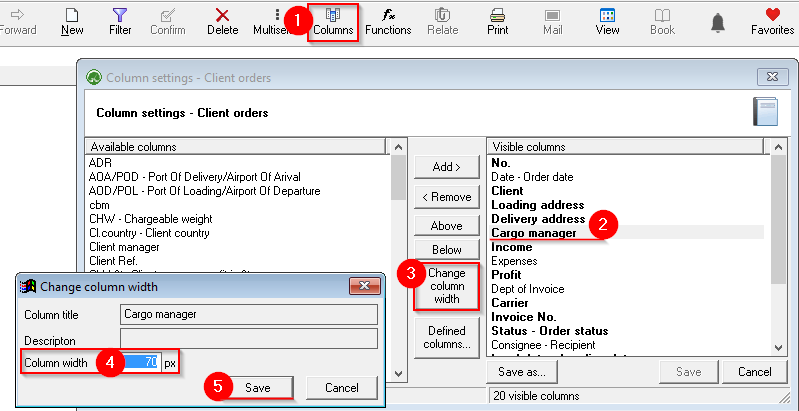](https://ozols.lv/doc/uploads/images/gallery/2022-10/image-1666267231945.png)**See also:** 1) [Customize table ](https://doc-ozols-lv.translate.goog/books/ozols-desktop/page/pielagot-tabulas-kolonnu-saturu-un-secibu?_x_tr_sl=lv&_x_tr_tl=en&_x_tr_hl=en&_x_tr_pto=wapp)**[column content and order](https://doc-ozols-lv.translate.goog/books/ozols-desktop/page/pielagot-tabulas-kolonnu-saturu-un-secibu?_x_tr_sl=lv&_x_tr_tl=en&_x_tr_hl=en&_x_tr_pto=wapp)** 2) [**Defined columns**](https://doc-ozols-lv.translate.goog/books/ozols-desktop/page/definetas-kolonnas?_x_tr_sl=lv&_x_tr_tl=en&_x_tr_hl=en&_x_tr_pto=wapp)
# Customize column content and order Open the table you want to make changes to 1. **Press the right mouse button** on any of the rows in the table 2. Or in the menu, press **Columns** (Ctrl+K) [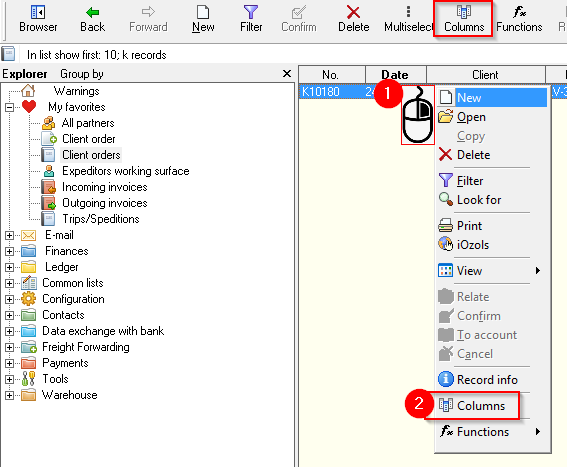](https://ozols.lv/doc/uploads/images/gallery/2022-10/image-1666268786878.png) 3. Columns are divided into **Available columns (possibly included in the table)** and 4. **Visible columns (already included in the table)** 5. Mark with the “mouse” the desired column on one or the other side and press the **Add** or **Remove buttons** as needed to adjust the table content 6. Change the order of the columns with the **Up** or **Down buttons** . Moving Up moves the column to the left in the table. Moving Below moves the column to the right in the table. [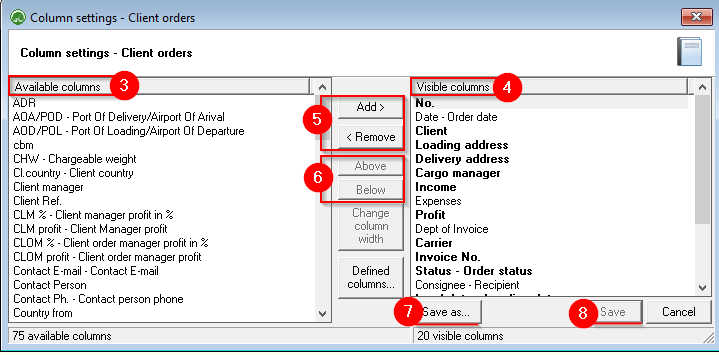](https://ozols.lv/doc/uploads/images/gallery/2022-10/image-1666269460278.png)**The Save As...** button allows you to save the selected layout as defined. This means that both you and other users of your company's OZOLS database will be able to open this table layout.
**See also:** 1) [Change ](https://doc-ozols-lv.translate.goog/books/ozols-desktop/page/kolonnu-platums?_x_tr_sl=lv&_x_tr_tl=en&_x_tr_hl=en&_x_tr_pto=wapp)**[column width](https://doc-ozols-lv.translate.goog/books/ozols-desktop/page/kolonnu-platums?_x_tr_sl=lv&_x_tr_tl=en&_x_tr_hl=en&_x_tr_pto=wapp)** 2) [**Defined columns**](https://doc-ozols-lv.translate.goog/books/ozols-desktop/page/definetas-kolonnas?_x_tr_sl=lv&_x_tr_tl=en&_x_tr_hl=en&_x_tr_pto=wapp)
# Defined columns**Defined columns** allow you to save the table column layout you create with a name. Columns saved in this way are easily available both for their own needs and for installation by other users. So, for example, defined column selections can be created within the company, which can be easily installed by new employees.
First, open the table where you want to install the defined columns. Select the  **Columns button on the toolbar ( Ctrl+K )** 1. Click the **Defined Columns… button.** 2. **Default columns** - layout recommended by OZOLS TMS 3. **Columns defined** in your company 4. Click **Save** to activate the defined columns [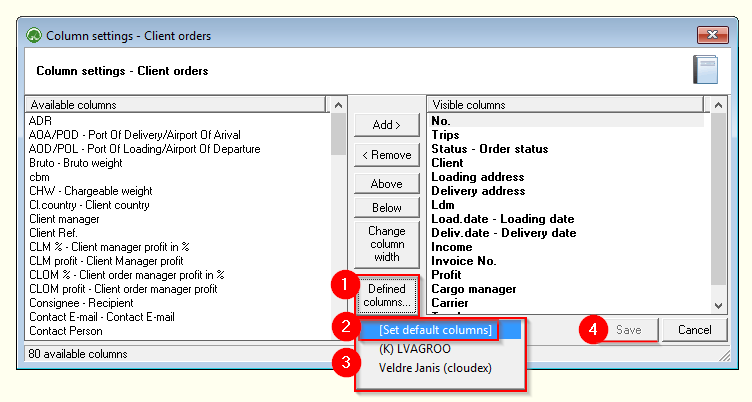](https://ozols.lv/doc/uploads/images/gallery/2022-10/image-1666273150651.png) #### To create a selection of Defined Columns 1. Adjust the columns shown in the table as needed ( [tutorial **here**](https://doc-ozols-lv.translate.goog/books/ozols-desktop/page/pielagot-kolonnu-saturu-un-secibu?_x_tr_sl=lv&_x_tr_tl=en&_x_tr_hl=en&_x_tr_pto=wapp) ) and press the button **Save as...** 2. To create a New selection of defined columns, press **New...** 3. To edit or delete previously saved defined columns, select **by name** 4. To open a selection of predefined columns, click the ****Defined Columns… button.****[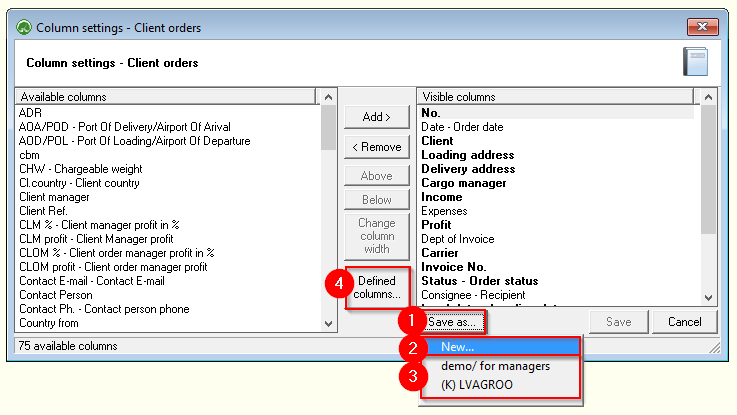](https://ozols.lv/doc/uploads/images/gallery/2022-10/image-1666273740509.png) 5. Gives a name to a selection of defined columns 6. Tick if you want the columns to be available to all users. If the "tick" is not placed, then only you will see this selection 7. Press save. The Defined Columns you have created can be found by clicking the **Defined Columns… button.** 8. If you need to delete one of the previously created selections of Defined columns, open it (5) and press the **Delete button** [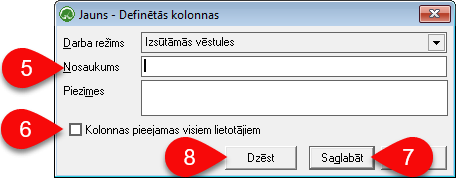](https://doc-ozols-lv.translate.goog/uploads/images/gallery/2022-03/image-1646665437129.png?_x_tr_sl=lv&_x_tr_tl=en&_x_tr_hl=en&_x_tr_pto=wapp)The Defined Columns you created can be found by clicking the **Defined Columns** button
# Multiselect - highlight the desired rowsMultiselect is used when it is necessary to select individual rows in random order. such as cargo and add to the trip.
1\) In the toolbar, select **Multi-select.** ( **Ctrl+Y)** 2\) Then, similarly to Excel, holding down the **Ctrl** or **Shift** keys with the "mouse" mark the desired rows 3\) The marked rows depending on the open window: \- The marked loads on the freight forwarder's desktop can be added to the marked flight \- [Calculator - the sums of the marked lines](https://doc-ozols-lv.translate.goog/books/ozols-desktop/page/kalkulators-iezimeto-rindu-summas?_x_tr_sl=lv&_x_tr_tl=en&_x_tr_hl=en&_x_tr_pto=wapp) \- [Print or export to Excel](https://doc-ozols-lv.translate.goog/books/ozols-desktop/page/drukat-vai-eksportet-uz-excel-tikai-jums-vajadzigos-datus?_x_tr_sl=lv&_x_tr_tl=en&_x_tr_hl=en&_x_tr_pto=wapp) \- Depending on the window, additional options are available by pressing the Functions command button [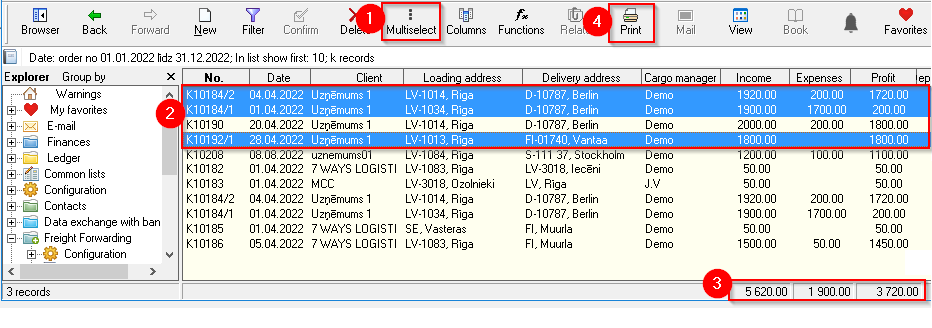](https://ozols.lv/doc/uploads/images/gallery/2022-10/image-1666361530074.png) # Calculator - sums of highlighted rowsOZOLS TMS allows you to select individual rows in the table in order to sum the numbers in these rows.
1. In the toolbar, select **Multi Select.** (shortcut **Ctrl+Y)** 2. Then, similar to Excel, holding the **Ctrl** or **Shift** keys with the "mouse" selects the desired rows 3. **The sums of the highlighted rows are shown in the lower part of the table** 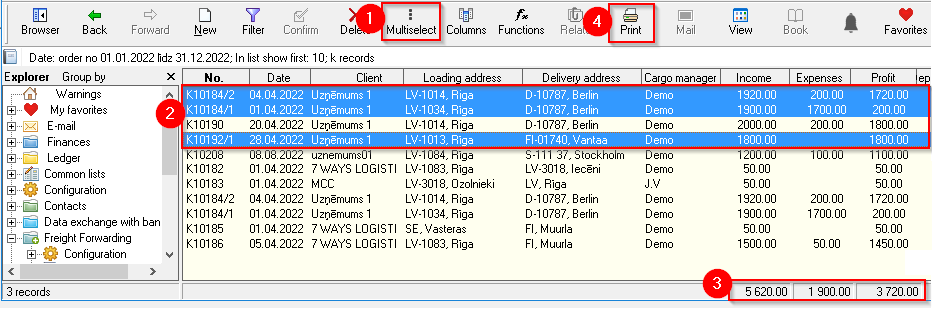**See also:** [1) Option to print or export highlighted rows **to Excel** ](https://doc-ozols-lv.translate.goog/books/ozols-desktop/page/drukat-vai-eksportet-uz-excel-tikai-jums-vajadzigos-datus?_x_tr_sl=lv&_x_tr_tl=en&_x_tr_hl=en&_x_tr_pto=wapp)[. Press Print ④ and follow the instructions.](https://doc-ozols-lv.translate.goog/books/ozols-desktop/page/drukat-vai-eksportet-uz-excel-tikai-jums-vajadzigos-datus?_x_tr_sl=lv&_x_tr_tl=en&_x_tr_hl=en&_x_tr_pto=wapp) 2) **Additional options,** depending on the opened window, by pressing the **Functions command button**
# Print or export selected data to ExcelOzols TMS enables you to select the desired data in tables and print or save in Excel:
1. Choose **Filter [](https://ozols.lv/doc/uploads/images/gallery/2022-05/image-1651585606852.png)** (shortcut **Ctrl+F** ) from the toolbar and select the data you want to select. 2. On the toolbar, choose **Columns** [](https://ozols.lv/doc/uploads/images/gallery/2020-11/ico-columns.gif)(shortcut **Ctrl+K** ) and choose the columns you need. There is an option to save this column selection in the [**Defined Columns section.**](https://doc-ozols-lv.translate.goog/books/ozols-desktop/page/definetas-kolonnas?_x_tr_sl=lv&_x_tr_tl=en&_x_tr_hl=en&_x_tr_pto=wapp) 3. If you need to select only some rows, select **Multi select [](https://ozols.lv/doc/uploads/images/gallery/2022-06/image-1654595946120.png) from the toolbar.** (shortcut **Ctrl+Y)** 4. Similar to Excel, holding the **Ctrl** or **Shift** keys with the mouse selects the desired rows 5. Choose **View [ ](https://ozols.lv/doc/uploads/images/gallery/2022-08/image-1661781212158.png)**from the toolbar (shortcut **Ctrl+H** ). At this point, a table with the selected data will be displayed in the main window. 6. **Right-** click anywhere in the newly created table and select **print or export to Excel** [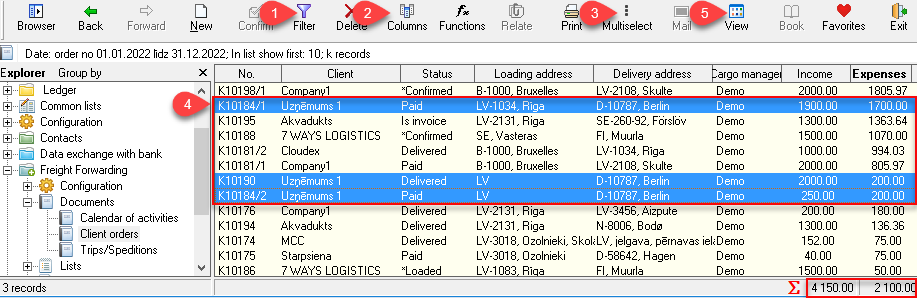](https://ozols.lv/doc/uploads/images/gallery/2022-08/image-1661937902064.png)To send the data to a **printer** or export to **Excel** , click **View** and follow the instructions.
**See also:** 1) [**Calculator** - sums of highlighted rows](https://doc-ozols-lv.translate.goog/books/ozols-desktop/page/kalkulators-iezimeto-rindu-summas?_x_tr_sl=lv&_x_tr_tl=en&_x_tr_hl=en&_x_tr_pto=wapp) 2) [**Column width**](https://doc-ozols-lv.translate.goog/books/ozols-desktop/page/kolonnu-platums?_x_tr_sl=lv&_x_tr_tl=en&_x_tr_hl=en&_x_tr_pto=wapp)