Incoming invoices registered in Ozola are paid by creating payment orders. We recommend exporting these payment tasks to an internet bank for fast bill payment.
There are various options for preparing bank payments, so we recommend OZOLS users to use the one that is convenient for them
#### 1. Many Bank payment orders for many incoming invoicesThe selected documents MAY be of different types (invoices, waybills), of different dates and from different Partners!
1. **OZOLS > Payments > Documents > Incoming invoices** 2. The [ ](https://doc-ozols-lv.translate.goog/uploads/images/gallery/2022-07/image-1658324999001.png?_x_tr_sl=lv&_x_tr_tl=en&_x_tr_hl=en&_x_tr_pto=wapp)**necessary incoming invoices are selected** with the help of the **Filter**[](https://doc-ozols-lv.translate.goog/uploads/images/gallery/2022-07/image-1658324999001.png?_x_tr_sl=lv&_x_tr_tl=en&_x_tr_hl=en&_x_tr_pto=wapp) For example: Show only unpaid invoices. 3. Mark which invoices to pay - Select **Multi select [](https://ozols.lv/doc/uploads/images/gallery/2022-06/image-1654595946120.png)(Ctrl+Y)** and, similar to Excel, holding the **Ctrl** or **Shift** keys with the mouse highlight the desired invoices. 4. Press Functions  5. Select: **create bank payment orders for marked invoices** 6. Selects the bank payment **date** 7. **Specifie the bank account** from which payments will be made 8. Press **Continue !!!** Prepared bank payments are available: **OZOLS** **‣ Finances ‣ Documents ‣ Bank expenses** [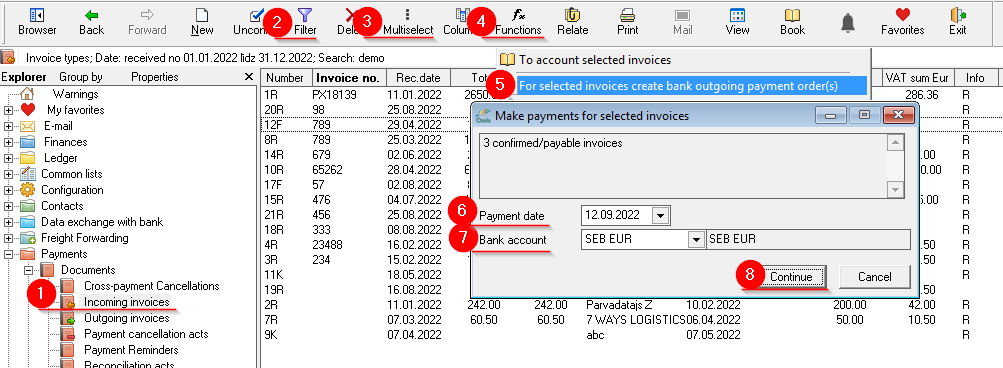](https://ozols.lv/doc/uploads/images/gallery/2022-09/image-1662981186969.png)When creating payment orders for multiple invoices, they will all be created with ONE preparation date and from the same company's bank account
We recommend exporting the prepared bank payment tasks to the bank using the [Data exchange with the bank functionality available in the system](https://doc-ozols-lv.translate.goog/books/ozols-desktop/page/bankas-maksajumu-uzdevumu-eksports?_x_tr_sl=lv&_x_tr_tl=en&_x_tr_hl=en&_x_tr_pto=wapp)
#### 2. Bank payment order for one incoming invoice Linking one incoming invoice with the outgoing payment order.If the Bank payment order has already been created in the Internet bank or another program, it is possible to enter it manually in OZOLS and thus register the payment of the incoming invoice.
1. **OZOLS > Payments> Documents > Incoming invoice** 2. **Press the Functions** button [](https://ozols.lv/doc/uploads/images/gallery/2022-05/image-1651737125163.png) 3. Select **Create bank outgoing payment order** 4. Enter the required **information from the bank payment order** and **save** [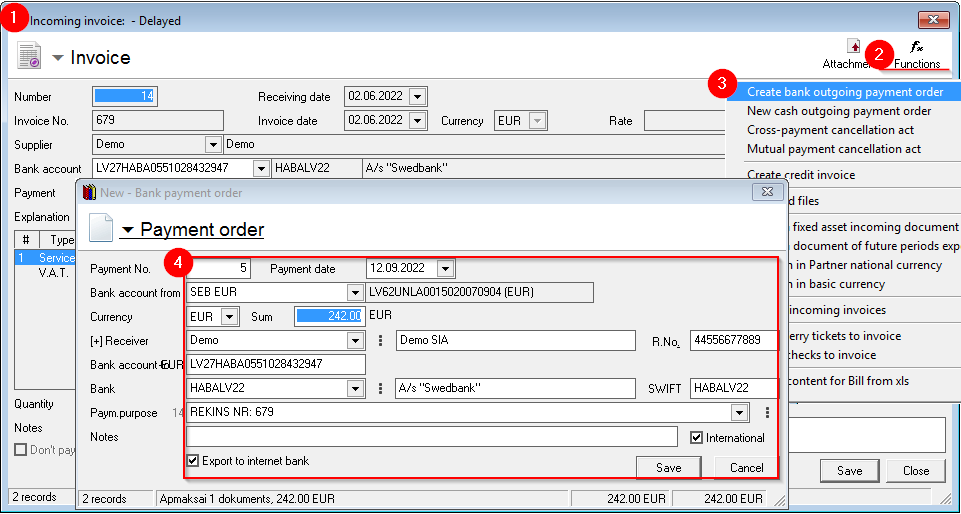](https://ozols.lv/doc/uploads/images/gallery/2022-09/image-1662981170825.png) #### 3. Deleting and correcting the bank payment orderIt is possible to correct or delete the payment order before it has been sent to the internet bank for payment. To do this, the payment order is first detached from the invoice:
1. **OZOLS > Finances > Documents > Bank expenses;** 2. Select the required payment order; 3. Press the **Relate** button . A window opens - **Settlement payment order**; 4. Select the invoice from which the payment order should be unrelated; 5. Press the Unlink button and save; [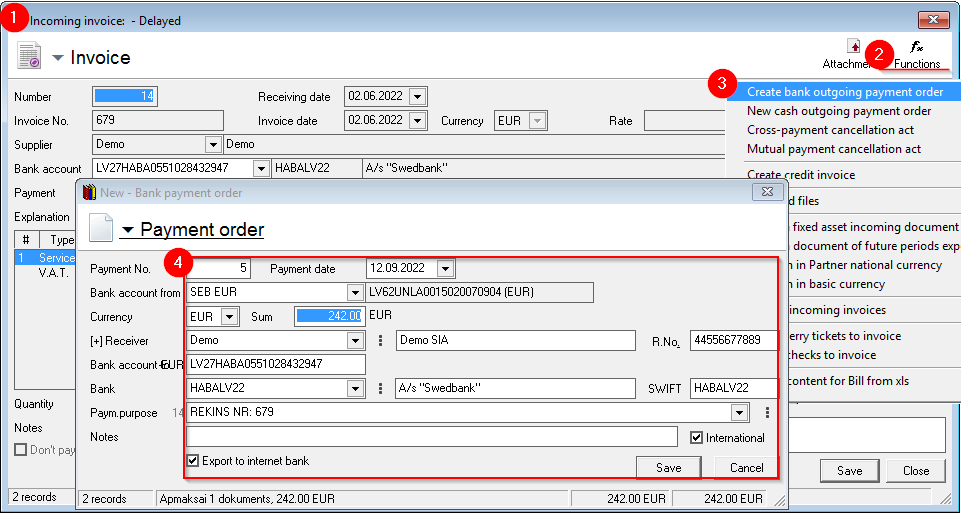](https://ozols.lv/doc/uploads/images/gallery/2022-09/image-1662983309984.png) 6. The confirmation of the desired payment order is removed; 7. Opens the payment order and make corrections or delete by pressing the Delete button [](https://ozols.lv/doc/uploads/images/gallery/2022-09/image-1662983740578.png) # Export of bank payment ordersIn the OZOLS system, it is possible to export the payment orders to the internet bank. You only need to import the file created by Ozols in your internet bank and confirm the payments.
In order to make such a connection, it is necessary to create **import** and **export** folders on the computer's hard drive. If you use several Internet banks, create own folder for each one, for example: C:\\bank\\swed\\export and C:\\bank\\swed\\import.
**OZOLS ‣ Data exchange with bank ‣ Lists ‣ Bank electronic payment system** 1\. Using the "New" button on the toolbar, you can add a new banking system. To modify an already created banking system, double click on it. [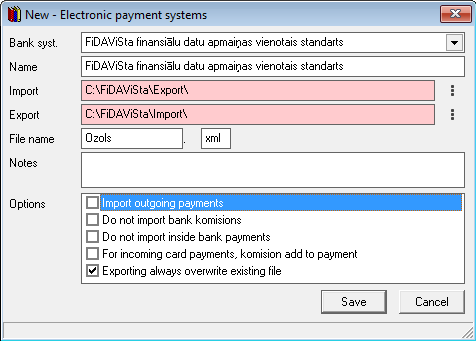](https://ozols.lv/doc/uploads/images/gallery/2022-09/image-1663577755778.png) 2\. In order to perform the necessary configuration for data exchange - you need to choose the appropriate system for your bank - for Latvian commercial banks it will be the standard of FiDAViSta.For Import and Export, you need to specify the path to previously created folders on the computer - for example C:\\banka\\Imports and C:\\banka\\Exports
If a corresponding folder is not created on the computer, OZOLS will show it by marking the field red, if the folder is found, the field will turn white.
3\. Since only a separate folder is created for each bank, it is also necessary to add another folder to each bank in the system. In addition to each bank, you can specify various options - whether outgoing payments will also be imported, or import bank commission payments, etc. #### Data exchange with the bank 1\. To export payment orders to the bank, the "Data exchange with the bank" tool is used, which is available: **OZOLS ‣ Data exchange with the bank ‣ Tools ‣ Bank payments import/export**To use data exchange with your bank, it is important to select which banking system you will be working with (in cases where more than one bank's electronic payment system is connected to OZOLS TMS.
If OZOLS TMS finds payment orders that have not yet been exported and are marked for export (checked in the bank payment order in Ozols under Finance), the tool will automatically check "Export payment orders". If the system finds a bank export file, "Import bank statements" will automatically be checked.
2\. In order to export the prepared bank payments from the OZOLS TMS, you need to mark the parameter: [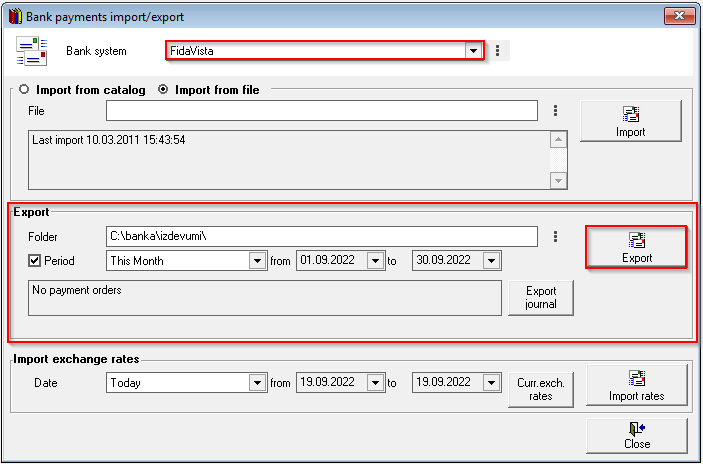](https://ozols.lv/doc/uploads/images/gallery/2022-09/image-1663579095233.png)**A ferry ticket is attached or detached from the Invoice by double-clicking on it.**
It is possible to attach several tickets to one invoice.
#### Read more: [Adding ferry tickets](https://ozols.lv/doc/books/ozols-tms-english/page/3-adding-a-ferry-ticket) # Mutual clearing actsThe Mutual clearing act settles the financial obligations between the outgoing and incoming invoices of the business partner
#### To create a new Mutual clearing acts: 1. **Ozols > Payments > Documents > Mutual clearing >** in the toolbar press ******New****** [](https://ozols.lv/doc/uploads/images/gallery/2022-10/image-1666084500678.png) 2. A new window opens **Mutual clearing** 3. In the header, indicate the date, document number, name (for example: according to the contract) and select the required cooperation partner from the list [.](https://doc-ozols-lv.translate.goog/books/ozols-instrukcijas/page/sadarbibas-partneri?_x_tr_sl=lv&_x_tr_tl=en&_x_tr_hl=en&_x_tr_pto=wapp) 4. Press the **Fill** button [](https://ozols.lv/doc/uploads/images/gallery/2022-10/image-1666160832574.png) 5. Choose **Incoming invoices** 5.1. **The Unpaid incoming invoices** window opens . By holding down the **ctrl** key, mark with mouse the necessary invoices and by pressing [ ](https://doc-ozols-lv.translate.goog/uploads/images/gallery/2020-11/ico-hand.gif?_x_tr_sl=lv&_x_tr_tl=en&_x_tr_hl=en&_x_tr_pto=wapp)or with a double click of the mouse, add the invoices to the act 6. **Press the Fill** button again [](https://ozols.lv/doc/uploads/images/gallery/2022-10/image-1666160832574.png) and select **Outgoing invoices** 6.1. **The Unpaid outgoing invoices** window opens . By holding down **the ctrl** key, mark with mouse the necessary invoices and by pressing [ ](https://doc-ozols-lv.translate.goog/uploads/images/gallery/2020-11/ico-hand.gif?_x_tr_sl=lv&_x_tr_tl=en&_x_tr_hl=en&_x_tr_pto=wapp)or with a double click of the mouse, add the invoices to the act 7. **Press the Equalize sums** button [](https://ozols.lv/doc/uploads/images/gallery/2022-10/image-1666161012847.png) !!! the amount of covered amount on both sides has to be the same! 8. Enter currency, consent term and notes if needed 9. The created act is confirmed by pressing the button on the toolbar [](https://ozols.lv/doc/uploads/images/gallery/2022-10/image-1666161395951.png) 10. **To print the document, press the Print** [](https://doc-ozols-lv.translate.goog/uploads/images/gallery/2020-11/ico-print.gif?_x_tr_sl=lv&_x_tr_tl=en&_x_tr_hl=en&_x_tr_pto=wapp) button on the toolbar to send to e-mail **Mail** [](https://doc-ozols-lv.translate.goog/uploads/images/gallery/2022-03/image-1647260033166.png?_x_tr_sl=lv&_x_tr_tl=en&_x_tr_hl=en&_x_tr_pto=wapp) 11. You need to press the button to save [](https://ozols.lv/doc/uploads/images/gallery/2022-10/image-1666161546834.png) [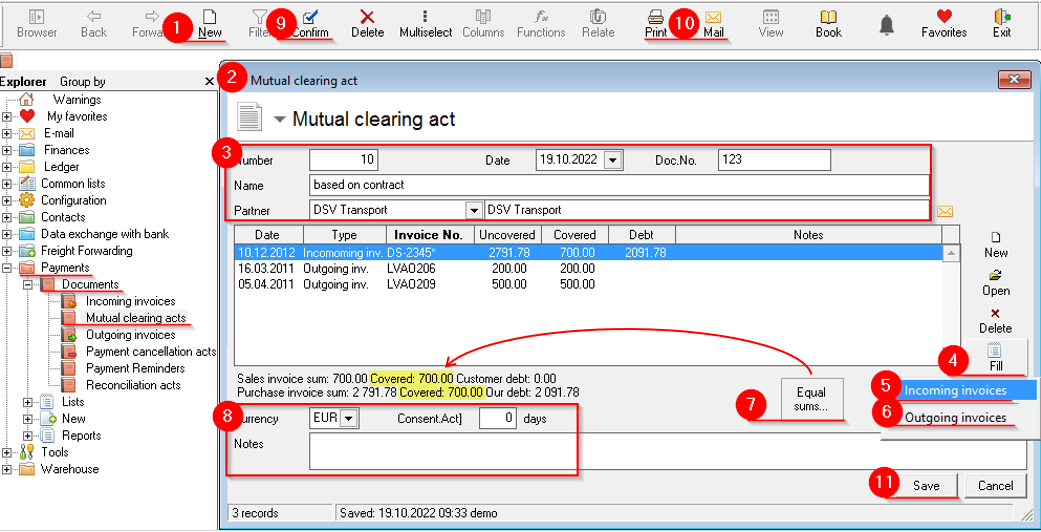](https://ozols.lv/doc/uploads/images/gallery/2022-10/image-1666167916229.png) ##### Sample of **Mutual clearing** **cancellation act** act: [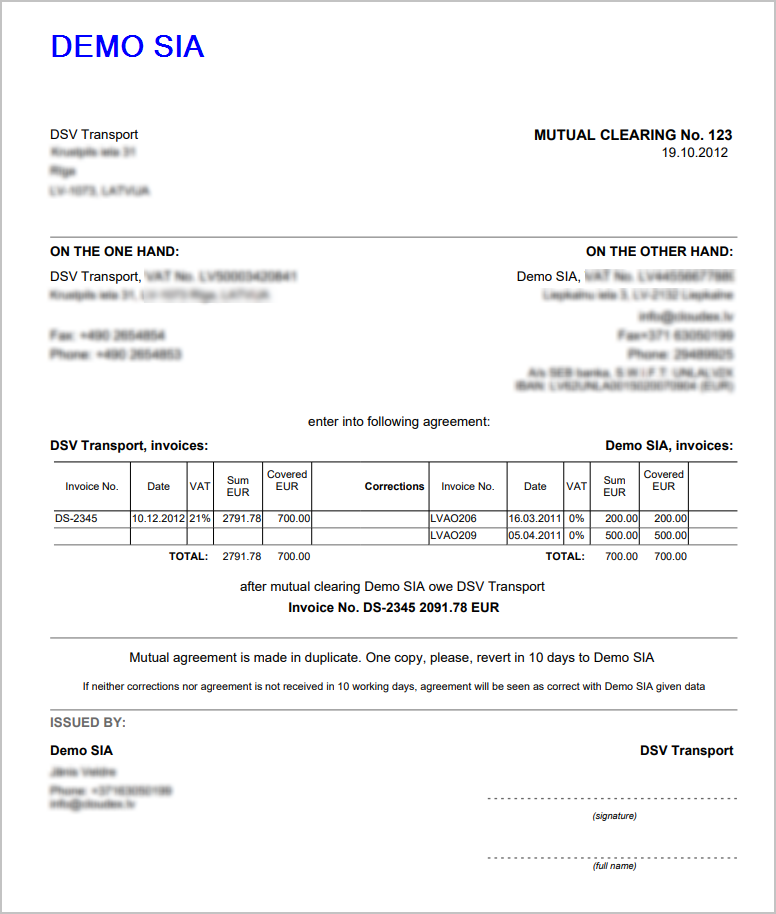](https://ozols.lv/doc/uploads/images/gallery/2022-10/image-1666168645471.png)When the Reconciliation act is approved, the documents attached to it are linked, thus the debt amounts of the documents are canceled and the documents are considered paid.
The Reconciliation act can be posted in the same way as other payment documents.
# Credit invoice for incoming invoice ##### Contents: 1. [Creating a credit invoice for an incoming invoice](#bkmrk-1.-kred%C4%ABtr%C4%93%C4%B7ina-izve) 2. [Deed of settlement of invoices for credit invoice of incoming invoice](#bkmrk-2.-nor%C4%93%C4%B7inu-dz%C4%93%C5%A1anas) 3. [Where does OZOLS store payment cancellation acts for credit invoices?](#bkmrk-3.-where-does-ozols-) #### 1. Creating a credit invoice for an incoming invoice 1. Open **Incoming Invoices** 2. Finds the invoice for which you need to register a credit note and open it 3. In the incoming invoice window, press **Functions** [](https://doc-ozols-lv.translate.goog/uploads/images/gallery/2022-05/image-1651737125163.png?_x_tr_sl=lv&_x_tr_tl=en&_x_tr_hl=en&_x_tr_pto=wapp) and 4. **Create a credit invoice** [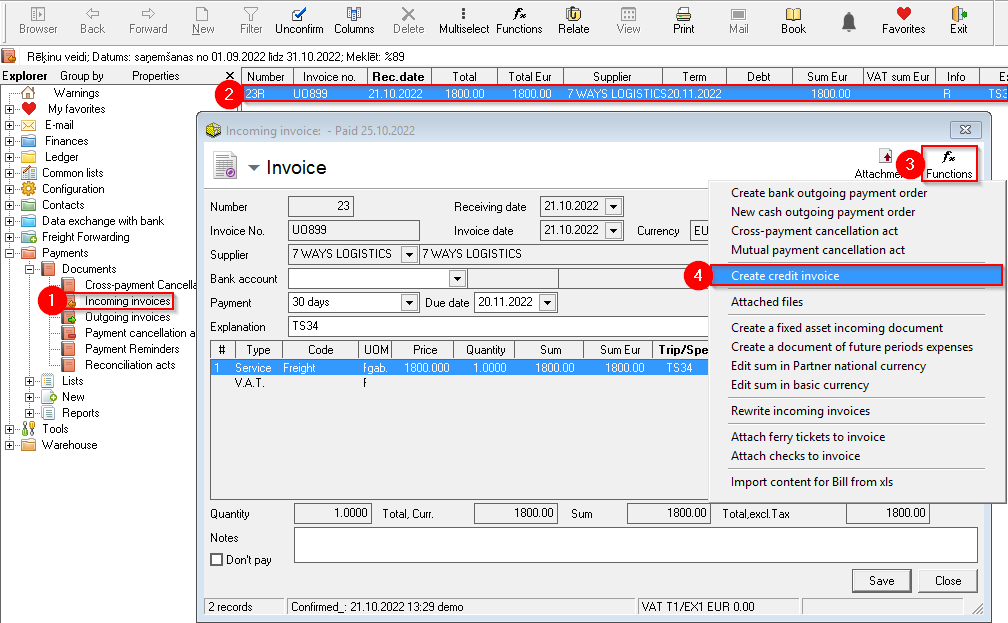](https://ozols.lv/doc/uploads/images/gallery/2022-10/image-1666773481932.png) 5. A new window will open - **Credit invoice.** You can enter the number of the credit invoice in this window 6. Keep your credit score [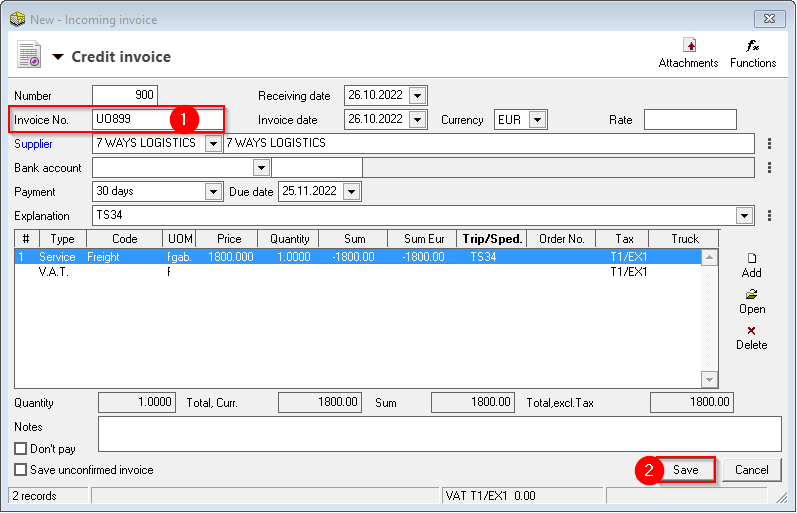](https://ozols.lv/doc/uploads/images/gallery/2022-10/image-1666774305196.png) ##### 2. Payment cancellation act for incoming invoice with credit invoice 1. The **Incoming invoices** list now shows both the **Incoming invoice and the credit invoice** (with a negative amount) 2. With **Multiselect** [](https://doc-ozols-lv.translate.goog/uploads/images/gallery/2022-06/image-1654595946120.png?_x_tr_sl=lv&_x_tr_tl=en&_x_tr_hl=en&_x_tr_pto=wapp) and holding the **Ctrl** key with the mouse, highlight both invoices 3. Functions [](https://doc-ozols-lv.translate.goog/uploads/images/gallery/2022-05/image-1651737125163.png?_x_tr_sl=lv&_x_tr_tl=en&_x_tr_hl=en&_x_tr_pto=wapp) 4. Selects **Create settlement cancellation act.** When the new act window opens, **Save it** 5. If necessary, invoices are confirmed by pressing [](https://doc-ozols-lv.translate.goog/uploads/images/gallery/2022-10/image-1666700519711.png?_x_tr_sl=lv&_x_tr_tl=en&_x_tr_hl=en&_x_tr_pto=wapp)[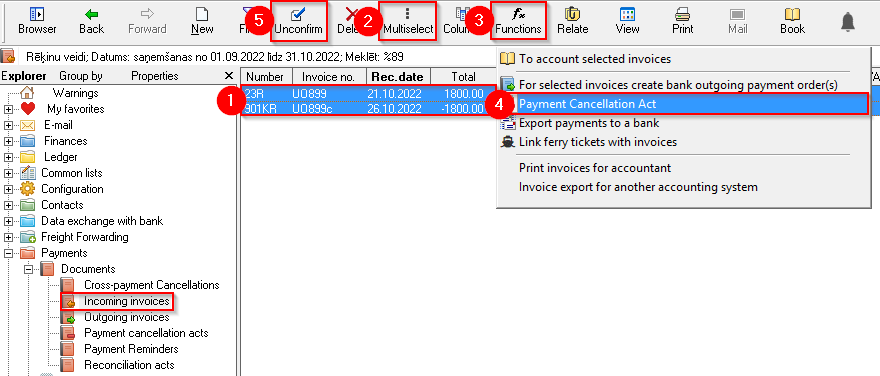](https://ozols.lv/doc/uploads/images/gallery/2022-10/image-1666774769371.png) ##### 3. Where does OZOLS store payment cancellation acts for credit invoices? [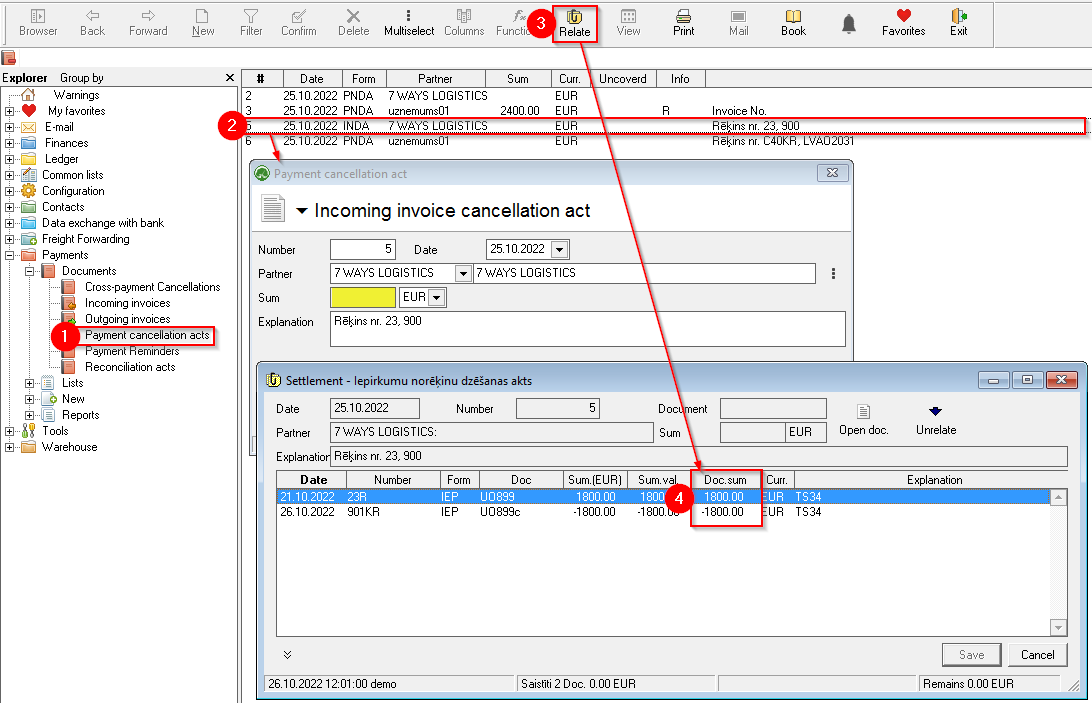](https://ozols.lv/doc/uploads/images/gallery/2022-10/image-1666777390392.png)