**The invoice is issued and sent together with CMR in the Client's order window**
[](https://ozols.lv/doc/uploads/images/gallery/2022-05/image-1653996378050.png) ### 1. Income from the client: In the field **Income from the client** field enter the total amount excluding VAT and the currency to be paid by the client. \- If the amount changes during the processing of the order, e.g. the customs declaration is purchased in addition, then the field "**Income from client**" must be updated accordingly. \- If a Credit Invoice has been issued, the "**Income from client**" **must be manually reduced by its amount.** **Summing up** [](https://doc-ozols-lv.translate.goog/uploads/images/gallery/2022-04/image-1649141607526.png?_x_tr_sl=lv&_x_tr_tl=en&_x_tr_hl=en&_x_tr_pto=wapp) - If pressed, the field "**Income from client**" will be filled in automatically, summing up the services related to this client order. - If this function [](https://ozols.lv/doc/uploads/images/gallery/2022-05/image-1653916660500.png) is enabled, it is not possible to fill in the field "**Income from client**" **manually.** **Payment:** Outgoing invoice payment term. \- The client's default payment term can be defined: Ozols > Contacts > Lists > All partners > Open the card of the partner you want to edit > choose page **Other data** > set **Term of payment** **VAT rate:** - Selecting the VAT rate and then hovering over the field shows the VAT rate Article. \- VAT rates can be changed in the list: General lists> Tax list ### 2. Issuing of invoice Once the order is entered, click [](https://doc-ozols-lv.translate.goog/uploads/images/gallery/2022-04/image-1649143460017.png?_x_tr_sl=lv&_x_tr_tl=en&_x_tr_hl=en&_x_tr_pto=wapp) to create Invoice for client \- Selects the invoice type or choose from already created invoice list [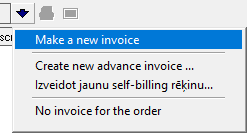](https://ozols.lv/doc/uploads/images/gallery/2022-05/image-1653997088187.png) **The invoice template** window allows you to: \- Check the information included in the invoice; \- Write notes that will be included in red at the bottom of the invoice; \- Print or Email invoice; -Accept or cancel invoice confirmation. [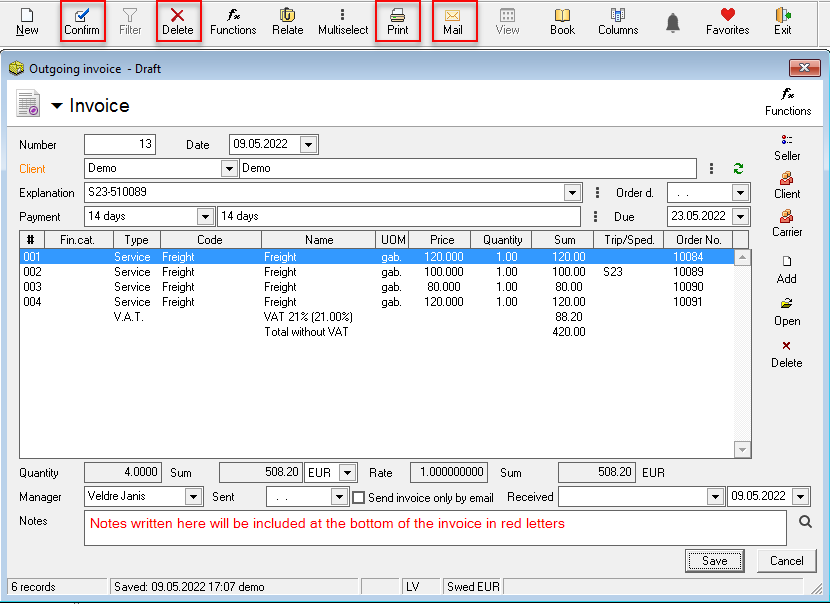](https://ozols.lv/doc/uploads/images/gallery/2022-06/image-1654070273126.png) -**Important! If you make any changes , press F5 to overwrite the contents of the invoice.**
### 3. Correcting an InvoiceThe content of the invoice is formed from the information entered in the client's order. Therefore, if you need to correct the invoice, you must correct the order and then regenerate the invoice.
If the income from client changes or additional services are added after creating the invoice, select**[](https://doc-ozols-lv.translate.goog/uploads/images/gallery/2022-04/image-1649143460017.png?_x_tr_sl=lv&_x_tr_tl=en&_x_tr_hl=en&_x_tr_pto=wapp)**and **regenerate the content of the invoice.**
To delete an invoice, open the invoice template, then 1\. Cancel confirmation; 2\. Click Delete Invoice. [](https://ozols.lv/doc/uploads/images/gallery/2022-06/image-1654070649062.png) ### 4. Invoice with CMROZOLS TMS has option to add CMR to clients order. If CMR is added, it is easy to e-mail it together with Invoice
The default invoice sending method is defined in the Client / Partner card.
**POD or CMR** \- CMR is added to the Client's order page **"Attachment(s)"** in pdf, png or jpg format [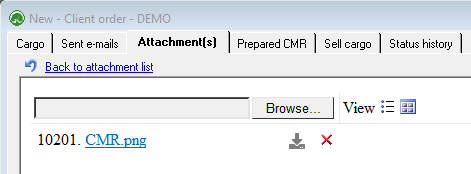](https://ozols.lv/doc/uploads/images/gallery/2022-06/image-1654070926246.png) ### 4.1. Sending an invoice by e-mail: [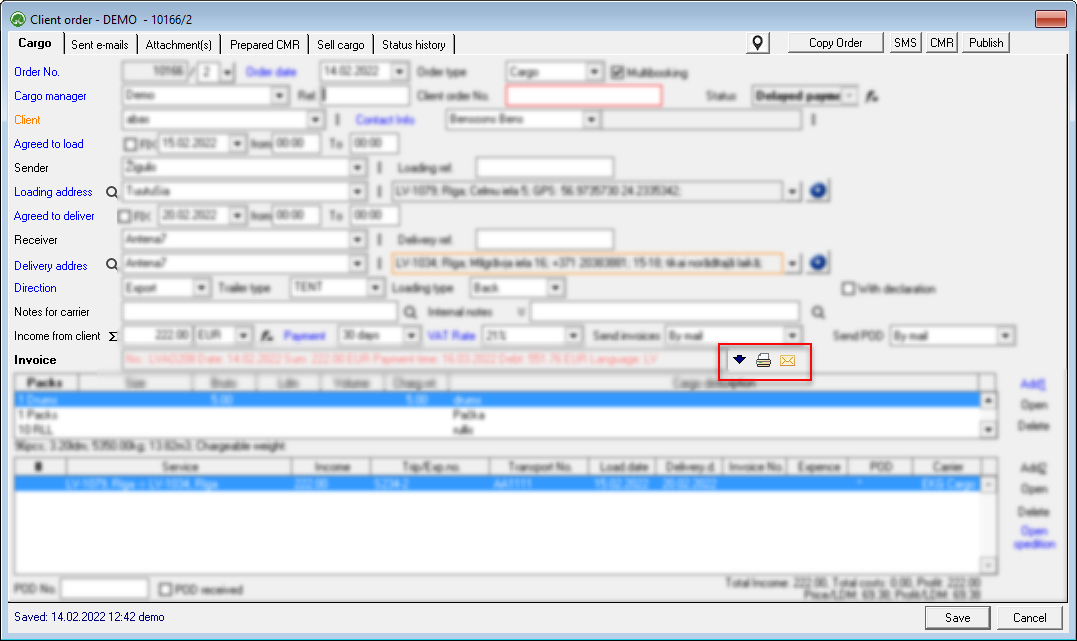](https://ozols.lv/doc/uploads/images/gallery/2022-06/image-1654071458563.png) \- In the Client Order window, open the Invoice by clicking [](https://doc-ozols-lv.translate.goog/uploads/images/gallery/2022-04/image-1649143460017.png?_x_tr_sl=lv&_x_tr_tl=en&_x_tr_hl=en&_x_tr_pto=wapp) \- To send an email: click [](https://doc-ozols-lv.translate.goog/uploads/images/gallery/2022-04/image-1649156523858.png?_x_tr_sl=lv&_x_tr_tl=en&_x_tr_hl=en&_x_tr_pto=wapp) \- The email window opens. Make sure the information is correct and if needed, the CMR is added to email. Then click **send**. \- Print the invoice by clicking [](https://doc-ozols-lv.translate.goog/uploads/images/gallery/2022-04/image-1649152583657.png?_x_tr_sl=lv&_x_tr_tl=en&_x_tr_hl=en&_x_tr_pto=wapp). The invoice will open in pdf format in your computer's web browser. \- After sending the email, the status of the Order automatically changes to **Invoice sent**.If the Invoice is to be emailed together with the CMR, it must be checked in the attachment before sending!
### 4.2. Sending an invoice by mail: \- In the Client Order window, open the Invoice by clicking [](https://doc-ozols-lv.translate.goog/uploads/images/gallery/2022-04/image-1649143460017.png?_x_tr_sl=lv&_x_tr_tl=en&_x_tr_hl=en&_x_tr_pto=wapp) \- Click [](https://doc-ozols-lv.translate.goog/uploads/images/gallery/2022-04/image-1649152583657.png?_x_tr_sl=lv&_x_tr_tl=en&_x_tr_hl=en&_x_tr_pto=wapp)to open the invoice in a web browser in pdf format and then send it to the printer for printing in paper format \- When the Invoice is sent by post, the status of the order **must be manually set to "Invoice sent"!**If the invoice is sent by e-mail and post, this is handled as a postal mailing and the status **"Invoice sent"** must be entered manually!
# One invoice for many orders If necessary to issue one invoice for several Client orders, there are 2 approaches: 1. One invoice for several selected orders 2. [Add each order one by one to the outgoing invoice](#bkmrk-pas%C5%ABt%C4%ABjuma-log%C4%81-piev) #### 1. One invoice for several selected orders 1. Open **the Client order filter;** 2. Mark **Outgoing invoice - Not issued;** 3. Selects **the Client to whom invoices for orders must be issued;** 4. Confirm the filter. [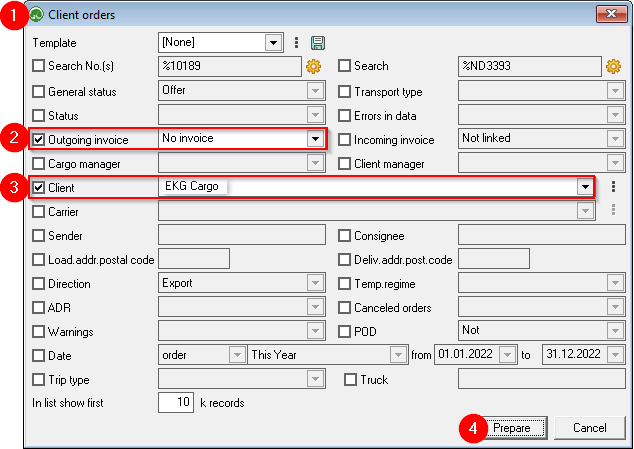](https://ozols.lv/doc/uploads/images/gallery/2022-09/image-1662550258220.png) 5. Press the **Muti select**[](https://ozols.lv/doc/uploads/images/gallery/2022-06/image-1654595946120.png) button ; 6. While holding the **Ctrl key with the mouse**, mark the orders for which an invoice must be created; 7. Press the **Functions** [](https://ozols.lv/doc/uploads/images/gallery/2022-05/image-1651737125163.png)button ; 8. Chooses to create an outgoing invoice for marked orders; 9. Selects **New invoice**, if a new invoice needs to be created, or selects an invoice **already created** for this **client**; 10. **Save** - a prepared invoice will open. Read about further steps [here .](https://ozols.lv/doc/books/ozols-tms-english/page/61-outgoing-invoice-with-cmr) [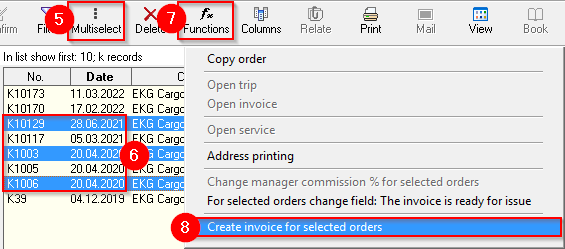](https://ozols.lv/doc/uploads/images/gallery/2022-09/image-1662550798150.png) [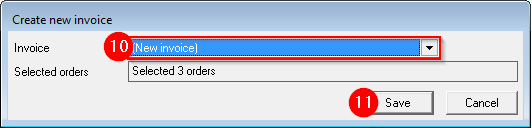](https://ozols.lv/doc/uploads/images/gallery/2022-09/image-1662550911159.png) #### 2. Add each order one by one to the outgoing invoice 1. Open the **Client order** , which will be added as the first in the combined invoice to the Client. 2. Selects **Create a new invoice** and save. 3. Open the next **order of the same Customer** , which must be added to the combined invoice, and select Add to invoice no. .... (this time the invoice previously created for the Customer will be visible here). [](https://ozols.lv/doc/uploads/images/gallery/2022-09/image-1662551224208.png) # Selecting a bank account in an outgoing invoiceIf your company has several bank accounts, you can choose which one(s) to show on your outgoing invoices. You can set it in Partner's card.
To add new Bank account or make changes to existing ones, you have to contact OZOLST TMS support team.
#### There are 3 options: 1. [**Default**, when your company's **main bank account or accounts** are used for all Partners;](#bkmrk-2.-exceptional---alw) 2. [**Exceptional** , when Partner must **ALWAYS** have **specific bank account**;](#bkmrk-2.-exceptional---alw) 3. [**Variable , when Partner **SOMETIMES** needs **specific bank account**.](#bkmrk-da%C5%BDreiz-j%C4%81nor%C4%81da-cit) #### 1. Standard or Default account in invoices - This is your company's Bank Account Number, which is defined for all transactions by default. - Several bank account numbers may be included here and will appear on the invoice - If the transaction is in a different currency, e.g. USD, then Ozols will automatically include the account that works with USD. #### 2. Exceptional - ALWAYS specific Bank account for selected Partner **Ozols > Contacts > Lists > All Partners > Open the Partner card** 1. Choose the page **Other data;** 2. find ****Bank account group and select desired Bank account, that will be ****ALWAYS**** used for this Partner.**** [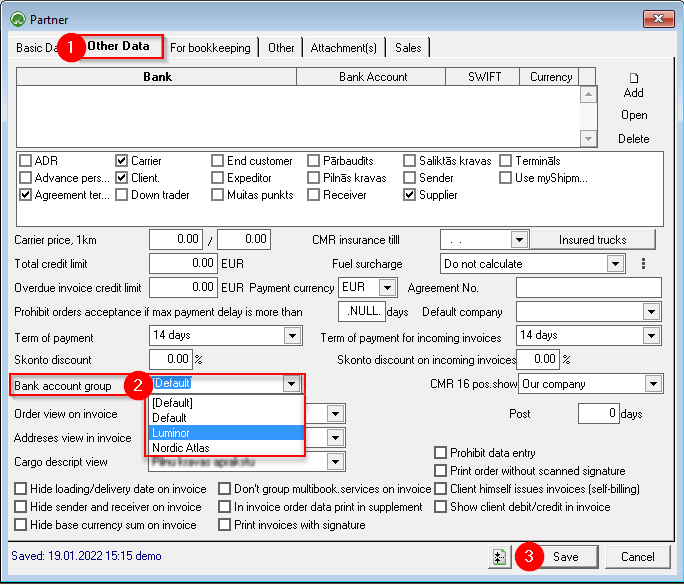](https://ozols.lv/doc/uploads/images/gallery/2022-09/image-1662553489809.png) #### 3. Variable - SOMETIMES a different bank account must be specified 1\) Open the outgoing invoice. For example: **OZOLS > Payments > Documents > Outgoing invoices > open invoice.** 2) If the invoice is closed, **cancel the confirmation** (1) 3\) Press the **Client** (2) and select **the Bank account** from the list (3) [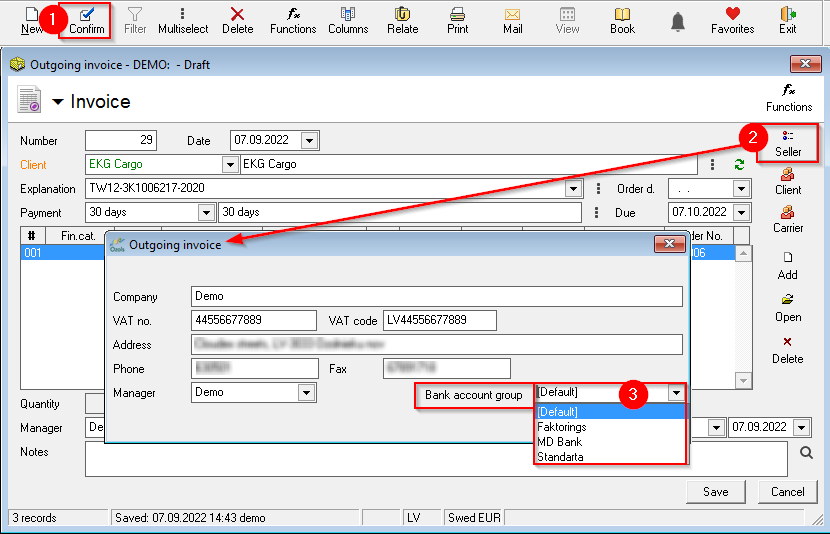](https://ozols.lv/doc/uploads/images/gallery/2022-09/image-1662553981153.png) # Outgoing invoice paymentImportant! OZOLS TMS provides two options - automated and manual outgoing invoice.
Only one of options can be used for the accounting period!
#### Contents: 1. [Payment of outgoing invoices - automated data import from the bank](#bkmrk-1.-payment-of-outgoi) 2. [Linking outgoing invoices with incoming bank payments](#bkmrk-4.-ien%C4%81ko%C5%A1o-bankas-m) 3. [Payment of outgoing invoices - manual data entry](#bkmrk-3.-outgoing-invoice-) #### 1. Payment of outgoing invoices - automated data import from the bank 1.1. Export Account report from your Bank Open your company's **internet bank** > prepare **the Bank Account report** for the desired period > **export it in FidaVista or ISO format.** > **Save this document to your computer.** 1.2. Open OZOLS TMS 1. **Finance > Documents** 2. **Bank incomings** 3. **Functions** 4. **Import payments from a bank** [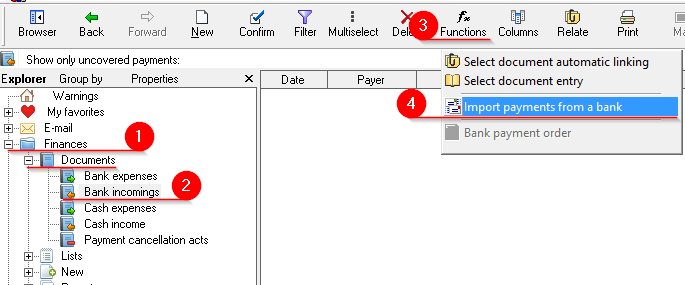](https://ozols.lv/doc/uploads/images/gallery/2022-09/image-1662628603969.png) 1.3. Import bank payments 1. Choose **Import from file** 2. Specify the location of the document to be imported on the computer. 3. Press **Import** 4. **Close** [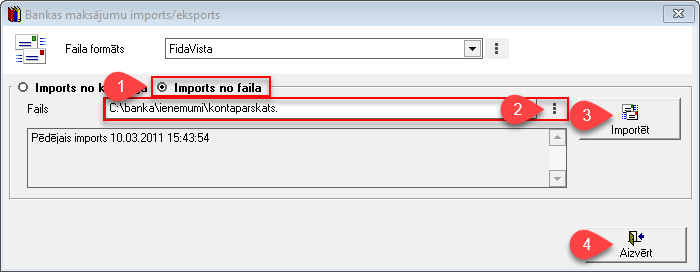](https://doc-ozols-lv.translate.goog/uploads/images/gallery/2022-03/image-1647521443054.png?_x_tr_sl=lv&_x_tr_tl=en&_x_tr_hl=en&_x_tr_pto=wapp) #### 2. Linking incoming bank payments with outgoing invoices 1. **OZOLS** > **Finances** > **Documents** > **Bank incomings** 2. Filter [](https://ozols.lv/doc/uploads/images/gallery/2022-05/image-1651585606852.png)> choose which documents to include 3. **Set** the desired filter. For example, **Show only uncovered payments** 4. Select the first payment and press the [](https://doc-ozols-lv.translate.goog/uploads/images/gallery/2022-03/image-1647522540789.png?_x_tr_sl=lv&_x_tr_tl=en&_x_tr_hl=en&_x_tr_pto=wapp) "Relate" button (Ctrl+D) [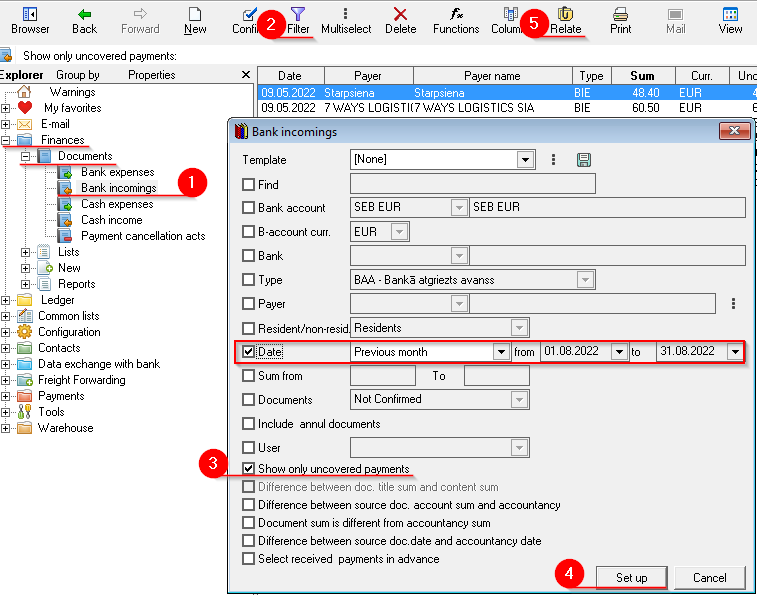](https://ozols.lv/doc/uploads/images/gallery/2022-09/image-1662629357125.png)**Settlement - Incoming payment** window consists of 3 areas: A) Incoming bank payment B) Covered invoices C) Uncovered invoices
5\) In the lower list (C) we have unpaid invoices. To relate payment with invoice Press the "Blue arrow up" (1) or double-click on invoice to relate it. If there are several invoices, select them by holding the Ctrl key 6\) With green arrows (1) switch between incoming payment documents 7\) With the filter (3), you can quickly find the required invoice by number, amount, etc. [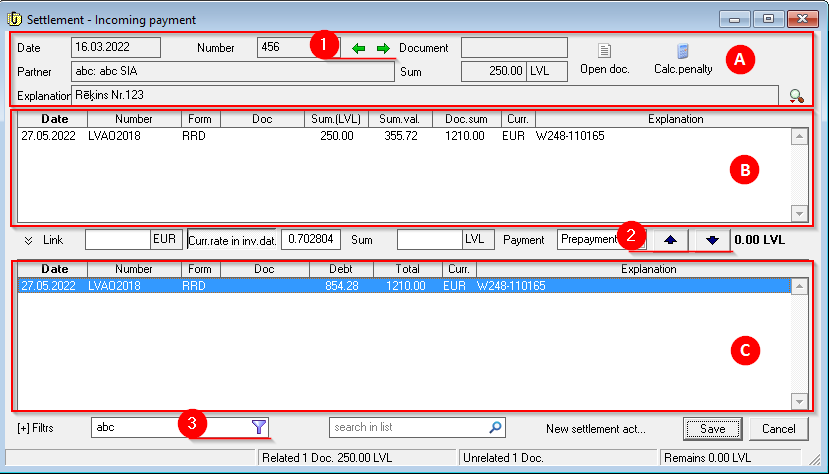](https://ozols.lv/doc/uploads/images/gallery/2022-09/image-1662630566554.png)When the Incoming Payment is linked to the corresponding invoice, the amount in the "Uncovered" column in the Bank incomings list will be zero.
#### 3. Outgoing invoice payment - manual data entry 1. Open the outgoing invoice to which the incoming payment should be linked > **Payments** > **Documents** > **Outgoing invoices** 2. **Mark the desired entry and press Functions [](https://ozols.lv/doc/uploads/images/gallery/2022-05/image-1651737125163.png)** in the toolbar 3. Select **Create bank incoming payment** 4. Select **Incoming Payment** 5. Enter the required information manually 6. Save [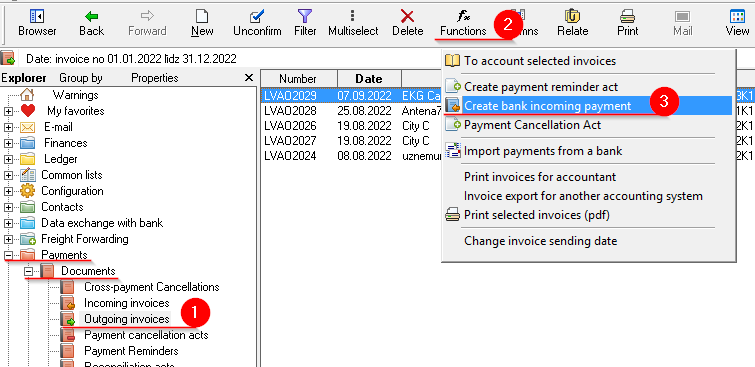](https://ozols.lv/doc/uploads/images/gallery/2022-09/image-1662631383730.png) [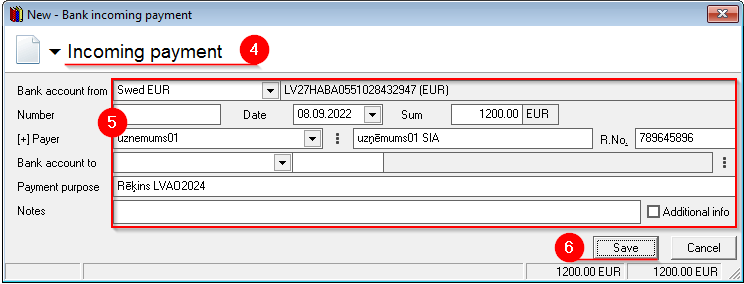](https://ozols.lv/doc/uploads/images/gallery/2022-09/image-1662631654303.png) # Unpaid outgoing invoices #### Two ways to select unpaid outgoing invoices 1\. **List of all unpaid** outgoing invoices: **OZOLS > Payments > Reports > Unpaid outgoing invoices** 2\. Outgoing invoices **grouped by Partners** : **OZOLS > Payments > Reports > Unpaid outgoing invoices (totals)** [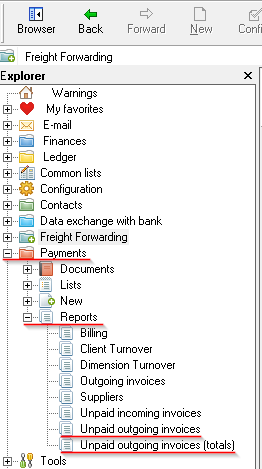](https://ozols.lv/doc/uploads/images/gallery/2022-09/image-1662644187444.png) 3\. With the help of Filter [](https://doc-ozols-lv.translate.goog/uploads/images/gallery/2022-05/image-1651585606852.png?_x_tr_sl=lv&_x_tr_tl=en&_x_tr_hl=en&_x_tr_pto=wapp), specify additional conditions for more accurate selection. [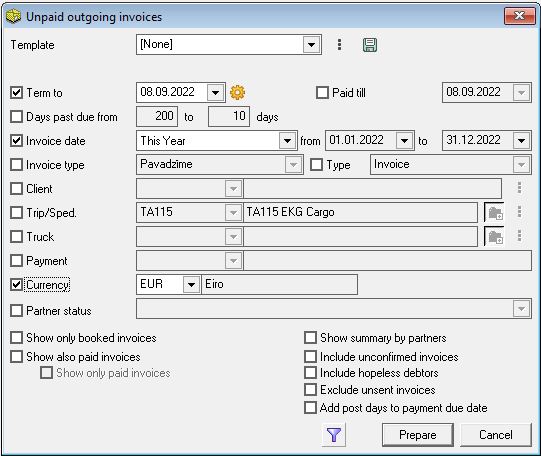](https://ozols.lv/doc/uploads/images/gallery/2022-09/image-1662644270016.png) ##### **See also** : [How to send payment reminders by e-mail?](https://ozols.lv/doc/books/ozols-tms-english/page/67-payment-reminders-by-e-mail) [List of debtors in your e-mail.](https://ozols.lv/doc/books/ozols-tms-english/page/e-mail-alerts) # Payment reminders by e-mail**To work with debtors** we recommend using the section created for this purpose. Press (F9) to open it. **Info [here](https://doc-ozols-lv.translate.goog/link/140?_x_tr_sl=lv&_x_tr_tl=en&_x_tr_hl=en&_x_tr_pto=wapp#bkmrk-page-title) .**
##### To quickly send a payment reminders to several partners at the same time: 1\. Filter unpaid invoices in section Unpaid outgoing invoices. Tutorial [here](https://ozols.lv/doc/books/ozols-tms-english/page/66-unpaid-outgoing-invoices) . 2\. Set the desired data **Filter** [](https://doc-ozols-lv.translate.goog/uploads/images/gallery/2022-05/image-1651585606852.png?_x_tr_sl=lv&_x_tr_tl=en&_x_tr_hl=en&_x_tr_pto=wapp) 3\. To mark several records, press **Multi select. [](https://doc-ozols-lv.translate.goog/uploads/images/gallery/2022-04/image-1649079539544.png?_x_tr_sl=lv&_x_tr_tl=en&_x_tr_hl=en&_x_tr_pto=wapp)** 4. While holding the **Ctrl key, mark** the necessary lines with the mouse 5\. Press **Functions** [](https://doc-ozols-lv.translate.goog/uploads/images/gallery/2022-05/image-1651737125163.png?_x_tr_sl=lv&_x_tr_tl=en&_x_tr_hl=en&_x_tr_pto=wapp) 6\. Choose: **Send a payment reminders via e-mail to selected Clients.** [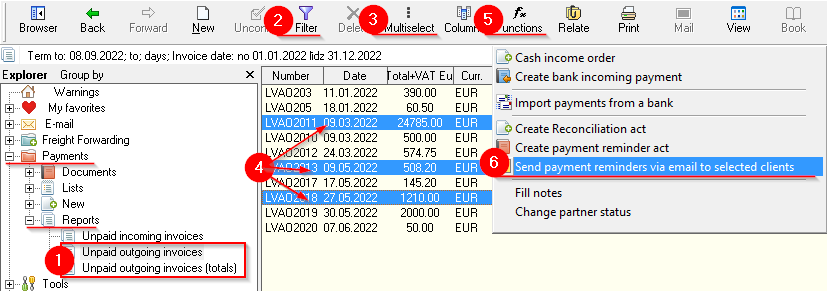](https://ozols.lv/doc/uploads/images/gallery/2022-09/image-1662715452866.png) # Work with debtors (F9)Pressing the function key F9 opens a window that opens a module with wide range of options for working with debtors.
1. List of debtors; 2. Summary of debt obligations; 3. Issued invoices; 4. Services provided; 5. Forming and sending payment reminders; 6. Sent payment reminders. [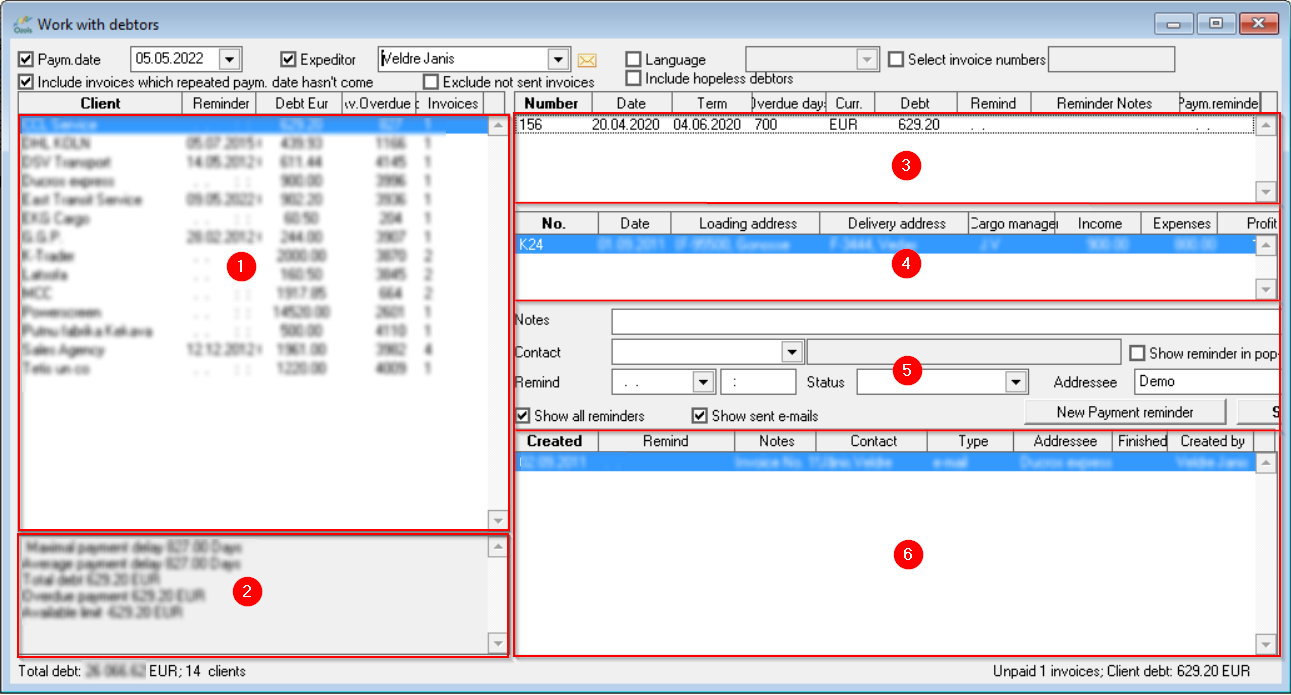](https://ozols.lv/doc/uploads/images/gallery/2022-09/image-1662716497410.png)If your company has a contract with a company that provides factoring services and you want to apply Factoring to the Partner:
##### 1. Create a bank account group called Factoring for your company 1. **OZOLS > Payments > Lists > Bank account groups** 2. Add... New Bank account group named **Factoring** **without ****specifying the account number!** [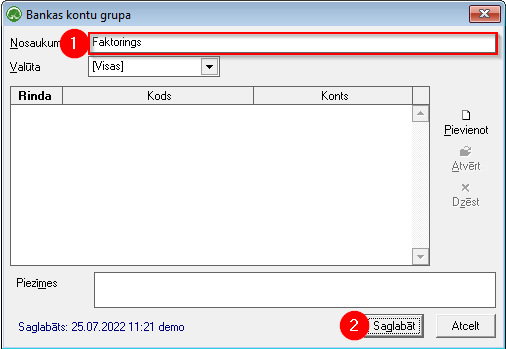](https://doc-ozols-lv.translate.goog/uploads/images/gallery/2022-07/image-1658826328840.png?_x_tr_sl=lv&_x_tr_tl=en&_x_tr_hl=en&_x_tr_pto=wapp) ##### 2. When an invoice is issued: 1. Open the outgoing invoice 2. Press the Seller button 3. Selects Bank account Group – Factoring and close the window 4. Press the search button 5. Select **New note**. (If the noteFactoring has already been created, select it.) 6. When creating a new one, name the note - Factoring 7. In the Description field, enter information about Factoring rules. 8. This field is filled automatically from the defined note (5) information and is included in the lower part of the invoice in red letters 9. The created invoice is sent to the Partner and Factoring service provider. [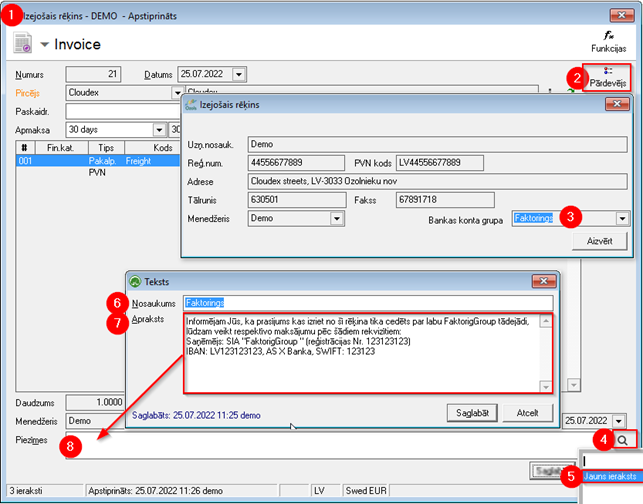](https://doc-ozols-lv.translate.goog/uploads/images/gallery/2022-07/image-1658826442289.png?_x_tr_sl=lv&_x_tr_tl=en&_x_tr_hl=en&_x_tr_pto=wapp)If the payment is unlinked with the intention of making corrections to the payment order, then the **payment must be re-added to the invoice** afterwards . You will find the [instructions here](https://ozols.lv/doc/link/231#bkmrk-4.-ien%C4%81ko%C5%A1o-bankas-m)
# Mutual Settlement Comparison Act The following steps must be taken to prepare the act of mutual settlement comparison: 1. OZOLS > Documents > Mutual settlement comparison act 2. A window opens New - Mutual settlement comparison act 3. Selects the required cooperation partner from the list 4. Document type - set **Invoices** 5. Press the button - **Fill content** 6. The act is ready for **printing** [](https://doc-ozols-lv.translate.goog/uploads/images/gallery/2020-11/ico-print.gif?_x_tr_sl=lv&_x_tr_tl=en&_x_tr_hl=en&_x_tr_pto=wapp) or sending by **e-mail** [](https://doc-ozols-lv.translate.goog/uploads/images/gallery/2022-03/image-1647260033166.png?_x_tr_sl=lv&_x_tr_tl=en&_x_tr_hl=en&_x_tr_pto=wapp) 7. Close the window by pressing ****Save**** [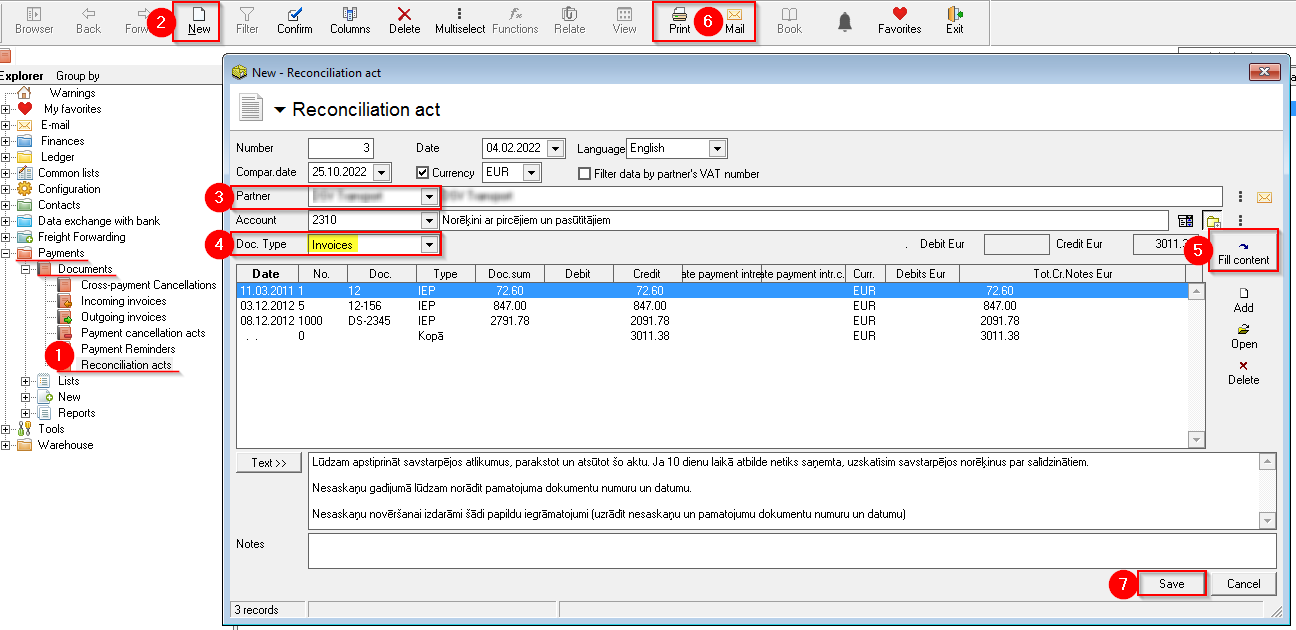](https://ozols.lv/doc/uploads/images/gallery/2022-10/image-1666686909099.png)