Information about the cargo status changes both manually and automatically depending on the settings in OZOLS TMS chosen by your company.
1. **Automatically:** - Based on the car's location (by loading data from the car's GPS navigation system). More info [here](https://translate.google.com/website?sl=lv&tl=en&hl=en&client=webapp&u=http://help.cloudex.lv/%23online-kravas-statusu-atjaunosana) . - Based on loading/delivery dates (Ozols or iOzols) entered by the manager. 2. **Manually:** - The status can be set in the **Client order** window by clicking. - Through the driver's application ( [MyOzols](https://translate.google.com/website?sl=lv&tl=en&hl=en&client=webapp&u=https://help.cloudex.lv/myozols-instrukcija/) ), which can be used by both the driver and the manager of the carrier. More info [here](https://translate.google.com/website?sl=lv&tl=en&hl=en&client=webapp&u=http://help.cloudex.lv/myozols-instrukcija/%23datu-ievade-par-uzkrausanu-piegadi) # SMS message to the driverYou can quickly send an **SMS to the driver with information about the cargo** from the Client's order and from the Trip/ Spedition windows.
1\) **Client order** in the window on the upper right side, press the button " **SMS** " **Trip/Spedition** in the window on the right side, press the button " **Functions** " 2\) **Select** the necessary information for SMS 3\) Send cargo information in the **Driver application (No installation of application is required!)** #### 1. SMS from the Customer's order window [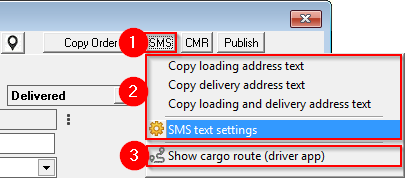](https://ozols.lv/doc/uploads/images/gallery/2022-09/image-1662467879468.png) #### 2. SMS from the Trip/Spedition window [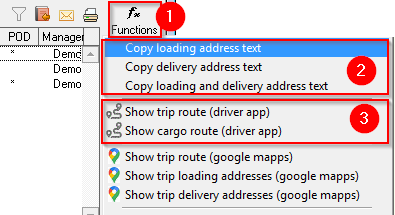](https://ozols.lv/doc/uploads/images/gallery/2022-09/image-1662469157659.png) #### 3. SMS text settings It is possible to customize the information that is sent to the driver: 1\. Language of the text message; 2\. **Show:** what information to include; 3\. Message text **preview** ; 4\. Tick here to set as default and not reopen this window next time; 5\. **Copy and close.** Freight delivery information has been copied. Open your desired application (whats-app etc.) and press "Paste" or ctrl+v to paste. [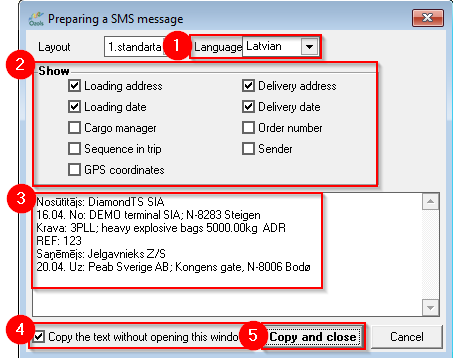](https://ozols.lv/doc/uploads/images/gallery/2022-09/image-1662469540161.png) # CMR how to create and print itHow to create and print the **CMR for the Client's order?**
1. Open the **Client's order** for which the CMR will be prepared 2. From the toolbar, select **Functions** 3. **Create CMR** [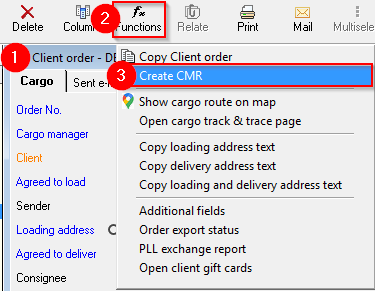](https://ozols.lv/doc/uploads/images/gallery/2022-09/image-1662465537510.png) 4. Based on the Client's order information, the program automatically fills in the CMR fields [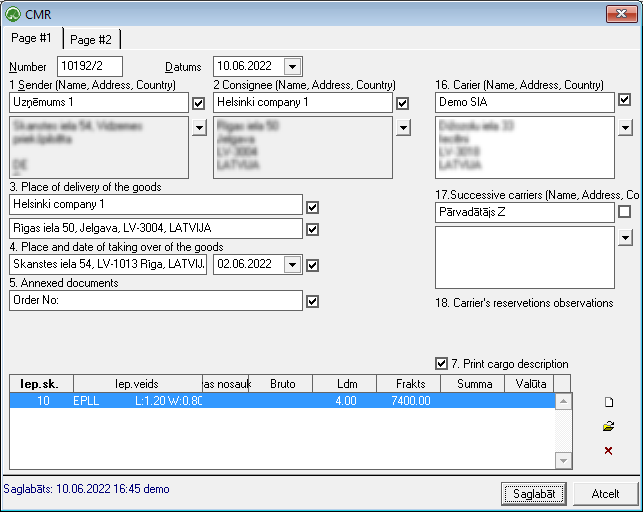](https://doc-ozols-lv.translate.goog/uploads/images/gallery/2022-06/image-1654868804743.png?_x_tr_sl=lv&_x_tr_tl=en&_x_tr_hl=en&_x_tr_pto=wapp) 5. If any of the fields have not been filled in automatically, you can do so by manually filling in the fields in the form 6. Use the toolbar command [](https://doc-ozols-lv.translate.goog/uploads/images/gallery/2022-07/image-1657700495704.png?_x_tr_sl=lv&_x_tr_tl=en&_x_tr_hl=en&_x_tr_pto=wapp) to print the CMR