The planning of a new **trip/spedition** can be started in two ways: 1. In the created **client order** with the command button **Add trip/exp.** 2. By Pressing the **F7** function key on the keyboard - opens the **New Trip/spedition window**
**Additional services** such as Cargo **Insurance, Handling Services, Export Declaration, Customs Services, Idle Time, Warehousing**, etc. are also registered as Trip/spedition. Find out more here.. [Learn more here.](https://doc-ozols-lv.translate.goog/books/ozols-desktop/page/papildus-pakalpojumi?_x_tr_sl=lv&_x_tr_tl=en&_x_tr_hl=en&_x_tr_pto=wapp)
# New Expedition #### 1. Open Client order window **OZOLS > Freight transportation > Documents > Client orders > \[Open the required Order\]** 1. Select the **cargo** for which the trip/spedition is to be created. 2. Press **Add spedition**. 3. Select **New** if creating a new trip/spedition. 4. Select **Existing** if the trip/spedition has already been created > A window opens where you select the corresponding trip. [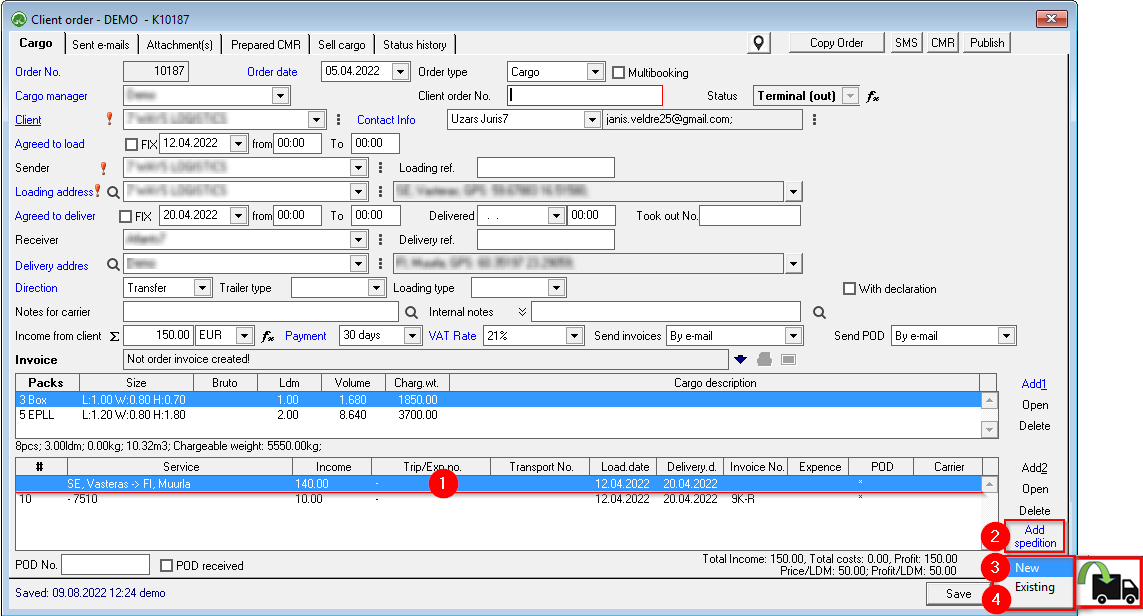](https://ozols.lv/doc/uploads/images/gallery/2022-08/image-1660038186101.png) #### 2. The window **New - Trip/spedition** opens 1. Choose the **type of carrier: Spedition** - classic expedition (cargo sale)**You can also create Trip/spedition:** - **Agreement** - Long-term contract with the carrier - **Own trip** - Trip with own transport - **Domestic** - Local transport
2. If the haulier's car has already carried cargo, entering its number will automatically fill in the Carrier name. 3. Enter the Carrier company name, if you have it. Double-click to enter a new Carrier. 4. If you know, enter Carrier Manager. Double-click to enter a new one. 5. Carrier Price: The amount that will be paid to the Carrier. Specify the VAT rate and payment term 6. Mark the trailer type (For example – TENT) 7. Internal notes if needed 8. Save and close. With that, the Expedition is created. [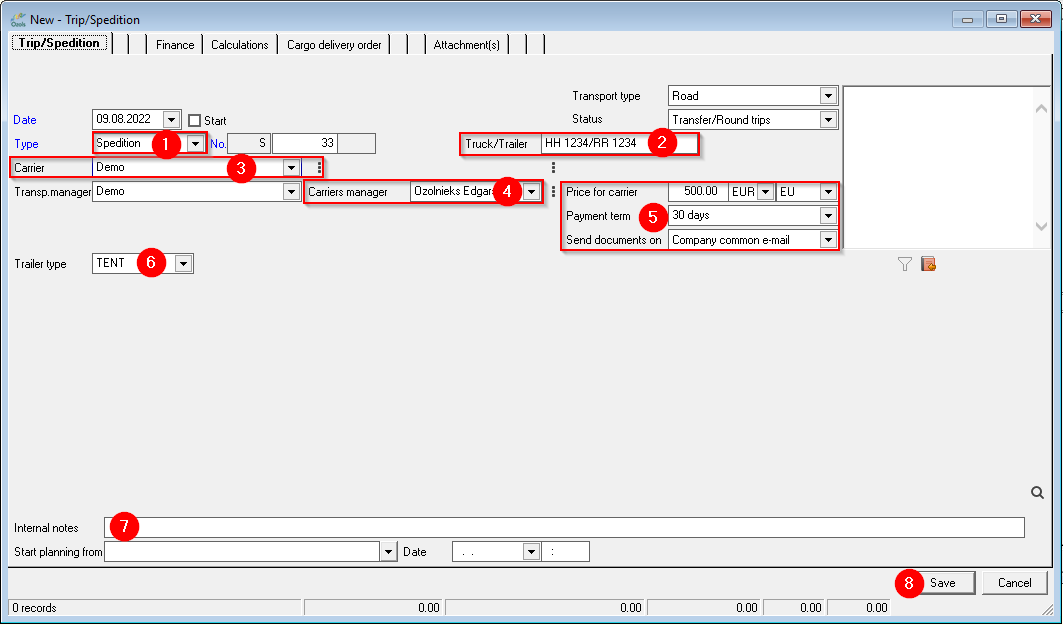](https://ozols.lv/doc/uploads/images/gallery/2022-08/image-1660038864115.png) ##### Next steps: ##### [**Transport Order** to cargo carrier](https://ozols.lv/doc/books/ozols-tms-english/page/2-transport-order-to-carrier) ##### [**Invoice** to Client](https://ozols.lv/doc/link/166#bkmrk-page-title) # Adding a ferry ticketFerry tickets can be added to a **specific trip** or sold as **a additional service**
#### 1. Adding a ferry ticket **to a Trip/Spedition** 1\) Open the Trip/Spedition to which you need to add ferry tickets; 2\) Select **Export ferry** as needed and click [](https://doc-ozols-lv.translate.goog/uploads/images/gallery/2022-04/image-1651154858190.png?_x_tr_sl=lv&_x_tr_tl=en&_x_tr_hl=en&_x_tr_pto=wapp) to **add ferry** or o**pen an existing** one; 3\) Select **Import ferry** as needed and press [](https://doc-ozols-lv.translate.goog/uploads/images/gallery/2022-04/image-1651154858190.png?_x_tr_sl=lv&_x_tr_tl=en&_x_tr_hl=en&_x_tr_pto=wapp)to **add ferry** or **open an existing** one.[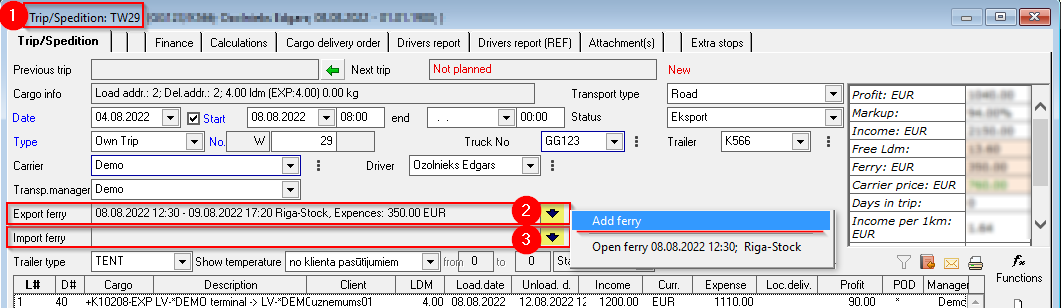](https://ozols.lv/doc/uploads/images/gallery/2022-08/image-1661950374675.png) #### 2. Filling in the **Ferry** window: 1\) **Attach ferry to a trip** : complete if the ferry tickets are for a specific Trip; 2\) **Car/Trailer number: mandatory;** 3) Ferry route: **mandatory**; With a double click, the **Ferry Route** window opens , where you enter the required information. If the information has already been entered, press [](https://doc-ozols-lv.translate.goog/uploads/images/gallery/2022-04/image-1651154764507.png?_x_tr_sl=lv&_x_tr_tl=en&_x_tr_hl=en&_x_tr_pto=wapp), and select previously defined ferry; 4\) **!!! IMPORTANT:** indicate the direction of the ferry - **Import, Export or Crossing** ; 5\) **Sale price:** This window is filled in if the ferry ticket is not attributed to Trip, but is sold as additional service for which an invoice must be issued; 6\) **SMS to the driver:**copy Ferry ticket information for sending to the driver (Clipboard) 7\) When the **Invoice** for tickets is available, add it by clicking here[](https://doc-ozols-lv.translate.goog/uploads/images/gallery/2022-04/image-1651154858190.png?_x_tr_sl=lv&_x_tr_tl=en&_x_tr_hl=en&_x_tr_pto=wapp); - The other fields are filled depending on the available information. [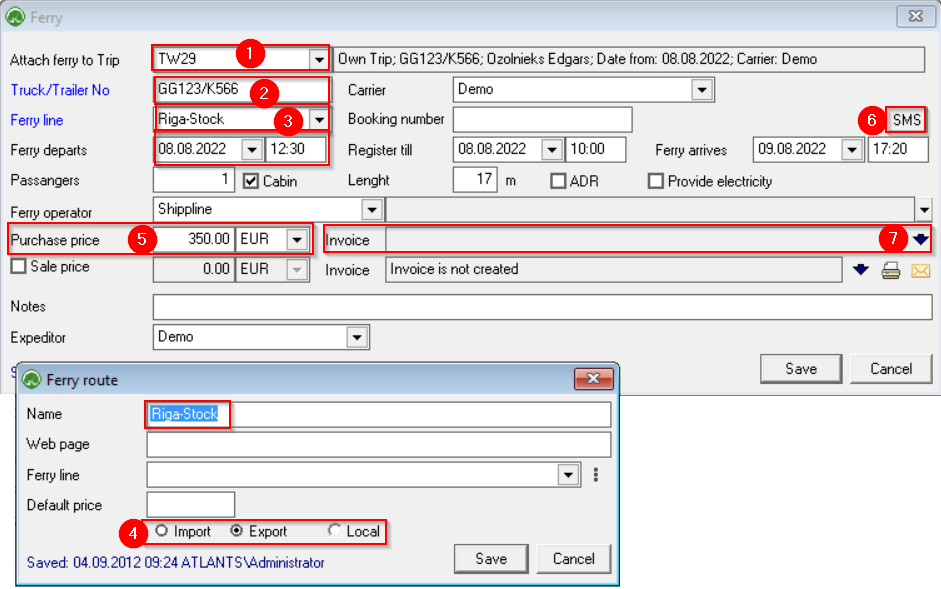](https://ozols.lv/doc/uploads/images/gallery/2022-09/image-1662374214041.png)[How to add Invoice for Ferry tickets?](https://doc-ozols-lv.translate.goog/books/ozols-desktop/page/rekins-par-pramja-biletem?_x_tr_sl=lv&_x_tr_tl=en&_x_tr_hl=en&_x_tr_pto=wapp)
# What is the benefit of linking to a navigation system? 1. **Trip Planning Window Information:** - Access to the truck's location (postcode and city). - Real-time data on the time and distance to the next loading address. - Visual representation of the trip route on the map, along with the machine's current location. - Details about the start time of the working day and the hours driven on that day. - Automatic load status updates. - When approaching a loading or delivery address, the load status is changed to "Approaching loading address" or "Approaching delivery address." - Upon arrival at a loading or delivery address, the load status is automatically updated to "Arrived at loading address" or "Arrived at delivery address." - Monitoring the duration the truck has spent at loading or delivery addresses. - GPS date and time of arrival at the loading address. 2. **Driver App:** - Display of the truck's current location. - Information on the time and distance to the next stacking address. 3. **Customer Portal:** - Customers can track real-time status changes online. - Option to view the location of the load or machine. The truck utilizes the MAPON navigation system, enabling features such as: - Recording trip speedometer readings at the beginning and end of each trip, along with GPS-tracked kilometers traveled during the trip. - Calculation of allowances per trip based on the country. - Assignment of the correct driver to each vehicle at the start of the day through the Ozols system. This integration with the navigation system enhances operational efficiency and provides valuable insights into the status and progress of deliveries.