Once the order is registered in OZOLS TMS, you must send the Client a Shipping Order Confirmation or a TRANSPORT ORDER - AGREEMENT confirming that the order has been accepted.
OZOLS TMS prepares these documents automatically, based on the information entered in the order and the information defined by your company. It is possible to add your signature and company seal to the contract ( [instructions here](https://ozols.lv/doc/books/ozols-tms-english/page/4-signature-with-stamp-on-orders-and-invoices)[ ](https://ozols.lv/doc/books/ozols-tms-english/page/4-signature-with-stamp-on-orders-and-invoices)). To send confirmation, open the specific customer's order, then: 1. **press Mail** [](https://doc-ozols-lv.translate.goog/uploads/images/gallery/2022-03/image-1647260281529.png?_x_tr_sl=lv&_x_tr_tl=en&_x_tr_hl=en&_x_tr_pto=wapp) on the toolbar 2. **Order to client or** 3. **Inform Client for cargo acceptance** 4. Make sure that the automatically generated e-mail contains the desired information and press **Send**. [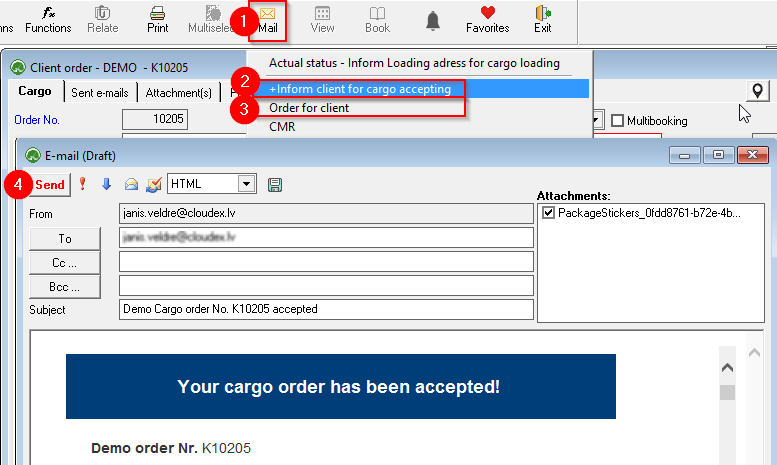](https://ozols.lv/doc/uploads/images/gallery/2022-08/image-1660052923669.png)**The sender's signature and stamp can be automatically added to the customer's order - contract. Instructions for adding a signature and seal [here.](https://ozols.lv/doc/books/ozols-tms-english/page/4-signature-with-stamp-on-orders-and-invoices)**
# Informal order confirmation to the clientIf the customer has sent the order informally (Whatsapp, Skype, e-mail, phone call), you can prepare and place the client's order on the client's behalf. To do this, you must first enter the **Client's order** you have received in OZOLS and then you can send it to the Client:
**The sender's signature and stamp** can be automatically added to the client's order - contract . Instructions for adding a signature and stamp are [here .](https://ozols.lv/doc/books/ozols-tms-english/page/4-signature-with-stamp-on-orders-and-invoices)