The Forwarder surface is created specifically at the request of our customers and combines functions that are directly related to the freight forwarder's work. It provides an opportunity to quickly select the necessary records with the help of filters, to plan and manage the Forwarder's work.
Forwarders work surface is **opened** by pressing **[Function key](https://doc-ozols-lv.translate.goog/link/119?_x_tr_sl=lv&_x_tr_tl=en&_x_tr_hl=en&_x_tr_pto=wapp#bkmrk-page-title) F8** , or **Main menu** > **Window** > **Forwarders desktop**
#### The forwarder desktop includes: 1. **Client orders** : All customer orders together; 2. **Services** : All services provided together; 3. **Trip/Spedition**: All Trip/Speditions and their cargo; 4. **Vehicles**: all information about your and contractors' machines; 5. ****Terminal** d**eliveries**** : Trip planning for terminal cargo; 6. **General planning**: Adding loads to flights; 7. **Delivery** : Current trips and it's cargo information; 8. **Client Analysis**: Work with clients - frequency, volumes, settlements, etc.; 9. ****Carrier a**nalysis**: Together, the directions of the carriers, profitability, etc. are visible; 10. **Comes in terminal** : Operations with incoming cargo (status, CMR labels, etc.); 11. **Takes away from the terminal** : Operations with outgoing cargo (status, CMR labels, etc.); A) **Filters** for record selection; B) Selected **Entries** . [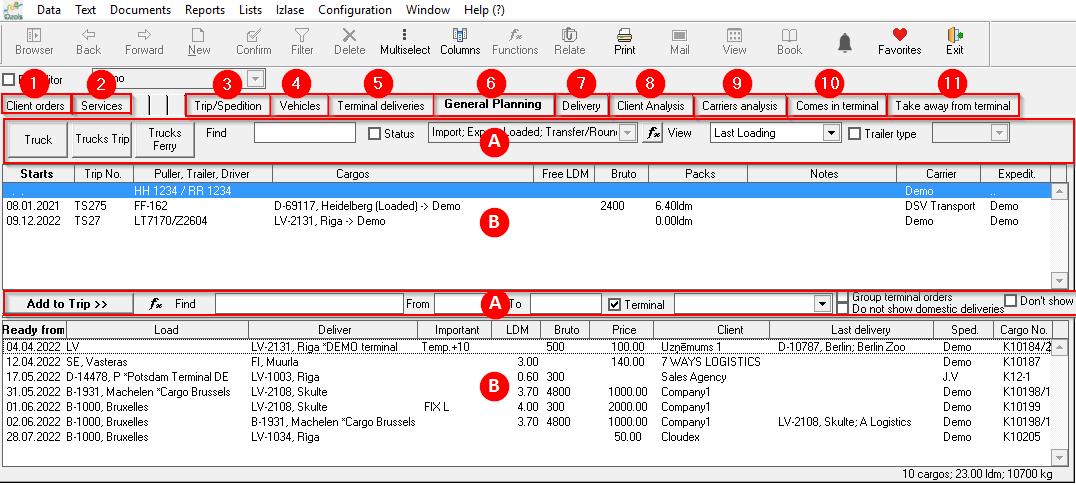](https://ozols.lv/doc/uploads/images/gallery/2022-09/image-1663581003155.png) # E-mail alertsOzols TMS already has standard automatic alerts set up by default, which are sent to the responsible persons by email. However, it is also possible to set them up individually for each user of OZOLS TMS.
##### Warnings are divided into: 1. User orders (created by user) 2. Orders available to the user (e.g. head of department) 3. Orders of all users (e.g. company manager) ##### Standard automatic warnings: 1. Prepaid invoices **are not paid until loading** 2. **The revenue** of the customer's order does not match the total amount of the issued invoices 3. Delivered cargo **has not** been **invoiced** 4. For customers whose **order** volume **decreases** or increases 5. **No prepaid** invoices issued 6. For open flights , the amount of cargo specified in the Customer's order **does not match** with what entered or left the warehouse 7. Cargo **is not added to the trip** 8. Cargo has been **added to the** trip 9. **Payment** for invoice **received** 10. Information **about debtors** ##### Additional warnings: 1. Orders for which POD ( **CMR** ) **is not sent** 2. Orders for which POD ( **CMR** ) **is not received** 3. Customers **credit limit is approaching or has already been exceeded** 4. No invoice **received** within 60 days 5. **No data entered** for own trips 6. Documents are missing **postings** 7. Unsent **invoices** 8. Cargo **is not included in the trip** 9. Permission expiry dates **for Cars/Trailers** 10. **Birthdays of** client contact persons # Order information in foreign language Because clients and suppliers are from different countries, documents often need to include information in a foreign language.Ozols TMS allows translation in client's language, for example content of invoice - **Type of service; VAT rate explanation; Payment term**
#### How to translate information into the client's language?1. Translation is possible for fields that have a symbol [](https://doc-ozols-lv.translate.goog/uploads/images/gallery/2022-04/image-1649835497887.png?_x_tr_sl=lv&_x_tr_tl=en&_x_tr_hl=en&_x_tr_pto=wapp) on the right side. It opens a window where you can enter the required translation.
#### Service type translation into a foreign language 1. **OZOLS > Payments > Lists > Service types** 2. Choose the service that needs translation 3. Press the translate button **[](https://ozols.lv/doc/uploads/images/gallery/2022-04/image-1649835497887.png)** 4. Fill in the translation in corresponding language [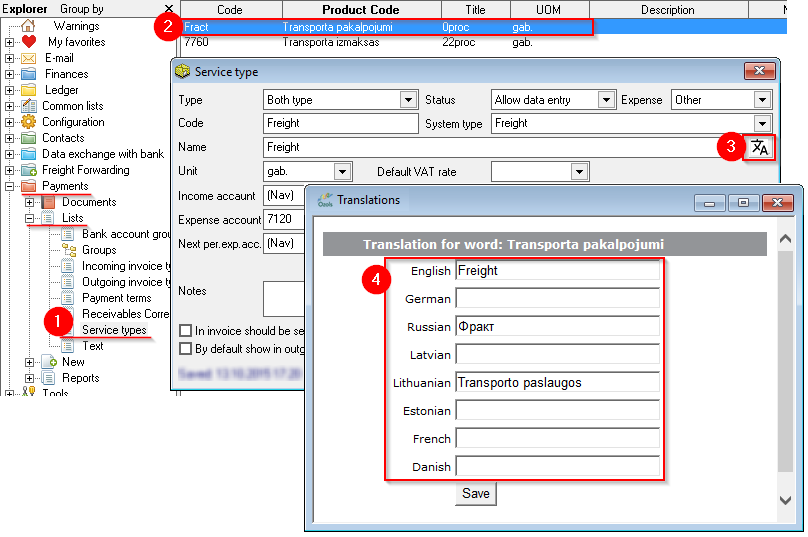](https://ozols.lv/doc/uploads/images/gallery/2022-10/image-1666616974911.png) # Client address in foreign languageOutgoing documents can include the Partner's contact details in a foreign language. To set this : 1) Indicate the preferred language of contact on the Client Card; 2) Translation of the contact details.
**Ozols > Contacts > Lists > All partners > \[Open Partner card\]** ##### Translation is available for the following fields of the Partner card: 1. Company Name 2. Contact person 3. Address [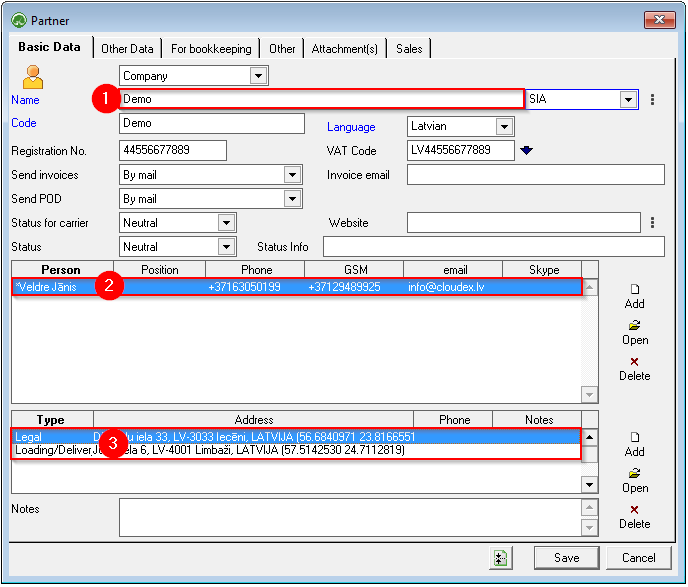](https://ozols.lv/doc/uploads/images/gallery/2022-10/image-1666604037076.png) ##### To enter a translation: 1. Select the desired field and press **the right mouse button** ; 2. A window opens in which you choose **translate** ; 3. **Make an entry** in the desired language and save. [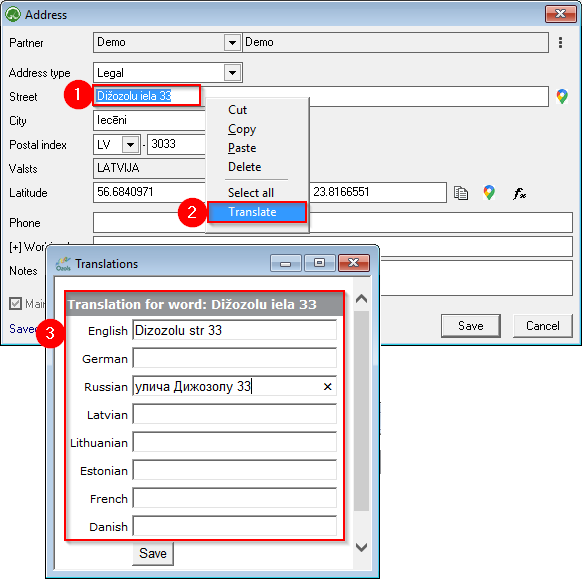](https://ozols.lv/doc/uploads/images/gallery/2022-10/image-1666604687973.png)In future outgoing documents, OZOLS TMS will insert contact information in the Partner's language.
#### See also: Information in the client's language - foreign language Contract terms in the customer's foreign language # How to change the Document's sequence numberFor documents that have automatic sequential numbering, it is possible to set the number of the next document.
1. **Open** the desired document (e.g. outgoing invoice) 2. In the **Number** window, press **the right mouse button [](https://doc-ozols-lv.translate.goog/uploads/images/gallery/2022-08/image-1660830329254.png?_x_tr_sl=lv&_x_tr_tl=en&_x_tr_hl=en&_x_tr_pto=wapp)** . A window opens - **Configure next document number** 3. In **the Continue numbering from** window, enter the desired number 4. **Save** changes [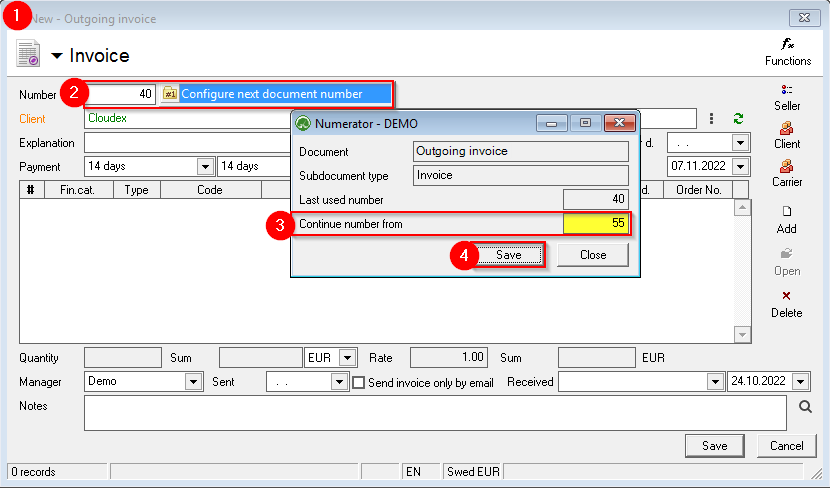](https://ozols.lv/doc/uploads/images/gallery/2022-10/image-1666606047239.png) # Work with several companiesHow to work if you have access to several company data bases?
1. [Switching between companies](#bkmrk-1.-p%C4%81rsl%C4%93g%C5%A1an%C4%81s-star) 2. [Choose the company in the New Customer's order](#bkmrk-2.-uz%C5%86%C4%93muma-izv%C4%93le-j) 3. [Set the default company for the cooperation Partner](#bkmrk-4.-defin%C4%93t-noklus%C4%93to) 4. [Access shortcut to database of the other company](#bkmrk-3.-k%C4%81-izveidotam-pas) 5. [How to change the company for a created order?](#bkmrk-5.-k%C4%81-izveidotam-pas) 6. [How to change company for incoming invoice?](#bkmrk-5.-k%C4%81-ien%C4%81ko%C5%A1ajam-r%C4%93) 7. Working with separate databases of several companies #### 1. Switching between companies 1. Help 2. Choose company 3. Select desired company 4. If you check [](https://ozols.lv/doc/uploads/images/gallery/2022-08/image-1660144023381.png) the Consolidation, the data of all companies will be displayed together. If not, they will be separated! 5. If you check [](https://ozols.lv/doc/uploads/images/gallery/2022-08/image-1660144023381.png) the option to choose the company will be given when opening OZOLS TMS [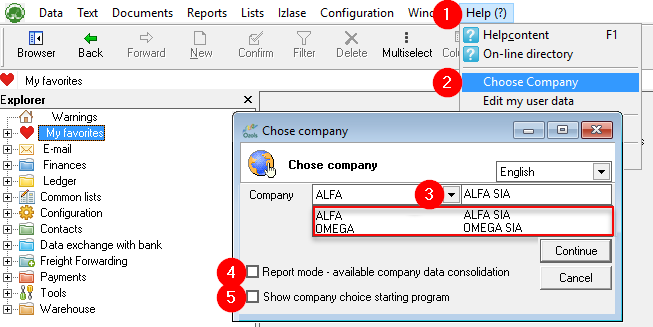](https://ozols.lv/doc/uploads/images/gallery/2022-09/image-1663836931651.png) #### 2. Choose the company in the New Customer's order [](https://ozols.lv/doc/uploads/images/gallery/2022-09/image-1663837231026.png) #### 3. Set the default company for the cooperation PartnerIt is possible for you to determine which of your companies to use by default in cooperation with the specific Partner.
1. Open **the Partner card**; 2. Open the **Other data** section; 3. Select **Default Company**.[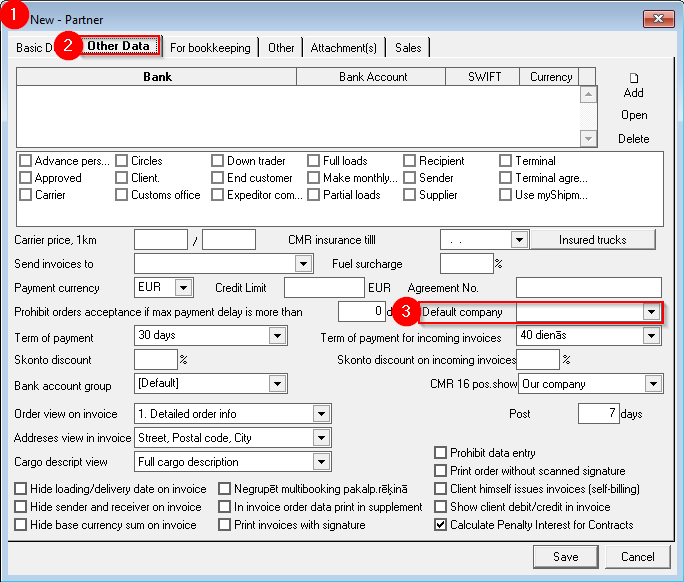](https://ozols.lv/doc/uploads/images/gallery/2022-09/image-1663838556445.png) #### 4. Access shortcut to database of the other company If you have two or more companies with separate OZOLS TMS access , it is possible to create a shortcut to each of these companies. Instructions can be found [here](https://doc-ozols-lv.translate.goog/books/ozols-desktop/page/piekluves-iscels-uz-otra-uznemuma-datu-bazi-ozols-tms?_x_tr_sl=lv&_x_tr_tl=en&_x_tr_hl=en&_x_tr_pto=wapp) . #### 5. How to change the company for a created order?If you have several companies available and you have entered the Customer's order and/or Trip/Expedition **to the wrong company**
1. Open **the Customer's order or Trip/Spedition** 2. Press **Shift +F4** 3. **Change** company 4. Click the **Edit button** 5. **!!!** Close **the Customer's order or Trip/Spedition by** pressing the **Cancel button !!! [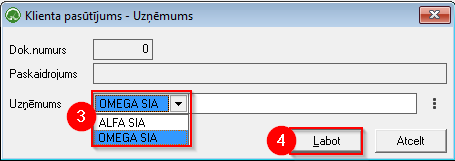](https://doc-ozols-lv.translate.goog/uploads/images/gallery/2022-08/image-1660547234177.png?_x_tr_sl=lv&_x_tr_tl=en&_x_tr_hl=en&_x_tr_pto=wapp) [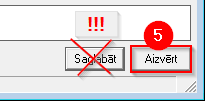](https://doc-ozols-lv.translate.goog/uploads/images/gallery/2022-08/image-1660546954868.png?_x_tr_sl=lv&_x_tr_tl=en&_x_tr_hl=en&_x_tr_pto=wapp)If the Invoice is also already issued from the wrong company, it must be deleted and a new Invoice created after correcting the company (shift+F4).
#### 6. How to change company for incoming invoice? 1. Open **the Customer's Incoming Invoice** 2. Press **Shift +F4** 3. **Change** company 4. Click the **Edit button** 5. **!!!** Close **the Incoming invoice by** pressing the **Close button!!!** [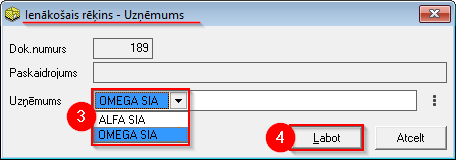](https://doc-ozols-lv.translate.goog/uploads/images/gallery/2022-08/image-1660547135664.png?_x_tr_sl=lv&_x_tr_tl=en&_x_tr_hl=en&_x_tr_pto=wapp) [](https://doc-ozols-lv.translate.goog/uploads/images/gallery/2022-08/image-1660546954868.png?_x_tr_sl=lv&_x_tr_tl=en&_x_tr_hl=en&_x_tr_pto=wapp) # Access shortcut to another company's database OZOLS TMSIf you have **two or more companies with separate access to OZOLS TMS** , it is possible to create a shortcut to each of these companies. **Benefits**: 1. You only need **to enter a password when** opening company database; 2. **Open and work with several companies at the same time.**
1\) press search on the Windows desktop [](https://doc-ozols-lv.translate.goog/uploads/images/gallery/2022-06/image-1654508054375.png?_x_tr_sl=lv&_x_tr_tl=en&_x_tr_hl=en&_x_tr_pto=wapp); **2) OZOLS** is written in the search field ; 3\) Select **Open file location** ; [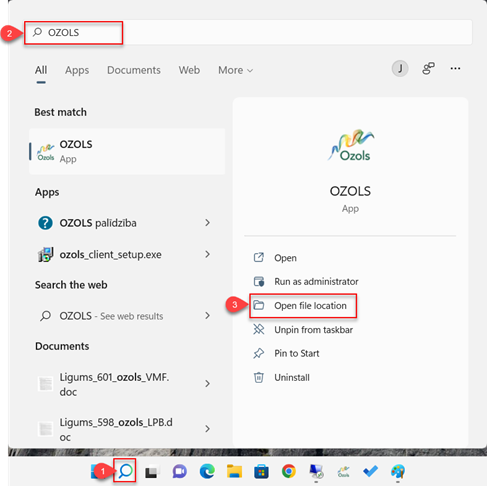](https://doc-ozols-lv.translate.goog/uploads/images/gallery/2022-06/image-1654508099489.png?_x_tr_sl=lv&_x_tr_tl=en&_x_tr_hl=en&_x_tr_pto=wapp) 4\) Select Open file location again until a folder opens where you can see a file called OZOLS.EXE [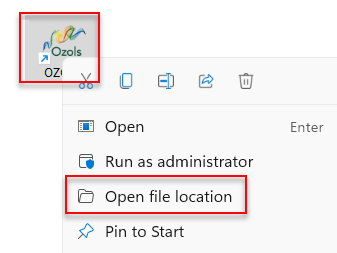](https://doc-ozols-lv.translate.goog/uploads/images/gallery/2022-06/image-1654508127686.png?_x_tr_sl=lv&_x_tr_tl=en&_x_tr_hl=en&_x_tr_pto=wapp) 5\) Create **a new Folder** with the name of the desired company. 6\) **Copy** the OZOLS.EXE file and place the copy in the **newly created folder** . **7) Create a shortcut** to the new OZOLS.EXE file on the desktop and **rename** it to fit the name of the desired company. 8\) Open Functions with the right mouse button and select **Properties.** [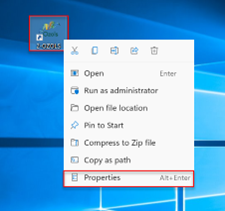](https://doc-ozols-lv.translate.goog/uploads/images/gallery/2022-06/image-1654678466131.png?_x_tr_sl=lv&_x_tr_tl=en&_x_tr_hl=en&_x_tr_pto=wapp) 9\) In the **Target** field , add the already existing record with server, company database and user information: 1. **Server** – Name of the server on which the company OZOLS TMS database is located; 2. **Database** – the username assigned to the company in the Ozols database; 3. **2** - the number two, which must be entered before the user's name; 4. **User** – the username assigned to your Ozols user account.**There must be a space** between these entries !
[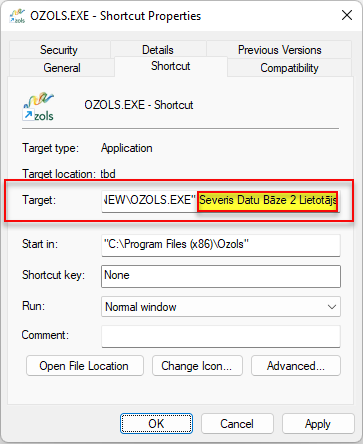](https://doc-ozols-lv.translate.goog/uploads/images/gallery/2022-06/image-1654693980944.png?_x_tr_sl=lv&_x_tr_tl=en&_x_tr_hl=en&_x_tr_pto=wapp)When the record has been updated, close the window by pressing **Apply** and **Ok** .
**Congratulations** ! You have created a separate access to the company account in OZOLS TMS! **Now you can simultaneously open all companies that are available to you in** OZOLS TMS on your computer.
# How to Delete ferry ticket To delete an incorrectly created ferry ticket: 1. Open the incorrect Ferry Ticket through Trip/Spedition [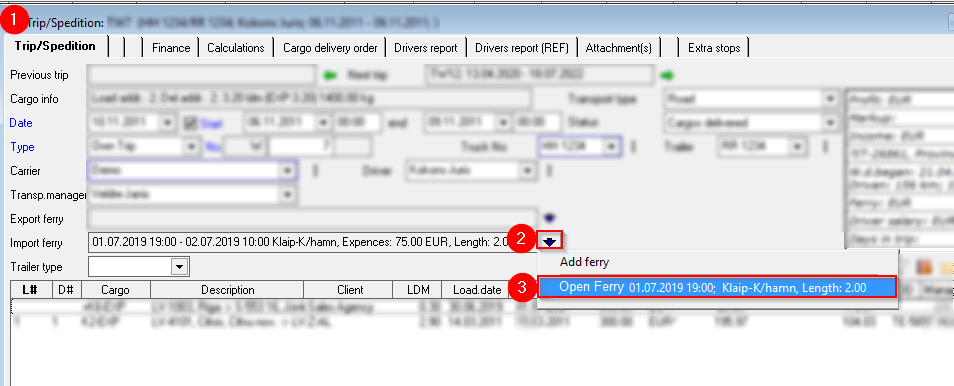](https://ozols.lv/doc/uploads/images/gallery/2022-09/image-1663588835313.png) 2. **Delete the Trip number from ticket** and **Save** changes. [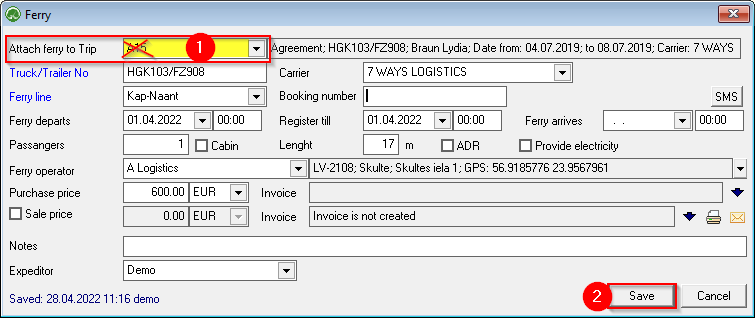](https://ozols.lv/doc/uploads/images/gallery/2022-10/image-1666619489813.png) 3. **OZOLS > cargo transportation > Reports > Ferry tickets** 4. **Find** the record you want, use the filter if necessary[](https://doc-ozols-lv.translate.goog/uploads/images/gallery/2022-05/image-1651585606852.png?_x_tr_sl=lv&_x_tr_tl=en&_x_tr_hl=en&_x_tr_pto=wapp) 5. Press **Delete** [](https://doc-ozols-lv.translate.goog/uploads/images/gallery/2022-08/image-1661511700515.png?_x_tr_sl=lv&_x_tr_tl=en&_x_tr_hl=en&_x_tr_pto=wapp) 6. **Confirm** the deletion of the record [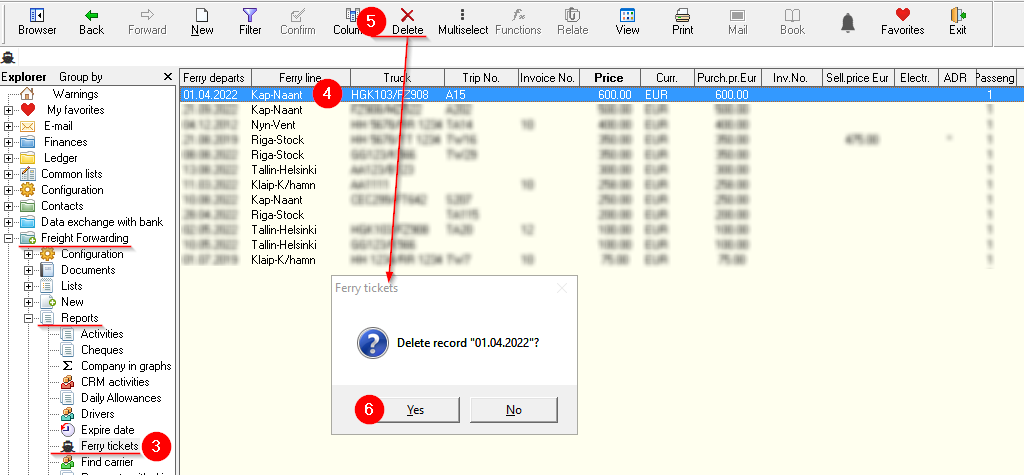](https://ozols.lv/doc/uploads/images/gallery/2022-10/image-1666620132769.png)